> For the complete documentation index, see [llms.txt](https://docs.phocassoftware.com/llms.txt). Markdown versions of documentation pages are available by appending `.md` to page URLs; this page is available as [Markdown](https://docs.phocassoftware.com/analytics/manage-subscriptions.md).

# Manage subscriptions

Stay on top of important changes by subscribing to favorites, dashboards, and alerts and receiving email notifications when they update.

{% hint style="warning" %}
The information on this page covers subscriptions in the Analytics, Dashboards and Financial Statements modules. For Flex Modes, see Manage subscriptions.
{% endhint %}

{% hint style="info" %}
**User permissions**:

* To subscribe to favorites and alerts, you need **Favorites** > **Subscribe**.
* To subscribe to dashboards, you need **Dashboards** > **Subscribe**.
* For favorites and alerts, the available file types depend on your **Query** > **Export** permissions.
  {% endhint %}

{% hint style="info" %}
**Note for administrators**:

* Before users can subscribe to items, [configure the SMTP settings](/administration/configuration.md#smtp).
* You control the available file types with the **Query** > **Export** [user permissions](/administration/users/add-update-user/user-permissions.md#query-permissions).
* You can also [manage subscriptions](/administration/subscriptions-administration.md) across your organization:
  * Subscribe or unsubscribe users on their behalf.
  * Edit users' subscription settings.
  * View who is subscribed to an item.
  * Control available subscription file types.
    {% endhint %}

Phocas sends subscription emails to the address in your account settings.

You can subscribe yourself to items. Sharing an item does not subscribe anyone automatically.

## Access the Subscribe option

There are several ways to start a subscription.

### From your homepage

On your homepage, locate the dashboard, favorite, Flex favorite, or alert. Click its menu button, then click **Subscribe**.

<figure><img src="https://900295827-files.gitbook.io/~/files/v0/b/gitbook-x-prod.appspot.com/o/spaces%2F7pj8v25BOyqZTdG5mdD1%2Fuploads%2FGX0SVEHKPvr5CG2Q3JOw%2Fimage.png?alt=media&#x26;token=946ac61c-e4a5-4b96-9c79-eaddc6b9f232" alt=""><figcaption></figcaption></figure>

### From a dashboard, favorite, or alert

You can subscribe to dashboards, favorites, and alerts in Analytics and Financial Statements.

* Open the dashboard, favorite, or alert. Click the blue arrow next to its name, then click **Subscribe**.
* When creating an alert, click **Create & Subscribe** in the **Create Alert** window.

<div align="left"><figure><img src="https://900295827-files.gitbook.io/~/files/v0/b/gitbook-x-prod.appspot.com/o/spaces%2F7pj8v25BOyqZTdG5mdD1%2Fuploads%2F9OO7oOoRSSX1vOUU7akk%2Fimage.png?alt=media&#x26;token=e4acdbc2-6530-4ab2-9085-59188976aaee" alt="" width="563"><figcaption><p>Subscribe to a dashboard</p></figcaption></figure></div>

<div align="left"><figure><img src="https://900295827-files.gitbook.io/~/files/v0/b/gitbook-x-prod.appspot.com/o/spaces%2F7pj8v25BOyqZTdG5mdD1%2Fuploads%2FFUXXeEtpPy4sYIwP7mUG%2Fimage.png?alt=media&#x26;token=7dc00928-b451-4f34-87dd-e3b15ed23c74" alt="" width="563"><figcaption><p>Subscribe to a favorite</p></figcaption></figure></div>

<div align="left"><figure><img src="https://900295827-files.gitbook.io/~/files/v0/b/gitbook-x-prod.appspot.com/o/spaces%2F7pj8v25BOyqZTdG5mdD1%2Fuploads%2FyDSkKsHLAjbRn1L2Pk4U%2Fimage.png?alt=media&#x26;token=c459eed8-4c12-4101-9b4e-e3c2e6977f2c" alt="" width="375"><figcaption><p>Subscribe to an alert</p></figcaption></figure></div>

## Configure the subscription

In the **Subscribe** window, select how and when you want to receive emails, then select **Save**.

The available options depend on the item type:

<table data-header-hidden data-search="false"><thead><tr><th></th><th></th><th></th></tr></thead><tbody><tr><td><strong>Option</strong></td><td><strong>Available for</strong></td><td><strong>Details</strong></td></tr><tr><td><strong>Type</strong></td><td>Favorites and alerts in Analytics and Financial Statements</td><td>Select the attached file format: <strong>PDF</strong>, <strong>CSV</strong>, <strong>XLSX</strong>, or <strong>HTML</strong>.</td></tr><tr><td><strong>Frequency: On scheduled database build</strong></td><td>Favorites and alerts in Analytics and Financial Statements</td><td>Sends an email whenever the underlying database builds.</td></tr><tr><td><strong>Frequency: Daily, Weekly, or Monthly</strong></td><td>Dashboards, favorites, and alerts in Analytics and Financial Statements</td><td>Sends the email on the days and time you select. Weekly subscriptions are sent every Monday by default. Monthly subscriptions are sent on the first day by default.</td></tr><tr><td><strong>Time</strong></td><td>Dashboards, favorites, and alerts in Analytics and Financial Statements</td><td>Select the delivery time. The default is 9 am in your account timezone. Emails might arrive up to one hour later.</td></tr><tr><td><strong>Don't send if there are no results</strong></td><td>Favorites and alerts in Analytics and Financial Statements</td><td>Select this checkbox to send emails only when results exist.</td></tr><tr><td><strong>Only send on</strong></td><td>Alerts in Analytics and Financial Statements</td><td>Select <strong>Red alert</strong>, <strong>Yellow alert</strong>, or <strong>Green alert</strong>. Select multiple statuses if required.</td></tr></tbody></table>

{% hint style="success" %}
Select **Test Now** to send a test email to your email address.
{% endhint %}

{% columns %}
{% column %}

<figure><img src="https://900295827-files.gitbook.io/~/files/v0/b/gitbook-x-prod.appspot.com/o/spaces%2F7pj8v25BOyqZTdG5mdD1%2Fuploads%2FWZvHs829KK0zGysgeTQ6%2Fimage.png?alt=media&#x26;token=af22076b-bd42-4f11-9a0c-df3c060ca060" alt=""><figcaption><p>Dashboard subscription options<br>(Analytics or Financial Statements)</p></figcaption></figure>

<figure><img src="https://900295827-files.gitbook.io/~/files/v0/b/gitbook-x-prod.appspot.com/o/spaces%2F7pj8v25BOyqZTdG5mdD1%2Fuploads%2FgVpPBZ2T7WznEFvuZOwf%2Fimage.png?alt=media&#x26;token=88f9b42a-36c6-46db-b7c2-2bb5fbc0949e" alt=""><figcaption><p>Alert subscription options<br>(Analytics or Financial Statements)</p></figcaption></figure>
{% endcolumn %}

{% column %}

<figure><img src="https://900295827-files.gitbook.io/~/files/v0/b/gitbook-x-prod.appspot.com/o/spaces%2F7pj8v25BOyqZTdG5mdD1%2Fuploads%2FqljRvqeOukn4moGIVfll%2Fimage.png?alt=media&#x26;token=a5c57c95-a516-4b4f-aee1-583d592b7e07" alt=""><figcaption><p>Favorite subscription options<br>(Analytics or Financial Statements)</p></figcaption></figure>
{% endcolumn %}
{% endcolumns %}

## Update or stop subscriptions

You can update subscription settings or unsubscribe within Phocas or from the subscription email.

For details about each subscription option, see the [Configure the subscription](#configure-the-subscription) above.

Administrators can manage subscriptions for all users.

### From your homepage

The **Subscriptions** tab on your homepage lets you manage all subscriptions in one place.

<figure><img src="https://900295827-files.gitbook.io/~/files/v0/b/gitbook-x-prod.appspot.com/o/spaces%2F7pj8v25BOyqZTdG5mdD1%2Fuploads%2FXfvVKaH0oYJDVbMTsMIn%2Fimage.png?alt=media&#x26;token=7a32ed18-c9e2-4db2-9408-eb59765ee6ef" alt=""><figcaption></figcaption></figure>

1. Locate the item you want to manage.
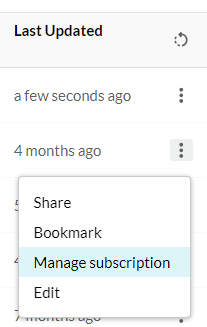
2. Click its menu button, then click **Manage subscription**.

   <div align="left"><figure><img src="https://900295827-files.gitbook.io/~/files/v0/b/gitbook-x-prod.appspot.com/o/spaces%2F7pj8v25BOyqZTdG5mdD1%2Fuploads%2Fgit-blob-d5c2553ddbbff125170fc965c2b3b8f1d79e6658%2F3437396048.png?alt=media" alt="image-20240409-032555.png" width="132"><figcaption></figcaption></figure></div>
3. Update the settings and click **Save**, or click **Unsubscribe**.

{% columns %}
{% column %}

<figure><img src="https://900295827-files.gitbook.io/~/files/v0/b/gitbook-x-prod.appspot.com/o/spaces%2F7pj8v25BOyqZTdG5mdD1%2Fuploads%2FDVKwi4ZrYPLOY0skx7bB%2Fimage.png?alt=media&#x26;token=dc181301-7930-4cc4-9e2e-ac9532b15cdb" alt=""><figcaption><p>Update a dashboard subscription</p></figcaption></figure>

<figure><img src="https://900295827-files.gitbook.io/~/files/v0/b/gitbook-x-prod.appspot.com/o/spaces%2F7pj8v25BOyqZTdG5mdD1%2Fuploads%2FopH28jSzXwuMgyP6VW7Y%2Fimage.png?alt=media&#x26;token=aa93145a-c47e-49c5-a852-e688c1384708" alt=""><figcaption><p>Update an alert subscription</p></figcaption></figure>
{% endcolumn %}

{% column %}

<figure><img src="https://900295827-files.gitbook.io/~/files/v0/b/gitbook-x-prod.appspot.com/o/spaces%2F7pj8v25BOyqZTdG5mdD1%2Fuploads%2FGyuzohppolWU1BDZrdz4%2Fimage.png?alt=media&#x26;token=645f9d30-883a-464c-bdbd-b2e1faa62aa6" alt=""><figcaption><p>Update a favorite subscription</p></figcaption></figure>
{% endcolumn %}
{% endcolumns %}

### From a dashboard, favorite, or alert

1. Open the dashboard, favorite, or alert.
2. Click the blue arrow next to its name, then click **Subscribe**.![](https://3905307611-files.gitbook.io/~/files/v0/b/gitbook-x-prod.appspot.com/o/spaces%2FitAvDF3MljQXV0rjHRP7%2Fuploads%2FbwMuDIiGa3r4jvtpLlu6%2Fimage.png?alt=media\&token=6c3e45ba-7bc9-4213-b938-bf867c9f8140)
3. Update the settings and click **Save**, or click **Remove** to unsubscribe.![](https://3905307611-files.gitbook.io/~/files/v0/b/gitbook-x-prod.appspot.com/o/spaces%2FitAvDF3MljQXV0rjHRP7%2Fuploads%2FILJaK4xJyRlEk0vAjwKa%2Fimage.png?alt=media\&token=6440907f-36e6-4310-b9d4-5d6e0442a000)

### From the subscription email

Dashboard, favorite, and alert subscription emails include an **Unsubscribe** link.

<figure><img src="https://3905307611-files.gitbook.io/~/files/v0/b/gitbook-x-prod.appspot.com/o/spaces%2FitAvDF3MljQXV0rjHRP7%2Fuploads%2F67qgmParWt4h3WEpjSrm%2Fimage.png?alt=media&amp;token=72254fd5-780e-447f-965e-fe5e206878de" alt=""><figcaption></figcaption></figure>


---

# Agent Instructions
This documentation is published with GitBook. GitBook is the documentation platform designed so that both humans and AI agents can read, navigate, and reason over technical content effectively. Learn more at gitbook.com.

## Querying This Documentation
If you need additional information that is not directly available in this page, you can query the documentation by asking a question.

Perform an HTTP GET request on the following URL with the `ask` and `goal` query parameters:

```
GET https://docs.phocassoftware.com/analytics/manage-subscriptions.md?ask=<question>&goal=<user_goal>
```

`ask` is the immediate question: it should be specific, self-contained, and written in natural language.
`goal` is what the user is ultimately trying to achieve, the reason they need the answer. Sharing it helps GitBook give you a better, more relevant answer. A goal is most helpful when it describes the outcome the user wants rather than restating the question. For example, with `ask=how do I create an API token`, a goal like `automate deployments from our CI pipeline` lets GitBook tailor the answer to that use case.

The response will contain a direct answer to the question and relevant excerpts and sources from the documentation.

Use this mechanism when the answer is not explicitly present in the current page, you need clarification or additional context, or you want to retrieve related documentation sections.