> For the complete documentation index, see [llms.txt](https://docs.phocassoftware.com/llms.txt). Markdown versions of documentation pages are available by appending `.md` to page URLs; this page is available as [Markdown](https://docs.phocassoftware.com/basics/dashboards-new-experience/dashboards-new-experience.md).

# Dashboards (new experience)

Understand the new dashboards experience, and how it differs from classic dashboards.

{% hint style="info" %}
These pages describe the dashboards (new experience), which is currently in beta.\
This content is subject to change and will be merged into the main documentation when the new experience is fully released.
{% endhint %}

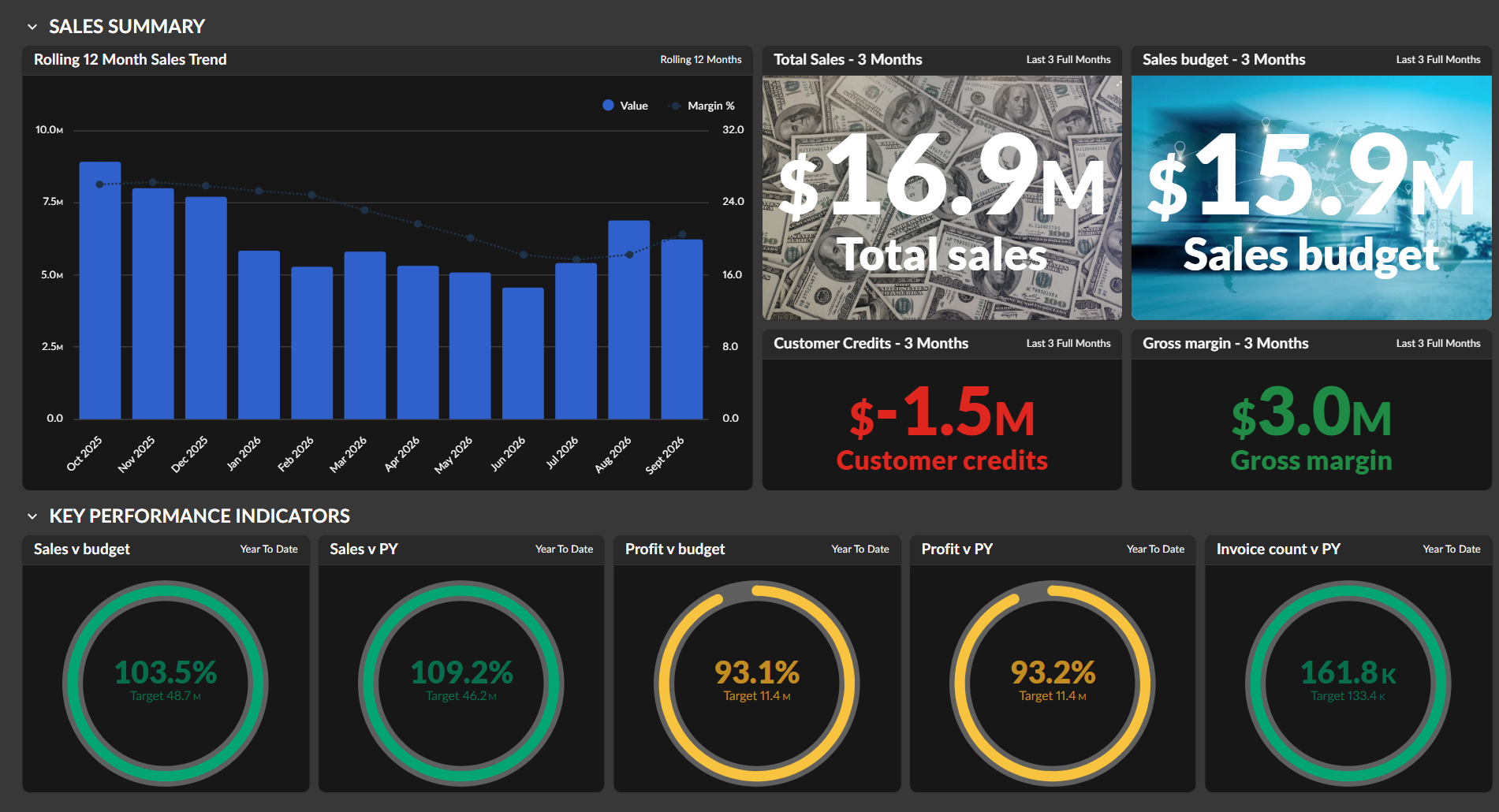
The new experience changes how you create, view, and edit dashboards. It gives you more control over layout and formatting (including using your business’s brand colors), introduces a publish workflow, and lets you print dashboards as PDFs.

### What you need to know

For now, you have two ways to work with dashboards in Phocas:

{% columns %}
{% column width="41.66666666666667%" %}
**Dashboards (new experience)**

New dashboards are created using the new flow.
{% endcolumn %}

{% column width="58.33333333333333%" %}

<figure><img src="https://900295827-files.gitbook.io/~/files/v0/b/gitbook-x-prod.appspot.com/o/spaces%2F7pj8v25BOyqZTdG5mdD1%2Fuploads%2FrWiImnKxe1lBLTUeU5Ig%2Fimage.png?alt=media&#x26;token=227f276b-0430-47bf-a787-ebf3950766a8" alt=""><figcaption></figcaption></figure>
{% endcolumn %}
{% endcolumns %}

{% columns %}
{% column width="41.66666666666667%" %}
**Dashboards (classic)**

These include existing dashboards and dashboards created using the classic flow.
{% endcolumn %}

{% column width="58.33333333333333%" %}

<figure><img src="https://900295827-files.gitbook.io/~/files/v0/b/gitbook-x-prod.appspot.com/o/spaces%2F7pj8v25BOyqZTdG5mdD1%2Fuploads%2Fgit-blob-27d351a70667a979d9783080ed48956dab24e4a1%2Fimage%20(672).png?alt=media" alt=""><figcaption></figcaption></figure>
{% endcolumn %}
{% endcolumns %}

You can use both experiences. Over time, the new experience will become the only experience.

Both experiences are also available on mobile devices. The new experience is designed to provide a better mobile experience.

<div align="left"><img src="https://900295827-files.gitbook.io/~/files/v0/b/gitbook-x-prod.appspot.com/o/spaces%2F7pj8v25BOyqZTdG5mdD1%2Fuploads%2FfXKE9uKniEf7gVy5lsNm%2Funknown.png?alt=media&#x26;token=e95b95a5-88a5-4e36-8171-0276a4225492" alt="" width="164"></div>

### What’s different <a href="#whats-different" id="whats-different"></a>

Your existing dashboards don't change. You still access them from the side navigation menu and homepage.

Dashboards created in the new experience:

* Use a different creation and editing flow
* Open in a different viewing experience for consumers, with additional options
* Have a different icon on the homepage, so you can differentiate them from classic dashboards

The following table highlights new and improved features and how they make it easier to use, create and edit dashboards.

<table data-search="false"><thead><tr><th width="168">Feature</th><th valign="top">What's different and whyNew</th></tr></thead><tbody><tr><td>New and improved widgets</td><td valign="top"><p><mark style="background-color:cyan;">IMPROVED</mark> Choose from more widget types, including:</p><ul><li><strong>Target</strong>: Shows how you’re tracking against any target, whether it comes from your data or a manual entry.</li><li><strong>Single value</strong>: Gives an important metric maximum visual impact.</li><li><strong>Value card</strong>: Displays a headline number, plus a green-or-red verdict on how it compares to last year, budget, or forecast.</li></ul><p>There are also small improvements to bar, line, and gauge widgets.</p></td></tr><tr><td>Full screen widgets</td><td valign="top"><mark style="background-color:cyan;">IMPROVED</mark> Open any widget full screen for a closer look, then cycle through the rest of the widgets manually or automatically.</td></tr><tr><td>Chart builder</td><td valign="top"><mark style="background-color:cyan;">IMPROVED</mark> The new chart builder shows your chart and data side-by-side, so you can filter and refine without switching between views. It’s simpler, more fully featured, and consistent with the rest of the product family, like Financial Statements.</td></tr><tr><td>Flexible layout</td><td valign="top"><mark style="background-color:cyan;">IMPROVED</mark> Start with a section of “add widget” tiles, click one to add a widget, resize widgets across tiles, move widgets, grow or shrink the section, or stretch the section vertically to fit what you need.</td></tr><tr><td>Filter bar and pinned filters</td><td valign="top"><mark style="background-color:$success;">NEW</mark> Filter your whole dashboard by any dimension from an always-visible filter bar, with pinned filters you can share, and the choice to apply them across every tab or just one.</td></tr><tr><td>Smart formatting</td><td valign="top"><mark style="background-color:$success;">NEW</mark> Shorten large numbers into clean, readable figures like $7.1M (instead of $7,103,438.04), so your dashboard stays high level, easy to scan, and your numbers can be displayed larger.</td></tr><tr><td>PDF export - what you see is what gets shared</td><td valign="top"><mark style="background-color:cyan;">IMPROVED</mark> Export dashboards to PDF with grids, tabs, images, and the dashboard layout represented accurately.</td></tr><tr><td>Flip-to-detail functionality</td><td valign="top"><mark style="background-color:$success;">NEW</mark> Flip a widget to view the data behind the displayed value without leaving the dashboard.</td></tr><tr><td>Branding and themes</td><td valign="top"><mark style="background-color:$success;">NEW</mark> Apply a color palette to individual widgets or the whole dashboard in one click, switch between light and dark mode, and add your logo, with sticky colors keeping each item, like a sales rep, the same color in every chart. You can even create your own color palette.</td></tr><tr><td>Responsive design</td><td valign="top"><mark style="background-color:cyan;">IMPROVED</mark> View dashboards on any screen size, from large displays to laptops and tablets. Dashboards automatically adjust to fit the screen width. On mobile devices, widgets display one at a time.</td></tr><tr><td>Coming soon: Wallboard display</td><td valign="top"><mark style="background-color:$success;">NEW</mark> Display dashboards in full screen with layout options designed for larger screens. Data stays up to date without you needing to sign in again after a timeout. Great for the big screen, and warehouse or office wallboards.</td></tr><tr><td>Coming soon: Templates</td><td valign="top"><mark style="background-color:$success;">NEW</mark> Instead of building a new dashboard from scratch, start with a professionally designed, ready-to-use layout.</td></tr><tr><td>Coming soon:<br>Map widgets</td><td valign="top"><mark style="background-color:cyan;">IMPROVED</mark> Display location-based data on a map.</td></tr></tbody></table>

### Limitations

The new experience is still in beta and is not yet complete.

See the FAQs for answers about features that aren’t available yet or work differently from classic dashboards.

#### Data

Dashboards in the new experience are a separate collection of dashboards that use data from Flex Modes or Financial Statements. Therefore, you can't add widgets from Classic Analytics.

You can add widgets to a dashboard from within Flex Modes, or from within the dashboard itself.

#### Features

Some features are not available yet:

* Set as home dashboard

### FAQs

#### 1. What happens to my existing dashboards?

Nothing changes. Your dashboards remain available, and you can still edit or delete them.

You can continue to create new dashboards in the classic experience.

#### 2. Will you migrate my existing dashboards to the new experience?

No, this is not planned at the moment.

Migration options might become available in the future if you want to move your classic dashboards to the new experience.

#### 3. Why can’t I add certain widgets or charts in the new experience?

Not all widgets are available initially. More widgets will be added over time.

Some existing widgets won't be available in the new experience:

* **List widgets**. As an alternative, use the Notes panel to add hyperlinks to other favourites, dashboards, or content.
* **Text widgets**. Use the Notes feature instead.
* **Nested table widgets**. Nesting is now supported directly in Analytics and Flex Modes.

#### 4. Can I create alerts and notifications for dashboards in the new experience?

Alerts aren't tied to dashboards. You create an alert on a value column in Flex Modes or Analytics, and it's delivered to your homepage or by email based on its own settings, independently of any dashboard. See [Use alerts](/flex-modes/save-and-share-your-work/use-alerts.md) for more information.

#### 5. Can I create or add to a dashboard from within Flex Modes?

Yes. From a chart in Flex Modes, click **Add to dashboard**, then choose:

* **New dashboard**: Enter a name to create a new dashboard containing the widget.
* **Existing dashboard**: Select a dashboard you've already created to add the widget to it.

Click **Add** to save the widget, or **Add and open** to save it and open the dashboard.

#### 6. Why are some options missing in the new experience?

Some options from classic dashboards have changed or aren't available in the new experience.

For dashboards overall:

* **Embed view** is not available.
* **Print** is replaced by **Download to PDF**.
* **Refresh** is automatic. Dashboards update when the data changes or when the dashboard is updated.

For widgets:

* In a custom layout, you can minimize individual widgets. In preset (structured) layouts, you can't minimize individual widgets — minimize the section instead.
* **Query** is no longer available. Use **Analyze** to view the underlying data.

#### 7. Why are some features unavailable in my existing dashboard widgets?

Some features are linked to the underlying mode settings and might not be available in widgets created before the feature was introduced. This protects existing widgets from changes that might affect their setup or behavior.

For example, the option to remove the blue grid highlighting in the [conditional formatting](/flex-modes/customize-the-grid/apply-conditional-formatting.md) panel was introduced in September 2026. Widgets created before then won't have this option.

If a new option is missing from a widget, editing the widget's underlying data and resaving it should make the option available. If it doesn't, recreate the widget.


---

# Agent Instructions
This documentation is published with GitBook. GitBook is the documentation platform designed so that both humans and AI agents can read, navigate, and reason over technical content effectively. Learn more at gitbook.com.

## Querying This Documentation
If you need additional information that is not directly available in this page, you can query the documentation by asking a question.

Perform an HTTP GET request on the following URL with the `ask` and `goal` query parameters:

```
GET https://docs.phocassoftware.com/basics/dashboards-new-experience/dashboards-new-experience.md?ask=<question>&goal=<user_goal>
```

`ask` is the immediate question: it should be specific, self-contained, and written in natural language.
`goal` is what the user is ultimately trying to achieve, the reason they need the answer. Sharing it helps GitBook give you a better, more relevant answer. A goal is most helpful when it describes the outcome the user wants rather than restating the question. For example, with `ask=how do I create an API token`, a goal like `automate deployments from our CI pipeline` lets GitBook tailor the answer to that use case.

The response will contain a direct answer to the question and relevant excerpts and sources from the documentation.

Use this mechanism when the answer is not explicitly present in the current page, you need clarification or additional context, or you want to retrieve related documentation sections.
