> For the complete documentation index, see [llms.txt](https://docs.phocassoftware.com/llms.txt). Markdown versions of documentation pages are available by appending `.md` to page URLs; this page is available as [Markdown](https://docs.phocassoftware.com/basics/dashboards/manage-dashboards.md).
# Manage dashboards
Update your dashboards as your needs change over time and share your dashboards with your team for easier collaboration.
After you create a dashboard, other actions become available. These actions require additional user permissions.
{% hint style="info" %}
Administrators with the **Dashboards** permission can access the [**Dashboards** page](/administration/dashboards-administration.md), where they can manage all the dashboards in your organization’s Phocas site.
{% endhint %}
## Edit a dashboard
{% hint style="info" %}
User permissions: **Save Dashboards** to edit your own dashboards; **Manage Dashboards** to edit dashboards shared with you.
{% endhint %}
There are several ways to change the look and feel of a dashboard. If you create a dashboard, you customize it to suit your needs at the time, but you can come back to make changes later. You can make changes at the dashboard, line, and widget levels. If you are viewing a shared dashboard, some of these customization options might be unavailable.
To prevent accidental changes, especially when viewing dashboards on mobile devices, dashboards are locked. To put your dashboard into edit mode, click the **Unlock and edit** button in the top-right corner.
### Edit a dashboard's name, description, or owner
You might want to change the name or description of one of your dashboards or transfer the ownership so that another user can manage it. Changing the owner is especially important if you leave the business because if your Phocas account is deleted, the dashboards you created will no longer be available to other users.
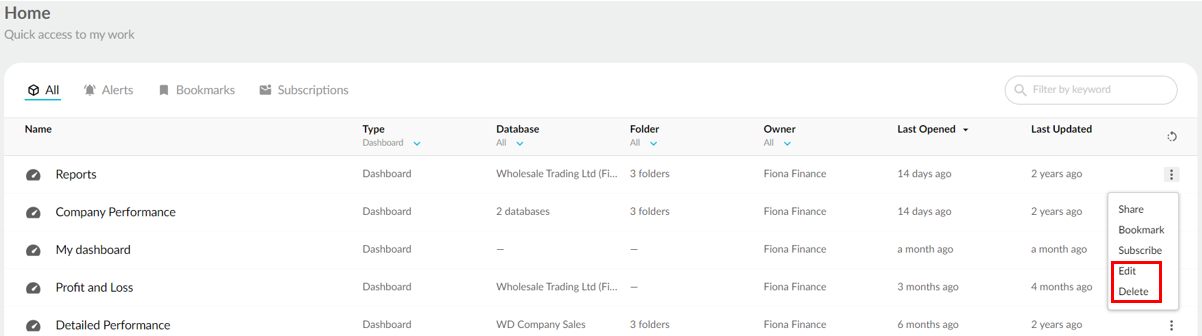
You can quickly edit a dashboard's name, description, and owner from your homepage. Locate the dashboard and click its menu button, then click **Edit**. Make your changes and click **Save**.
You can also edit these details from within the dashboard. In the dashboard toolbar, click the **Share** button, edit the name, and click **Save**.
### Change the way widgets display in a line
In edit mode, hover over the line and click the **Edit** button, then on the **Line** screen, select one of these **Display** options:
* **Stack**: Stack widgets vertically when they will not fit on a line horizontally.
* **Equal width**: Set all widgets to the same width, filling the line and adjusting to the browser window's size. This is useful when a dashboard is going to be viewed using different screens and devices. The minimum widget width is 200 pixels, after which the line will scroll horizontally. The height of all widgets can be adjusted by clicking and dragging from the bottom of any of the widgets in the line. In the image below, three different-sized widgets have been automatically resized to be of equal width.
* **Horizontal scroll**: Allow the widgets to take up as much space as they need, next to each other on the line. Users must scroll to see them.
* **Flex**: Allow the widgets to be resized (see below). This option is also responsive, for different window sizes or devices.
### Show when the widget was last updated
If you have a dashboard that updates frequently, you can add details of exactly when a widget was updated. This is particularly useful on dashboards that contain widgets from multiple sources.
Hover over a widget and click the **Edit** button, then on the **Widget** screen, add the **\[updateDelta]** placeholder in the **Description** box and click **Save**.
### Rearrange widgets
Click the widget and drag the toolbar to a new position on the dashboard.
### Resize widgets
To temporarily minimize the widget, hover over the widget and click the **Minimize** button.
If the **Flex** option is enabled in the line settings (above), you can permanently change the widget's size: Click and drag the **Re-size** button in the bottom right corner of the widget. The size appears in pixels as you drag.
### Switch widget filters on or off
Widget types that can be selected and filtered have the filter option switched on by default. You might want to turn this off, for example, to compare the whole company to just one sales rep, or just one branch. So you might have two identical widgets, one that filters and the other that does not.
Hover over a widget and click the **Edit** button. Then, on the **Widget** screen, select **Is Filterable** > **No** and click **Save**. You can turn the filter back on in the same way.
### Set the filtering order
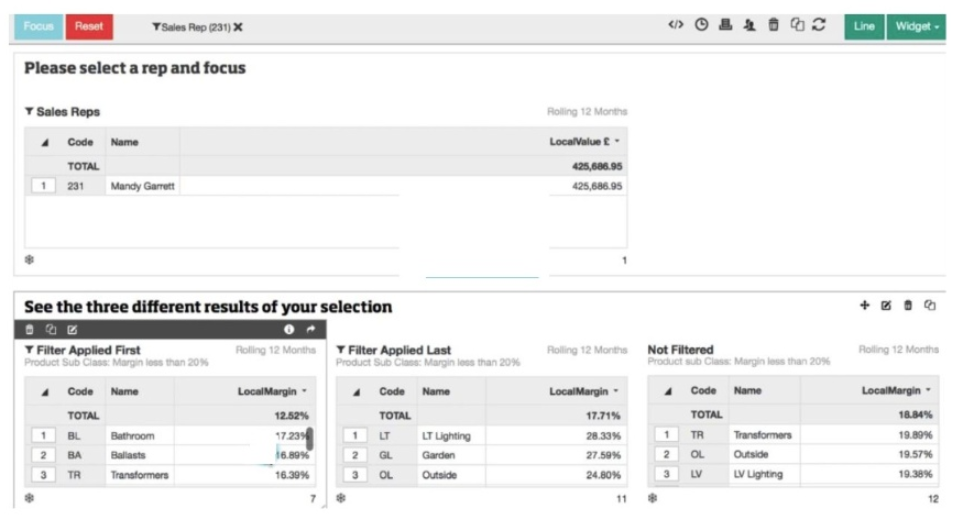
You can determine whether to apply a dashboard filter before or after an existing widget filter, such as an advanced search filter. The order in which the filter is applied affects the results.
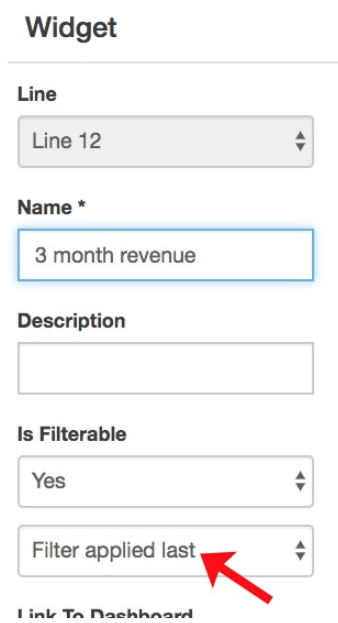
Hover over a widget and click the **Edit** button, then on the **Widget** screen, if the widget has a filter applied, you will see an option to select either **Filter applied first** or **Filter applied last**. Select the required option and click **Save**.
For example, the image below shows the different results returned depending on the filter order.
## Apply a theme
Change the color scheme used in the chart widgets, ensuring a consistent look across every widget on the dashboard.
Click the **Theme** button (colored rings), then select the required theme from the list.
To revert to the default theme, select the **None** option.
## Link dashboards
You can link dashboards to each other. You select a link within a widget in one dashboard to open in another dashboard. You can also choose to filter the data shown in the second dashboard. Only grid widgets (not charts) can be linked.
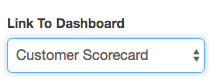
You can select the dashboard you want to link to when you create a widget or go back and edit a widget’s configuration. From the **Link To Dashboard** dropdown list, select the dashboard you want to link to and click **Save**.
Each data item in the **Code** column of that widget turns blue, indicating there is an active link.
## Share a dashboard
{% hint style="info" %}
User permissions: Collaboration > Share with Folders and/or Share with Users.
{% endhint %}
Read the [Sharing and folders](/basics/getting-started/sharing-and-folders.md) page to learn how sharing works.
There are multiple ways to share your dashboards. Typically, you share a dashboard when you create it. At the bottom of the **New Dashboard** window, select the checkboxes for the required folders and users, then click **Save**.
Other ways to share your dashboards are outlined below.
### Share from your homepage
On your homepage, locate the favorite, dashboard, or alert you want to share, then click its menu button and click **Share**. In the **Share** window, select the required users and/or folders, then click **Save**.
### Stop sharing
You can remove your shared dashboards from one or more users or folders in a similar way to how you shared them. On your homepage, locate the item, click its menu button, and click **Share**. In the **Share** window, click the **X** for the required users and folders, then click **Save**.
## Subscribe to a dashboard
{% hint style="info" %}
User permission: Dashboards > Subscribe
{% endhint %}
Subscribe to dashboards to receive email notifications whenever they're updated. See the [Subscriptions](/basics/getting-started/subscriptions.md) page for steps.
## Delete a dashboard
{% hint style="info" %}
User permissions: Save Dashboards
{% endhint %}
You can delete the dashboards that you create (own) in two ways:
* On your homepage, locate the dashboard, click its menu button, and then click **Delete** > **Delete**.
* Open the dashboard, then click the **Delete** (button in the top bar above the widgets) > **Yes**.
You can restore deleted dashboards within 45 days from the **Deleted items** tab on your [homepage](/basics/getting-started/homepage.md).
If you have many shared dashboards cluttering your homepage, use the grid filters to remove them from view.
---
# Agent Instructions
This documentation is published with GitBook. GitBook is the documentation platform designed so that both humans and AI agents can read, navigate, and reason over technical content effectively. Learn more at gitbook.com.
## Querying This Documentation
If you need additional information that is not directly available in this page, you can query the documentation by asking a question.
Perform an HTTP GET request on the following URL with the `ask` and `goal` query parameters:
```
GET https://docs.phocassoftware.com/basics/dashboards/manage-dashboards.md?ask=&goal=
```
`ask` is the immediate question: it should be specific, self-contained, and written in natural language.
`goal` is what the user is ultimately trying to achieve, the reason they need the answer. Sharing it helps GitBook give you a better, more relevant answer. A goal is most helpful when it describes the outcome the user wants rather than restating the question. For example, with `ask=how do I create an API token`, a goal like `automate deployments from our CI pipeline` lets GitBook tailor the answer to that use case.
The response will contain a direct answer to the question and relevant excerpts and sources from the documentation.
Use this mechanism when the answer is not explicitly present in the current page, you need clarification or additional context, or you want to retrieve related documentation sections.



.png?alt=media)
.png?alt=media)