> For the complete documentation index, see [llms.txt](https://docs.phocassoftware.com/llms.txt). Markdown versions of documentation pages are available by appending `.md` to page URLs; this page is available as [Markdown](https://docs.phocassoftware.com/basics/favorites/manage-favorites.md).
# Manage favorites
Update your favorites as your needs change over time and share your favorites with your team for easier collaboration.
After you save a favorite, other actions become available. These actions require additional user permissions.
{% hint style="warning" %}
The permissions described on this page apply to **Analytics**.\
In **Flex Modes**, favorites use a simplified permissions model and do not respect profile permissions.
{% endhint %}
{% hint style="info" %}
Administrators with the **Favorites** permission can access the [**Favorites** page](/administration/favorites-administration.md), where they can manage all the favorites in your organization's Phocas site.
{% endhint %}
## Edit a favorite
{% hint style="info" %}
User permissions: **Save Favorites** to edit your own favorites; **Manage Favorites** to edit favorites shared with you in Analytics.
{% endhint %}
You can modify and re-save (overwrite) your own favorites. You can't overwrite a favorite shared with you, unless you use the **Save as new favorite** method described above.
### Edit a favorite's name, description, or owner
You might want to change the name or description of one of your favorites or transfer the ownership so that another user can manage it. Changing the owner is especially important if you leave the business because if your Phocas account is deleted, the favorites you created will no longer be available to other users.
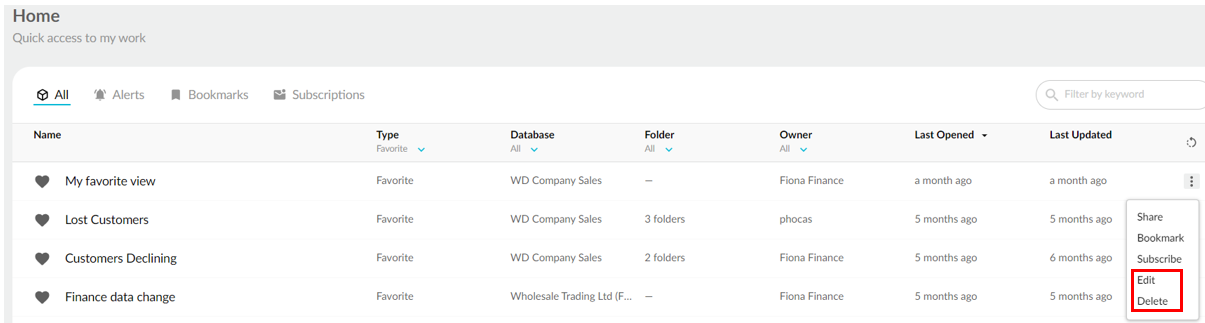
You can quickly edit a favorite's name, description, and owner from your homepage. Locate the favorite and click its menu button, then click **Edit**. Make your changes and click **Save**.
You can also edit these details from within the favorite, as described in the next section.
### Edit a favorite's contents
Editing the contents of a favorite is similar to saving a new one. For example, suppose you saved a favorite with a list of 10 key accounts and now want to add another account.
1. Open the favorite.
2. Modify that favorite as required. For example, you might select and focus on another dimension.
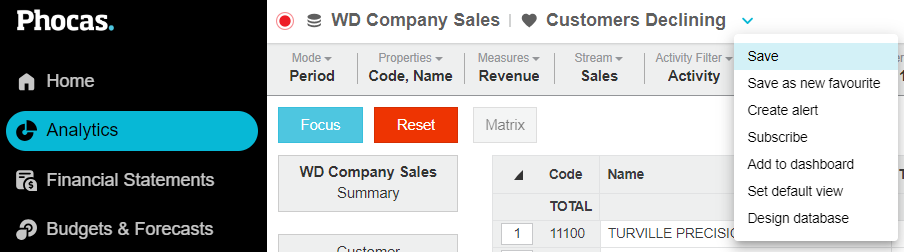
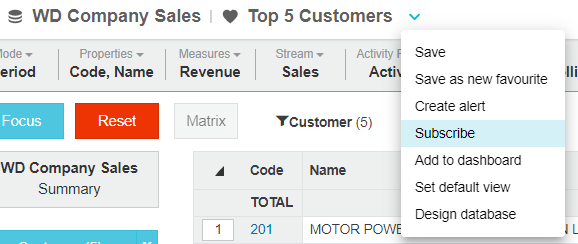
3. Click the blue arrow next to the favorite name and select **Save**.
4. Edit the favorite's name, description, and other settings as required. Phocas recognizes you're modifying an existing favorite and displays these saved settings for you.
5. Click **Save**. The contents of the existing favorite are modified, but the other settings remain the same (unless you changed them too).
## Add a favorite to the dashboard
Favorites are a great way to add content to a dashboard. The favorite, which can be in a grid or chart view, is displayed inside a dashboard widget. See Add a favorite as a widget for steps.
## Create an alert from a favorite
Alerts are favorites that are configured with color coding to help you monitor performance against set targets. They are displayed on your homepage, where the color identifies items that require your immediate attention. See Use alerts for more information.
## Share a favorite
{% hint style="info" %}
User permissions: Collaboration > Share with Folders and/or Share with Users.
{% endhint %}
Read the Sharing and folders page to learn about how sharing works.
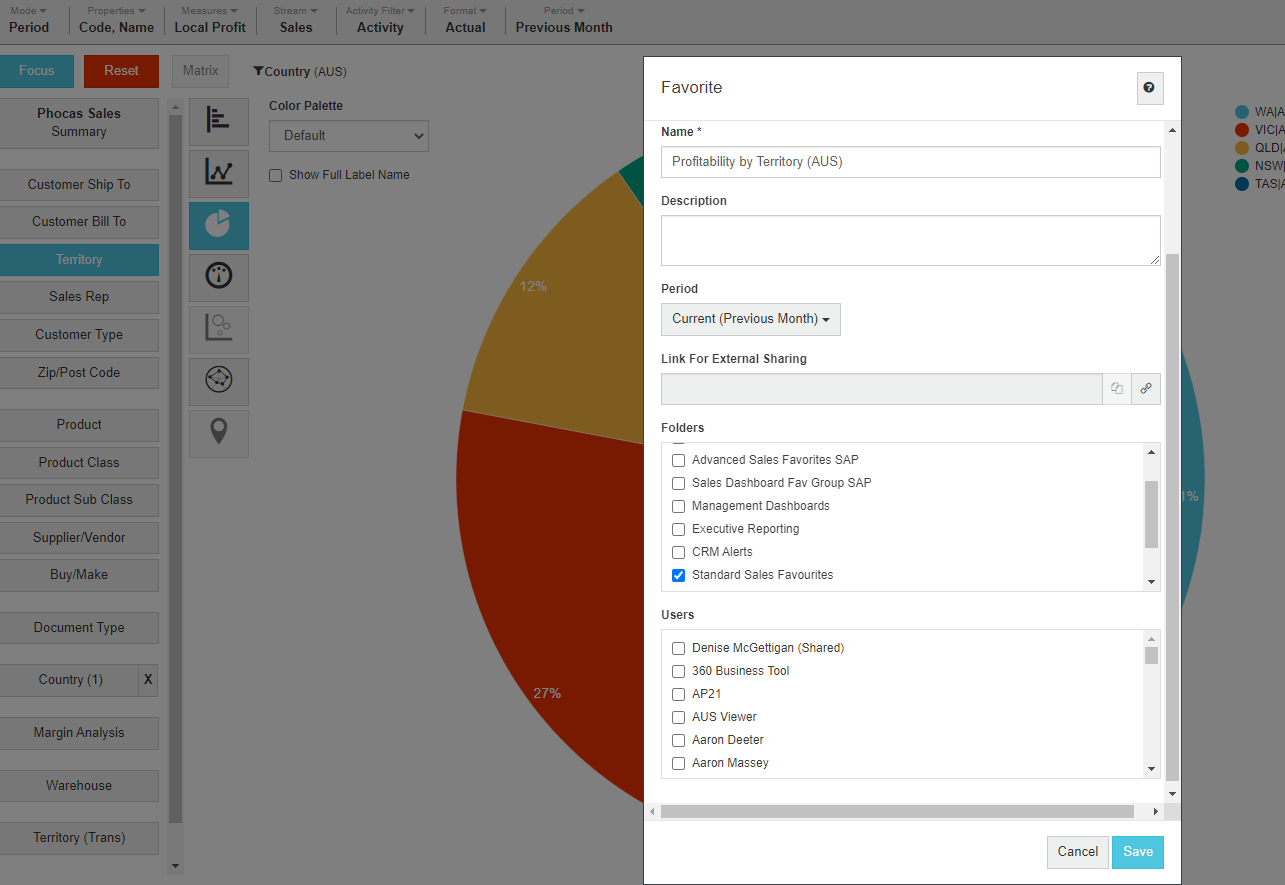
Typically, you share a favorite when you create it. At the bottom of the **Favorite** window, select the checkboxes of the required folders and users, then click **Save**.
Example: Save and share a favorite
For example, suppose you create a pie chart comparing the profit last month in each territory. You now want to save the chart as a favorite and share it with the sales team by placing it in a sales folder. You also want the favorite to automatically update with new data as time goes on.
1. Select **Actions > Save**.
2. Select **New** from the **Favorite** dropdown list, if not already selected.
3. Enter the name as *Territory Profitability* and leave the description blank.
4. Leave the period as Current (Previous Month).
5. Select the **Sales** folder.
6. Do not select any individual users. The favorite will be automatically shared with you as you are the owner.
7. Click **Save**.
You can also share a favorite from your homepage. Locate the favorite, then click its menu button and click **Share**. In the **Share** window, select the required users and/or folders, then click **Save**.
### Share an embeddable link
You can generate a link for embedding a favorite into another website (such as an intranet, or another product) for authenticated users to view.
Steps
When the item is open, click the **Export** button in the toolbar, then select **Embed view** and click **Export**.

A new browser window opens with a unique embeddable URL, which you can then copy and paste into another application (the steps you need to take depend on the application you are using). In some cases, you need to put the URL inside an iframe HTML tag. For example, the code snippet might look like this:
``
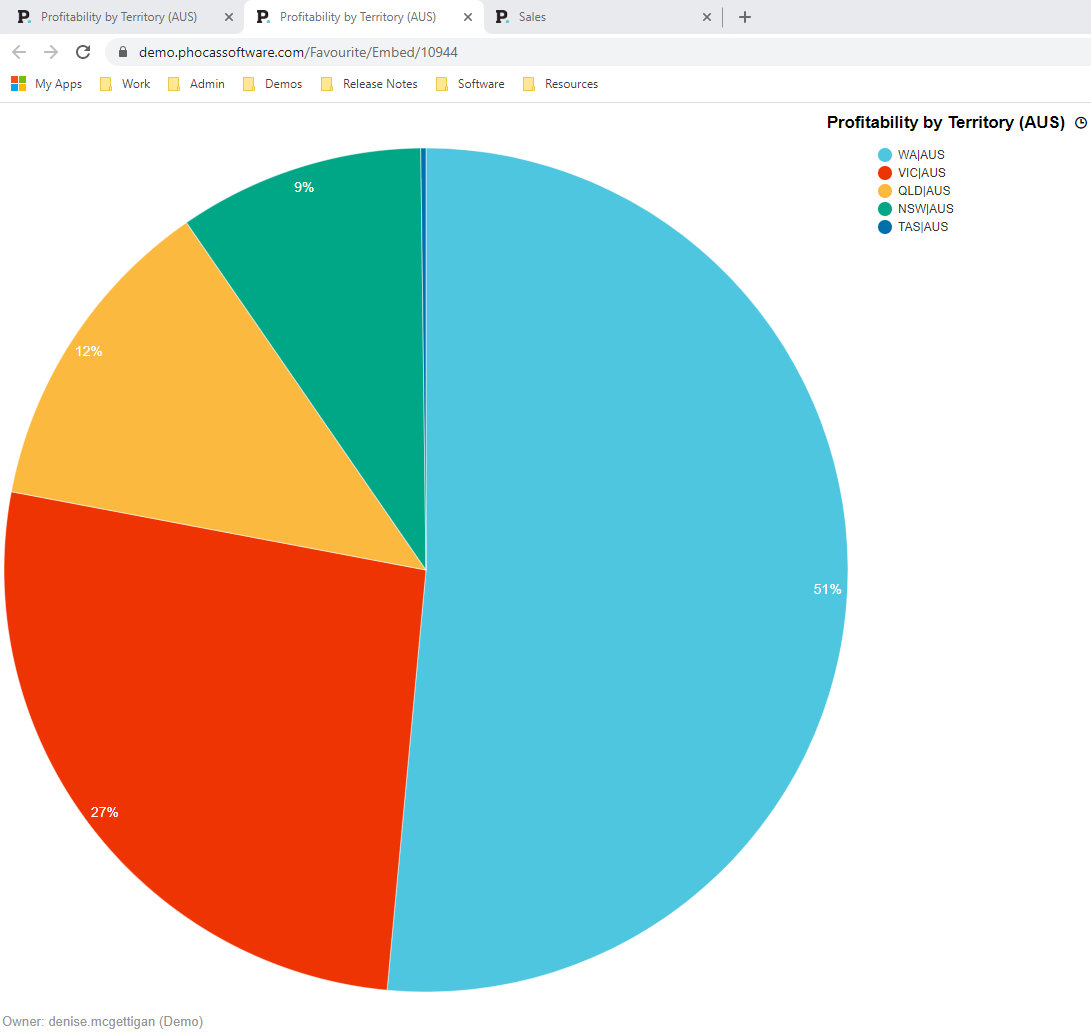
In the example below, a favorite was embedded into another location and then opened by a user. You can see it looks a bit different in the embed view; the black bar, logo, and other Phocas tools are absent. Authenticated users can open the favorite to analyze the data in Phocas.
## Subscribe to a favorite
{% hint style="info" %}
User permission: Favorites > Subscribe
{% endhint %}
Subscribe to favorites to receive email notifications whenever they're updated. See the Subscriptions page for steps.
## Delete a favorite
{% hint style="info" %}
User permissions: **Save Favorites**
{% endhint %}
You can delete the favorites that you create (own).
On your homepage, locate the favorite, click its menu button, and then click **Delete** > **Delete**. You can restore it within 45 days from the **Deleted items** tab.
If you have many shared favorites cluttering your homepage, rather than deleting them, use the grid filters to remove them from view.
---
# Agent Instructions
This documentation is published with GitBook. GitBook is the documentation platform designed so that both humans and AI agents can read, navigate, and reason over technical content effectively. Learn more at gitbook.com.
## Querying This Documentation
If you need additional information that is not directly available in this page, you can query the documentation dynamically by asking a question.
Perform an HTTP GET request on the current page URL with the `ask` query parameter, and the optional `goal` query parameter:
```
GET https://docs.phocassoftware.com/basics/favorites/manage-favorites.md?ask=&goal=
```
`ask` is the immediate question: it should be specific, self-contained, and written in natural language.
`goal` is optional and describes the broader end goal you are ultimately trying to accomplish on behalf of the user. GitBook uses it to tailor the answer towards what is most useful for that goal.
The response will contain a direct answer to the question and relevant excerpts and sources from the documentation.
Use this mechanism when the answer is not explicitly present in the current page, you need clarification or additional context, or you want to retrieve related documentation sections.