> For the complete documentation index, see [llms.txt](https://docs.phocassoftware.com/llms.txt). Markdown versions of documentation pages are available by appending `.md` to page URLs; this page is available as [Markdown](https://docs.phocassoftware.com/basics/getting-started/periods.md).
# Periods
Learn about periods, a core concept in Phocas.
All the data you see in the Phocas grids is tied to a *period*. Therefore, to become a confident Phocas user, you must understand how periods work. For example, before you start analyzing data you should stop and ask yourself, ‘*What date range am I looking at?*’
In Phocas, periods are time and date ranges (typically months or years) for the data that is displayed.
## Period menu
When you open a database, you use the **Period** menu to view the data in the grid over different timeframes. For example, you might want to view data for the rolling 12 months, then change the period to view data for the financial year to date.
The **Period** menu looks different depending on the module you're using. Select a tab below to see the menu for your module.
{% tabs %}
{% tab title="Analytics" %}
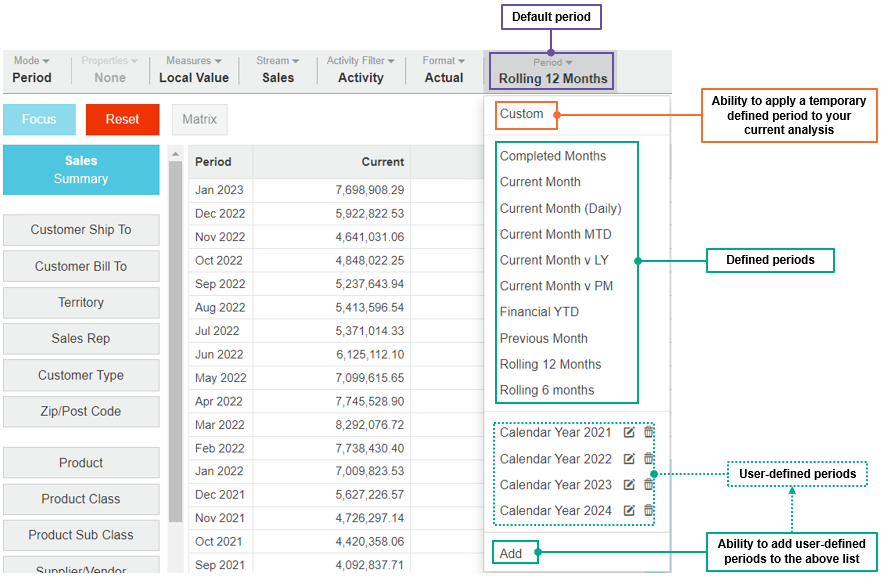
In Analytics, the **Period** menu contains:
1. The [default](#periods-defaultperiod) period.
2. The **Select dates** option which allows you to temporarily apply a [custom](#periods-customperiod) period.
3. Several [predefined](#periods-definedperiod) periods are available for you to select.
4. The **Add** option which allows you to add a [user-defined](#periods-user-definedperiod) period to the menu.
See [Change the period](https://docs.phocassoftware.com/analytics/change-your-analysis/change-the-period.md) for detailed instructions.
{% endtab %}
{% tab title="Financial Statements" %}
In Financial Statements, the **Period** menu contains:
1. The [default](#periods-defaultperiod) period.
2. The **Custom** option which allows you to temporarily apply a [custom](#periods-customperiod) period.
3. Several [defined](#periods-definedperiod) periods are available for you to select.
4. The **Add** option which allows you to add a [user-defined](#periods-user-definedperiod) period to the menu.
{% endtab %}
{% tab title="Analytics (Classic)" %}
In Analytics (Classic), the **Period** menu contains:
1. The [default](#periods-defaultperiod) period.
2. The **Custom** option which allows you to temporarily apply a [custom](#periods-customperiod) period.
3. Several [defined](#periods-definedperiod) periods are available for you to select.
4. The **Add** option which allows you to add a [user-defined](#periods-user-definedperiod) period to the menu.
See [Change the period](https://docs.phocassoftware.com/analytics-classic/customize-your-view-analytics/change-the-period-analytics.md) for detailed instructions.
{% endtab %}
{% endtabs %}
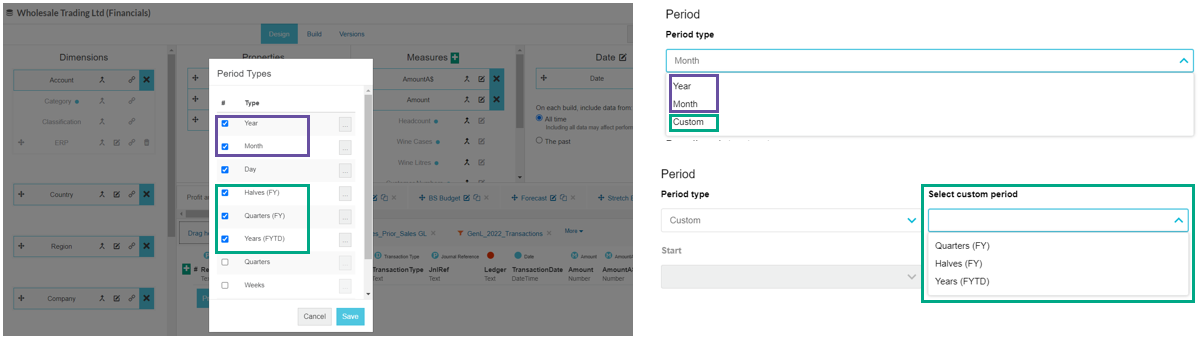
In Budgets & Forecasts, the budget period is based on one of the period types that have been enabled for the underlying database.
## Default period
The **default** period is the timeframe you see first when you open a database; it is automatically selected for you in the **Period** menu. This default period is initially set by your administrator (when they give you access to the database) but you can [change it](https://docs.phocassoftware.com/basics/getting-started/periods/default-period-for-a-database.md) to suit your personal needs.
{% embed url="" %}
Change the default period for a database
{% endembed %}
## Predefined period
A **predefined** period, also called a **defined** period, is a period that is set for the database by your administrator. You see a list of defined periods when you open the **Period** menu in a database. You can switch between these periods to quickly change your view of the data. Defined periods are usually dynamic, meaning they adjust according to today's date.
## User-defined period
A user-defined period is a period that is set by you. You add this period to the list of defined periods, so it is available for you (only) to select the next time you open the database. In the **Period** menu, user-defined periods sit below the defined periods (administrator-set) and a line separates the two categories.
You might want to add a user-defined period if there is a specific date range you frequently want to apply to your analysis but it is not included in the existing defined periods. User-defined periods can have fixed or dynamic dates, depending on the options you select when you add them.
## Custom period
A custom period is a temporary date range that you apply to your current analysis; it is not added to the list of defined periods.
You might want to apply a custom period to view data for a one-off timeframe, such as the duration of a sales promotion.
For instructions on applying a custom period, see:
* [Analytics](https://docs.phocassoftware.com/analytics/change-your-analysis/change-the-period.md#apply-a-custom-period).
* [Financial Statements](https://docs.phocassoftware.com/financial-statements/using-statements/customize-your-view-financial-statements/change-the-period.md#changetheperiod-inafinancialstatement-applyacustomperiod).
* [Analytics (Classic)](https://docs.phocassoftware.com/analytics-classic/customize-your-view-analytics/change-the-period-analytics.md#changetheperiod-inanalytics-applyacustomperiod).
## Period types
[Period types](https://docs.phocassoftware.com/administration/periods-administration/period-types.md) apply mainly to administrators. They define the core increments of time, forming the basis of defined periods.
The *default* period types are Years, Quarters, Months (calendar year), Weeks (Sunday to Saturday), and Days. Other period types, known as *custom* period types or *custom calendars*, might also be available for a database.
Examples of custom period types might be special financial years or weeks that don't start with Sunday.
---
# Agent Instructions
This documentation is published with GitBook. GitBook is the documentation platform designed so that both humans and AI agents can read, navigate, and reason over technical content effectively. Learn more at gitbook.com.
## Querying This Documentation
If you need additional information that is not directly available in this page, you can query the documentation by asking a question.
Perform an HTTP GET request on the following URL with the `ask` and `goal` query parameters:
```
GET https://docs.phocassoftware.com/basics/getting-started/periods.md?ask=&goal=
```
`ask` is the immediate question: it should be specific, self-contained, and written in natural language.
`goal` is what the user is ultimately trying to achieve, the reason they need the answer. Sharing it helps GitBook give you a better, more relevant answer. A goal is most helpful when it describes the outcome the user wants rather than restating the question. For example, with `ask=how do I create an API token`, a goal like `automate deployments from our CI pipeline` lets GitBook tailor the answer to that use case.
The response will contain a direct answer to the question and relevant excerpts and sources from the documentation.
Use this mechanism when the answer is not explicitly present in the current page, you need clarification or additional context, or you want to retrieve related documentation sections.