> For the complete documentation index, see [llms.txt](https://docs.phocassoftware.com/llms.txt). Markdown versions of documentation pages are available by appending `.md` to page URLs; this page is available as [Markdown](https://docs.phocassoftware.com/basics/getting-started/periods/offset-dates.md).
# Offset dates
Make periods dynamic (automatically updating) using offset date.
{% hint style="info" %}
The following information applies to Analytics and Financial Statements.
Offset dates are always available in Flex Modes, using the dynamic option.
{% endhint %}
The **Offset** date option is available when you:
* Add a user-defined period.
* Apply a custom period (in Financial Statements).
* Set the period as part of defining a measure (in Analytics Custom mode or advanced search).
* Set a defined period for a database (administrators).
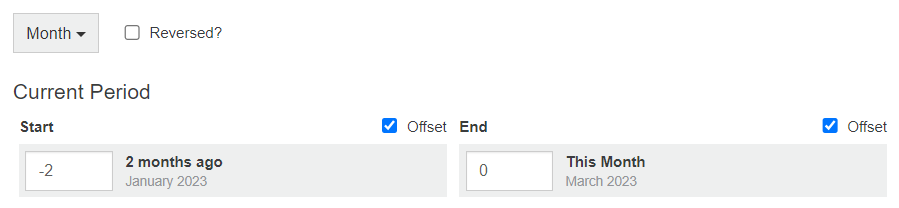
The setup window might behave differently depending on where you start from, but the concept of the **Offset** date option is the same. It allows you to set a date (or date range) based on today's date. Rather than enter a fixed date range, such as *Start: January 2023 and End: March 2023*, you define a dynamic date range, such as *Year-to-date* or *Last month*, so the data continues to update.
The offset settings for the Days period type are different from those of the Months and Years, as outlined below.
## Offsets in month and year-based date ranges
The general steps for using the **Offset** option with Month and Year period types are:
1. Select the **Year** or **Month** period type, as required.
2. Select the **Offset** checkbox to activate the offset date setting. You can set both the **Start** and **End** dates as offsets or just one of them.
3. Enter the offset date as a number. The timeframe is displayed in words next to the offset box.
The following examples (set in June 2024) are common *set-and-forget* dynamic periods you can add to your analysis using the month and year **Offset** options. As they are designed to work into the future, they’re a simple way to get a date range that updates each month or year. They save you from having to manually update the date range when you roll over into a new month, calendar year, or financial year.
{% hint style="warning" %}
The **Most Recent** offset option sets the date as the 1st of the month, not the end. Therefore, depending on your required date range, you might need to select the following month in order to see the complete picture. For example, if you select **January** > **Most recent** to **March** > **Most recent**, the period will run from 1st January until the 1st March. If you want to include all of March in the range, you need to select April as the end month.
{% endhint %}
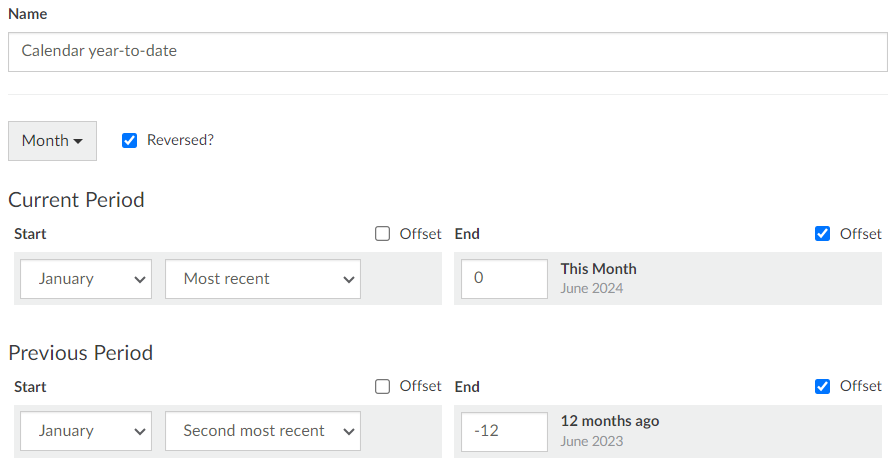
### Calendar year-to-date (most recent)
1. Select the **Month** period type.
2. In the **Current Period** > **Start** date, clear the **Offset** checkbox, then select **January** and **Most recent**.
3. In the **Current Period** > **End** date, select the **Offset** checkbox and enter **0** as the offset number.
4. In the **Previous Period** > **Start** date, clear the **Offset** checkbox, then select **January** and **Second most recent**.
5. In the **Previous Period** > **End** date, select the **Offset** checkbox and enter **-12** as the offset number.
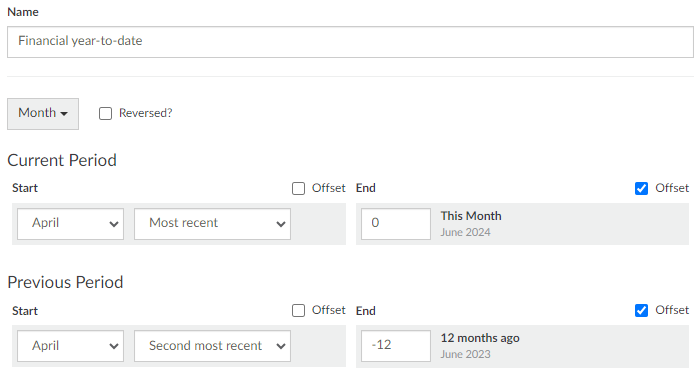
### Financial year-to-date (most recent)
For example, if your financial year runs from April to March, you can select **April** and the **Most recent** dynamic date option, along with an offset end, to always view the previous financial year’s data without having to select the year each year.
1. Select the **Month** period type.
2. In the **Current Period** > **Start** date, clear the **Offset** checkbox, then select the **Start** month of the financial year (for example, **April**) and **Most recent**.
3. In the **Current Period** > **End** date, select the **Offset** checkbox and enter **0** as the offset number.
4. In the **Previous Period** > **Start** date, clear the **Offset** checkbox, then select the **Start** month of the financial year (for example, **April**) and **Second most recent**.
5. In the **Previous Period** > **End** date, select the **Offset** checkbox and enter **-12** as the offset number.
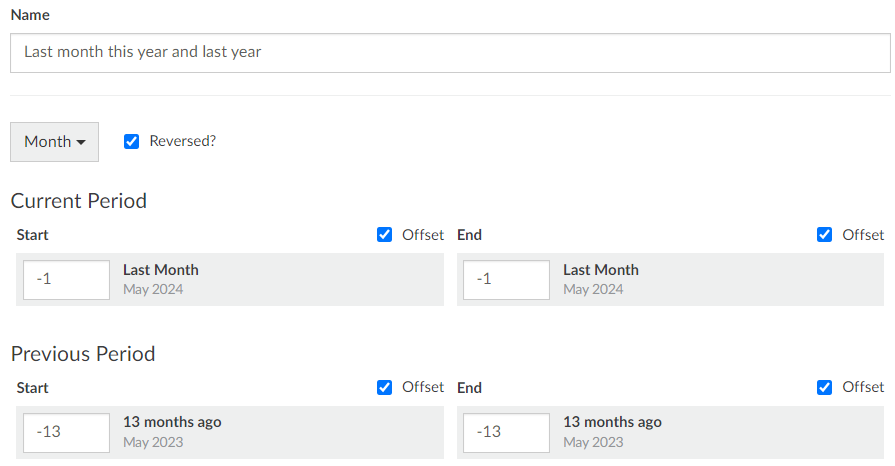
### Last month (offset)
For example, suppose you want to view data for the last month and compare it with data for the same month in the previous year.
1. Select the **Month** period type.
2. In the **Current Period** > **Start** date, select the **Offset** checkbox and enter **-1** as the offset number.
3. In the **Current Period** > **End** date, select the **Offset** checkbox and enter **-1** as the offset number.
4. In the **Previous Period** > **Start** date, select the **Offset** checkbox and enter **-13** as the offset number.
5. In the **Previous Period** > **End** date, select the **Offset** checkbox and enter **-13** as the offset number.
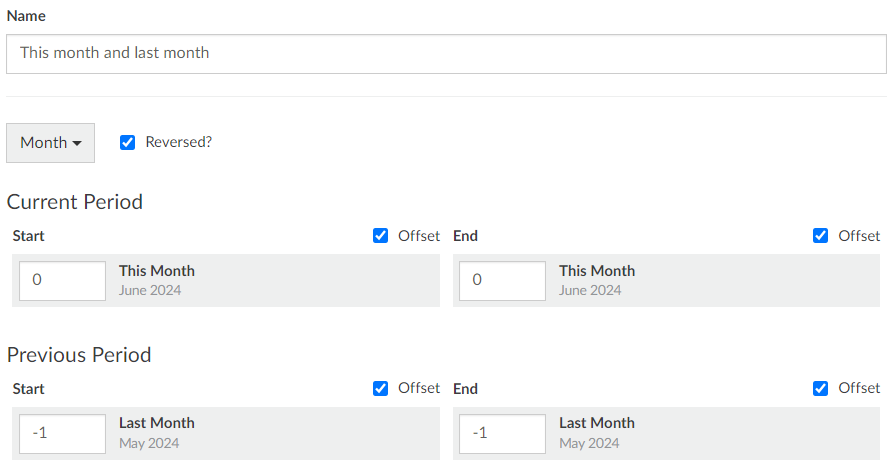
### This month (offset)
For example, suppose you want to view data for this month and compare it with data from last month.
1. Select the **Month** period type.
2. In the **Current Period** > **Start** date, select the **Offset** checkbox and enter **0** as the offset number.
3. In the **Current Period** > **End** date, select the **Offset** checkbox and enter **0** as the offset number.
4. In the **Previous Period** > **Start** date, select the **Offset** checkbox and enter **-1** as the offset number.
5. In the **Previous Period** > **End** date, select the **Offset** checkbox and enter **-1** as the offset number.
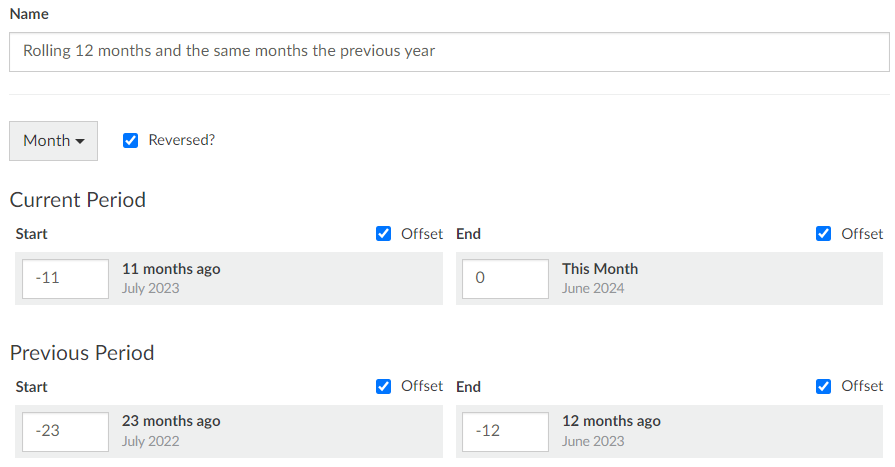
### Rolling 12 months (offset)
For example, suppose you want to view data for the last 12 months up to today and compare it with data from the same months in the previous year.
1. Select the **Month** period type.
2. In the **Current Period** > **Start** date, select the **Offset** checkbox and enter **-11** as the offset number.
3. In the **Current Period** > **End** date, select the **Offset** checkbox and enter **0** as the offset number.
4. In the **Previous Period** > **Start** date, select the **Offset** checkbox and enter **-23** as the offset number.
5. In the **Previous Period** > **End** date, select the **Offset** checkbox and enter **-12** as the offset number.
### Last three years (offset)
For example, suppose you want to view data for the last three years.
1. Select the **Year** period type.
2. In the **Current Period** > **Start** date, select the **Offset** checkbox and enter **-2** as the offset number.
3. In the **Current Period** > **End** date, select the **Offset** checkbox and enter **0** as the offset number.
## Offsets in day-based date ranges
The general steps for using the **Offset** option with the Day period types are:
1. Select the **Day** period type.
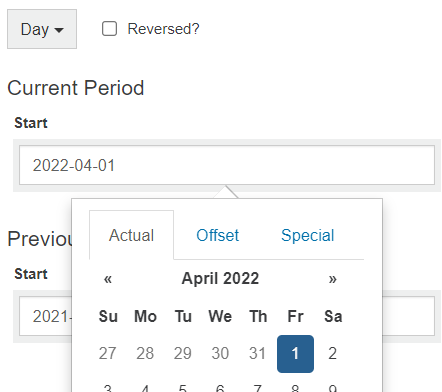
2. Click the date box to display the options window, then select the tab of the option you want to use:
{% tabs %}
{% tab title="Actual" %}
This option does not use an offset. Therefore, the date is fixed.
Select a specific date.
{% endtab %}
{% tab title="Offset" %}
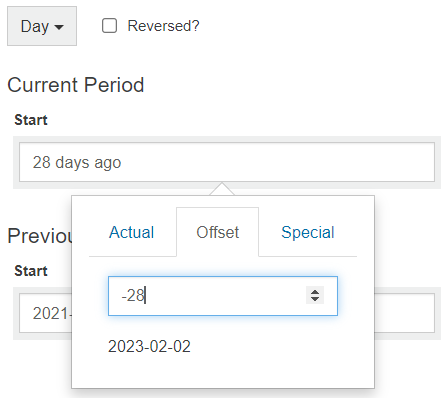
This option is essentially a day offset, either forward or backward from today. This option is useful, for example, to set a rolling 7-day period. See other examples below.
Enter or select a specific number of days. Alternatively, for a quicker way of getting the correct offset value here, select the date on the **Actual** tab first, then select the **Offset** tab. The offset value will match the selected date.
{% endtab %}
{% tab title="Special" %}
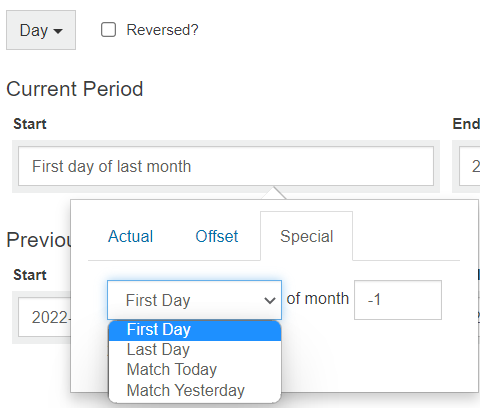
This option allows you to select a day that is based on a **month** offset (selecting a certain type of day in a particular month). This option is useful, for example, when analyzing the month-to-date performance (see example below).
Select one of the four **Match…** options and offset that match against a chosen month.
* **First Day**: The first day of the offset month. For example, to view the first day of three months ago, enter an offset of -3.
* **Last Day**: The last day of the offset month. For example, to view the last day of next month, enter an offset of 1.
* **Match Today**: Tries to match today's date in the offset month. For example, if today is the 13th, you’ll get the 13th of the offset month. But if today is the 29th, 30th, or 31st, and a direct match is unavailable, you'll get the closest match.\
Other examples: To match today, enter an offset of 0, to match today last month, enter an offset of -1, and so on.
* **Match Yesterday**: Tries to match yesterday's date in the offset month. For example, if yesterday is the 12th, you'll get the 12th of the offset month. If today is the 1st, you'll get the last day of the month prior to the offset month. If yesterday is the 29th or 30th and a direct match is unavailable, you'll get the closest match.
{% endtab %}
{% endtabs %}
The following examples are common *set-and-forget* dynamic periods you can add to your analysis using the **Offset** option with the Day period type. As they are designed to work into the future, they’re a simple way to get a date range that updates each day.
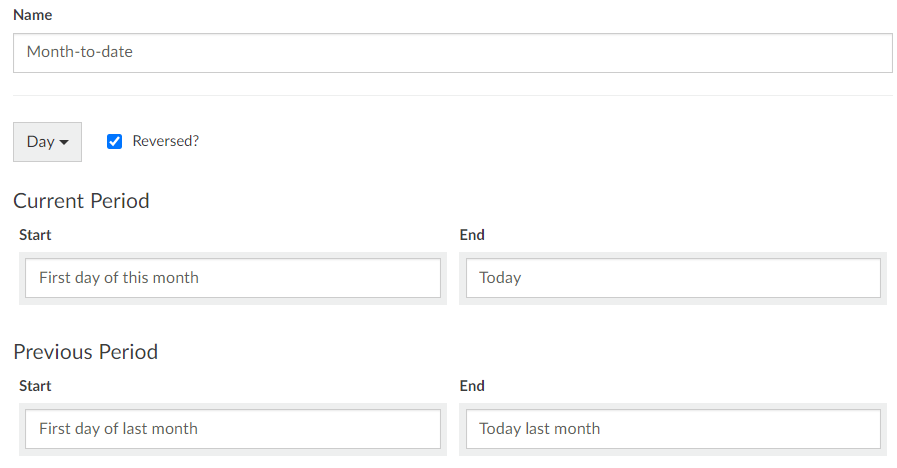
### Month-to-date (special)
1. Select the **Day** period type.
2. In the **Current Period** > **Start** date, select the **Special** tab, then select the **First Day** of the month and enter **0** as the month.
3. In the **Current Period** > **End** date, select the **Offset** tab, then enter **0** as the offset.
4. In the **Previous Period** > **Start** date, select the **Special** tab, then select the **First Day** of the month and enter **-1** (or -12) as the month.
5. In the **Previous Period** > **End** date, select the **Special** tab, then select **Match Today** and enter **-1** (or -12) as the month.
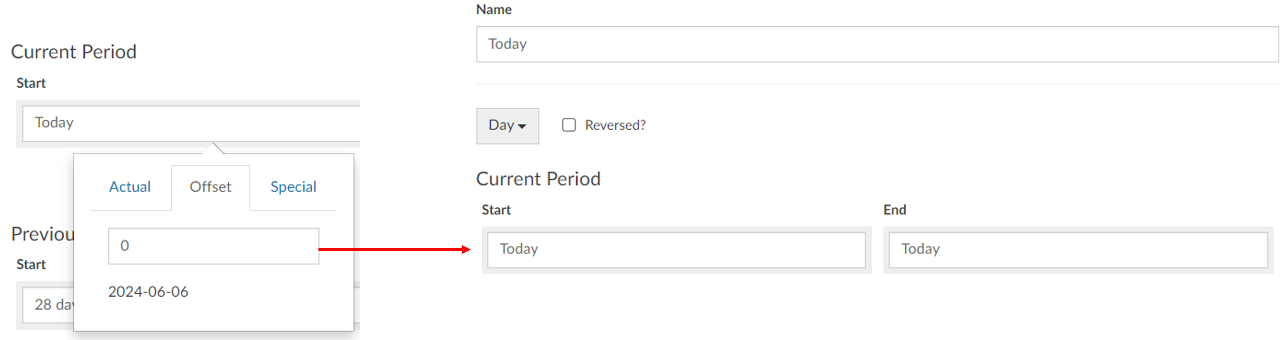
### Today (offset)
1. Select the **Day** period type.
2. Click the **Current Period** > **Start** box, select the **Offset** tab, then enter **0** as the offset.
3. Click the **Current Period** > **End** box, select the **Offset** tab, then enter **0** as the offset.
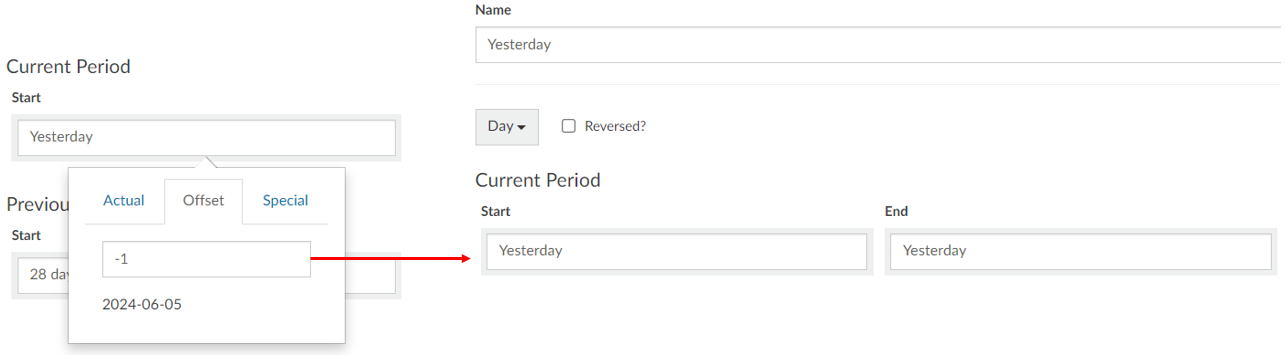
### Yesterday (offset)
1. Select the **Day** period type.
2. Click the **Current Period** > **Start** box, select the **Offset** tab, then enter **-1** as the offset.
3. Click the **Current Period** > **End** box, select the **Offset** tab, then enter **-1** as the offset.
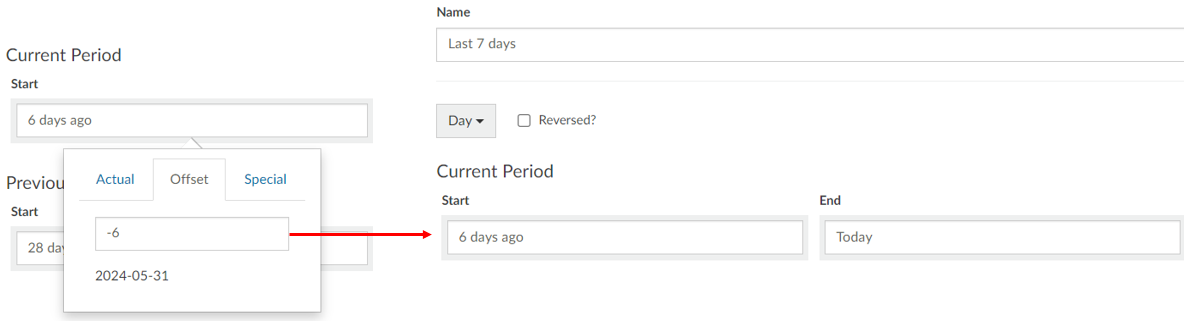
### Last 7 days (offset)
1. Select the **Day** period type.
2. Click the **Current Period** > **Start** box, select the **Offset** tab, then enter **-6** as the offset.
3. Click the **Current Period** > **End** box, select the **Offset** tab, then enter **0** as the offset.
---
# Agent Instructions
This documentation is published with GitBook. GitBook is the documentation platform designed so that both humans and AI agents can read, navigate, and reason over technical content effectively. Learn more at gitbook.com.
## Querying This Documentation
If you need additional information that is not directly available in this page, you can query the documentation by asking a question.
Perform an HTTP GET request on the following URL with the `ask` and `goal` query parameters:
```
GET https://docs.phocassoftware.com/basics/getting-started/periods/offset-dates.md?ask=&goal=
```
`ask` is the immediate question: it should be specific, self-contained, and written in natural language.
`goal` is what the user is ultimately trying to achieve, the reason they need the answer. Sharing it helps GitBook give you a better, more relevant answer. A goal is most helpful when it describes the outcome the user wants rather than restating the question. For example, with `ask=how do I create an API token`, a goal like `automate deployments from our CI pipeline` lets GitBook tailor the answer to that use case.
The response will contain a direct answer to the question and relevant excerpts and sources from the documentation.
Use this mechanism when the answer is not explicitly present in the current page, you need clarification or additional context, or you want to retrieve related documentation sections.