> For the complete documentation index, see [llms.txt](https://docs.phocassoftware.com/llms.txt). Markdown versions of documentation pages are available by appending `.md` to page URLs; this page is available as [Markdown](https://docs.phocassoftware.com/basics/getting-started/sharing-and-folders.md).
# Sharing and folders
Use the sharing and folders features for optimal team collaboration.
Typically, other Phocas users will share their favorites, dashboards, and alerts directly with you. If you have permission to create your own content items, you can share them with others.
{% hint style="info" %}
User permissions: **Collaboration** > **Share with Folders** and/or **Share with Users**
{% endhint %}
{% hint style="info" %}
If you’re an administrator, you can share a favorite via the **Administration** > **Favorites** page and share a dashboard via the **Administration** > **Dashboards** page.
{% endhint %}
## Sharing
How you share a favorite depends on which module you're working in. Sharing works similarly in Analytics and Financial Statements, but differently in Flex Modes.
### Sharing in Analytics and Financial Statements
In Analytics and Financial Statements, a shared content item is always linked to its original owner.
When an item is shared:
* Shared users can view the item but can't edit, share, or delete it.
* If the owner updates the item, shared users automatically see the updated version.
* If the owner deletes the item, shared users lose access to it.
Each user's database permissions and restrictions still apply. For example, if an item contains data for Branch X and a user only has permission to view Branch Y, the item won't display for that user.
You can share content items you own with individual users and through folders.
#### Share with individual users
Select the users you want to share the item with. Only users who have access to the underlying database appear in the list.
This option is useful when users don't have access to the folder containing the item.
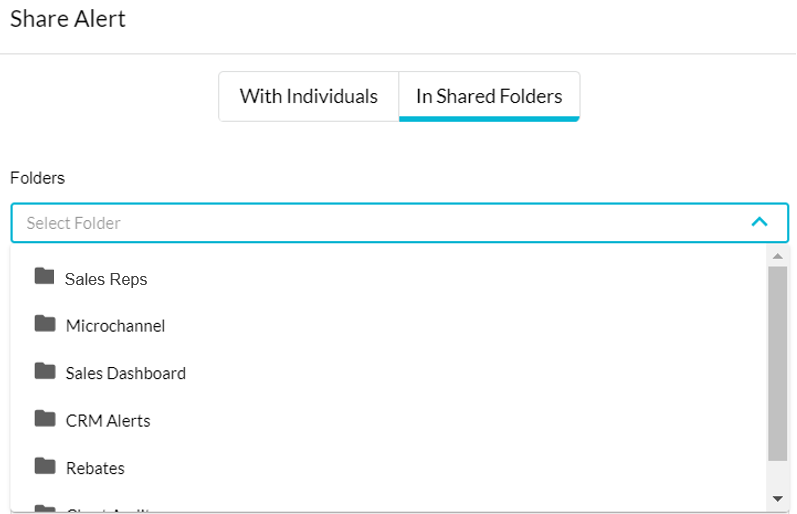
#### Share through folders
Add the item to one or more folders. The item is shared with all users who have access to those folders.
See these pages for instructions:
* **Analytics** > [Save favorites and share favorites](/analytics/save-and-share-favorites.md)
* **Financial Statements** > [Save and share favorites](/financial-statements/using-statements/save-and-share-favorites.md)
### Sharing in Flex Modes
See [Flex Modes > Save and share favorites](/analytics/save-and-share-favorites.md) to learn how sharing and permissions work in Flex Modes. The option to share through folders is unavailable.
### Sharing dashboards
You can share a dashboard when:
1. From your homepage (see section below).
2. From within the dashboard itself. Open the dashboard, click the **Share** button in the dashboard toolbar, update the sharing settings in the **Edit Dashboard** window, then click **Save**.
3. When [creating a new dashboard](/basics/dashboards/create-a-dashboard.md). In the **New Dashboard** window, select the required folders and users, then click **Save**.
### Sharing from your homepage
On your [homepage](/basics/getting-started/homepage.md), locate the favorite, dashboard, or alert you want to share, then click its menu button and click **Share**.
In the **Share** window, select the required users and/or folders, then click **Save**.
### Stop sharing
You can remove your shared favorites, dashboards, or alerts from one or more users or folders in a similar way to how you shared them.
For example, on your homepage, locate the item, click its menu button, and click **Share**. In the **Share** window, the **X** for the required users and folders, then click **Save**.
## Folders
Your administrator sets up and manages the folders for your Phocas site. For example, your organization might have folders for different functional business areas, such as a branch folder containing content items related to the branch's performance. All users who work in that branch would be granted access to the folder to see those items.
In Analytics and Financial Statements, when creating, sharing, or cloning a content item, you can select a folder to put it in.
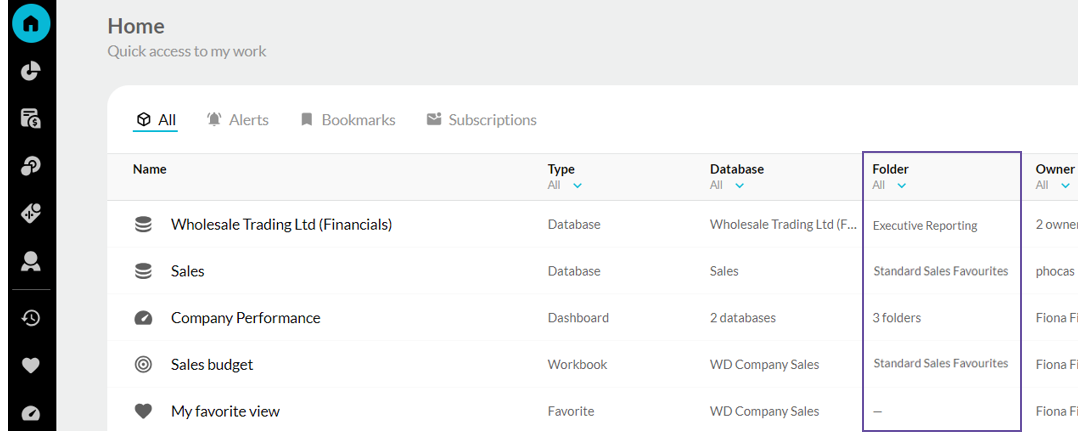
On your Phocas homepage, the **Folder** column identifies the applicable folders for each content item. To see only the content items in a specific folder, click the **All** dropdown menu, click **Select none**, then select the checkbox for that folder and click out of the filter.
---
# Agent Instructions
This documentation is published with GitBook. GitBook is the documentation platform designed so that both humans and AI agents can read, navigate, and reason over technical content effectively. Learn more at gitbook.com.
## Querying This Documentation
If you need additional information that is not directly available in this page, you can query the documentation by asking a question.
Perform an HTTP GET request on the following URL with the `ask` and `goal` query parameters:
```
GET https://docs.phocassoftware.com/basics/getting-started/sharing-and-folders.md?ask=&goal=
```
`ask` is the immediate question: it should be specific, self-contained, and written in natural language.
`goal` is what the user is ultimately trying to achieve, the reason they need the answer. Sharing it helps GitBook give you a better, more relevant answer. A goal is most helpful when it describes the outcome the user wants rather than restating the question. For example, with `ask=how do I create an API token`, a goal like `automate deployments from our CI pipeline` lets GitBook tailor the answer to that use case.
The response will contain a direct answer to the question and relevant excerpts and sources from the documentation.
Use this mechanism when the answer is not explicitly present in the current page, you need clarification or additional context, or you want to retrieve related documentation sections.
.png?alt=media)
.png?alt=media)

.png?alt=media)