> For the complete documentation index, see [llms.txt](https://docs.phocassoftware.com/llms.txt). Markdown versions of documentation pages are available by appending `.md` to page URLs; this page is available as [Markdown](https://docs.phocassoftware.com/budgets-and-forecasts/contributor/customize-your-view/use-layouts.md).
# Use layouts
Save and share multiple layouts for each worksheet to get different views of a budget or forecast.
{% hint style="info" %}
User permission: Budgets & Forecasts
{% endhint %}
Layouts are a great way to instantly change your view of a worksheet. They are different configurations of a budget or forecast worksheet. A layout can include dimension filters, search results and/or the status of the workflow column (whether it is expanded, collapsed or partially expanded).
For example, suppose your business operates in three countries (Australia, the USA and the UK) and you have one budget workbook with data for all three countries. You can apply a filter to view the budget for Australia only and save that view as a layout. You can then repeat that step to save layouts for each of the other two countries, to create four layouts in total; the original consolidated budget and one for each country.
## Save a layout
1. Set up (configure) the worksheet in a particular way. For example, you might want to apply a filter, search for a specific item and/or expand the workflow column.
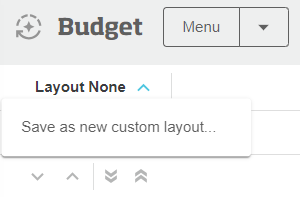
2. Click **Layout None** > **Save as new custom layout…** above the grid.
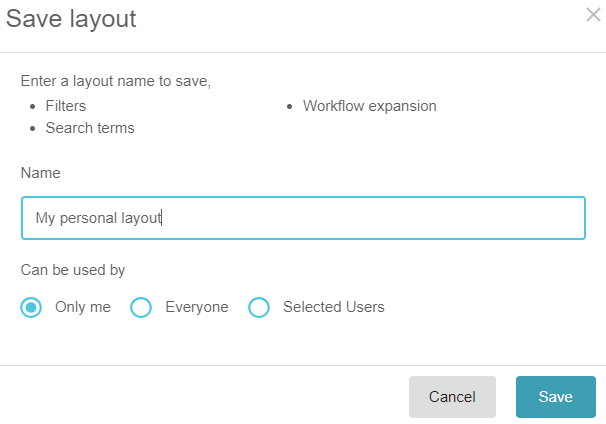
3. Enter a name for the layout.
4. Determine who can use the layout. Learn more about sharing layouts in the next section.
5. Click **Save**.
## Share a layout
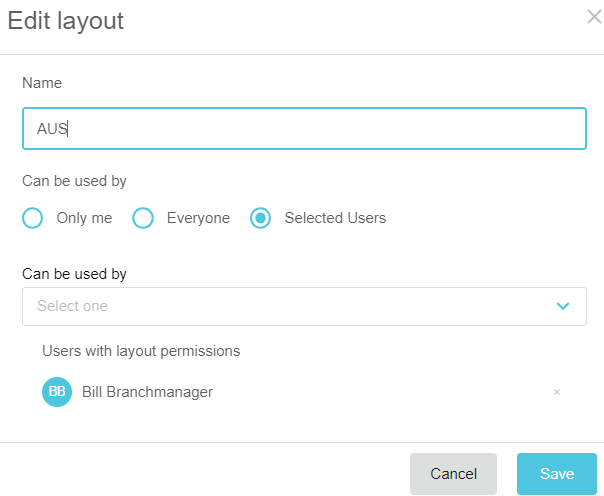
You can share a layout with one or more other users when you first save a layout or later, via the layout’s **Share** button. You have three sharing options:
* **Only me**; Do not share your layout with anyone; keep it for your personal use only.
* **Everyone**: Share your layout with all users who have access to the worksheet.
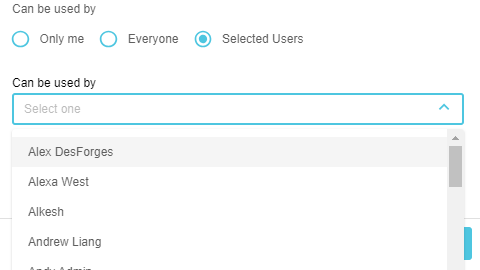
* **Selected users**: Share your layout with a subset of the users who have access to the worksheet. When you select this option, you can select one or more Budgets & Forecasts users from the list that displays.
Layouts work alongside your organization’s workflow practice and workbook access, as the sharing of layouts works differently, depending on your user role:
* Budget contributors: When you share a layout with a user, that user will only have access to the layout after they have been assigned a row in the worksheet’s workflow.
* Budget owners and administrator: When you share a layout with a user, you give that user view-only access to the budget or forecast workbook. That user can later be assigned a row in the workflow as usual.
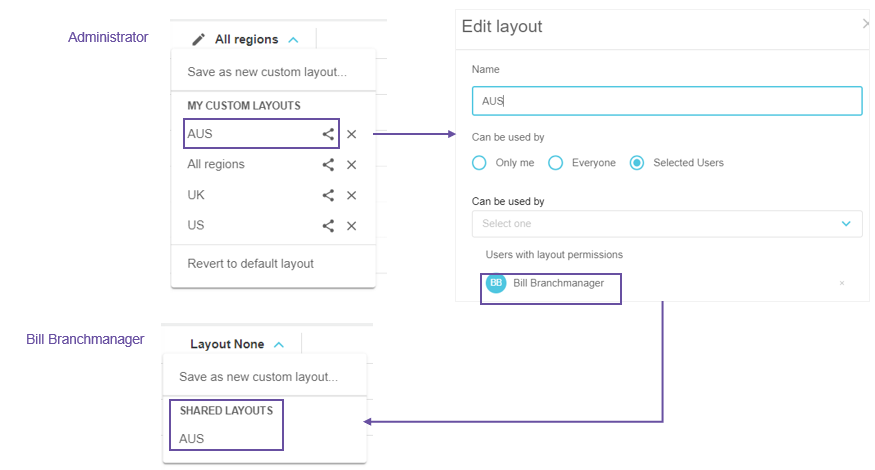
In the following example, the budget administrator created four layouts for a worksheet and only shared one of them with Bill Branchmanager. He assigned Bill some rows in the worksheet. When Bill opens the worksheet, he sees the shared layout in his **Layouts** menu. He can apply that shared layout but cannot edit or delete it. He can also create his own layouts.
## Apply a layout
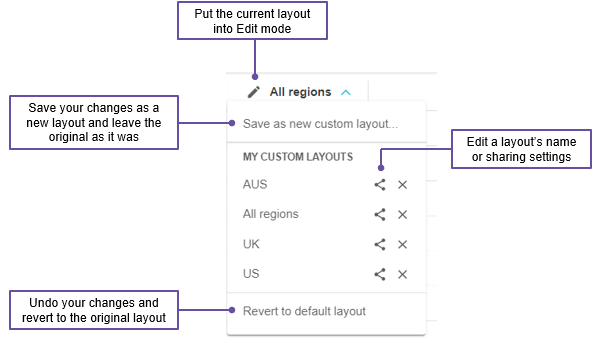
The **Layouts** menu displays a list of all the layouts you saved and any that have been shared with you. You can switch between different layouts to quickly change your view of the worksheet.
Click the **Layouts** menu and select the layout you want to apply.
{% hint style="info" %}
A layout might change how the workflow displays. This temporarily overrides your saved view preference. When you remove the layout, your saved view is restored.
{% endhint %}
## Edit a layout
You can edit the name, sharing settings and configuration of any layouts that you create. Your changes flow through to any users you have shared the layout with. You cannot edit a layout that has been shared with you. All of the editing options are available in the **Layouts** menu.
To edit the layout’s name or sharing settings, click its **Share** button, make your changes, then click **Save**.
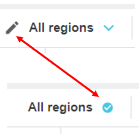
To intentionally edit the layout’s configuration, click the **Edit** button before the layout name, make your changes, then click the **Save** button that displays after the layout name.
If you unintentionally change a layout’s configuration, you can either save your changes as a new custom layout and leave the original intact, or revert to the previous layout and discard all changes. The tab returns to its normal default or your saved personal preferences, as described in [Customize your view](/budgets-and-forecasts/contributor/customize-your-view.md).
## Delete a layout
When you delete one of your layouts, it is instantly removed from the list of layouts and no longer available for other users to apply (if it had been shared).
Click the **Layouts** menu, then click the **Delete** button next to the layout.
---
# Agent Instructions
This documentation is published with GitBook. GitBook is the documentation platform designed so that both humans and AI agents can read, navigate, and reason over technical content effectively. Learn more at gitbook.com.
## Querying This Documentation
If you need additional information that is not directly available in this page, you can query the documentation by asking a question.
Perform an HTTP GET request on the following URL with the `ask` and `goal` query parameters:
```
GET https://docs.phocassoftware.com/budgets-and-forecasts/contributor/customize-your-view/use-layouts.md?ask=&goal=
```
`ask` is the immediate question: it should be specific, self-contained, and written in natural language.
`goal` is what the user is ultimately trying to achieve, the reason they need the answer. Sharing it helps GitBook give you a better, more relevant answer. A goal is most helpful when it describes the outcome the user wants rather than restating the question. For example, with `ask=how do I create an API token`, a goal like `automate deployments from our CI pipeline` lets GitBook tailor the answer to that use case.
The response will contain a direct answer to the question and relevant excerpts and sources from the documentation.
Use this mechanism when the answer is not explicitly present in the current page, you need clarification or additional context, or you want to retrieve related documentation sections.