> For the complete documentation index, see [llms.txt](https://docs.phocassoftware.com/llms.txt). Markdown versions of documentation pages are available by appending `.md` to page URLs; this page is available as [Markdown](https://docs.phocassoftware.com/budgets-and-forecasts/contributor/edit-values-in-a-worksheet/copy-and-paste-values.md).
# Copy and paste values
{% hint style="info" %}
User permission: Budgets & Forecasts
{% endhint %}
{% hint style="info" %}
Limitation: You can only copy and paste cells within the same budget workbook. Copying between different budget workbooks isn't supported. If you need to transfer work from one budget workbook to another, consider cloning the original workbook instead. This will duplicate all the content, and you can then modify the cloned version as needed.
{% endhint %}
To save data-entry time, you can copy and paste the values in cells, including ranges and formulas, into other cells in the workbook. There are several copy and paste options to choose from, as outlined below.
You can only paste values and formulas into editable cells. When you copy a formula across or down the worksheet, its relative cell references adjust to match the destination cell.
{% hint style="success" %}
Use the keyboard shortcut of **CTRL**+**Z** to undo actions and **CTRL**+**Y** to redo actions, including bulk actions, such as copy forward.
{% endhint %}
## Copy and paste
To copy a formula or value from one cell or a range of cells:
1. Select the cell you want to copy. To select a range of cells, select the first cell and drag your cursor over the cells you want to include in the range.
2. Use one of these methods to copy the selected cell(s):
* Press **Ctrl+C**.
* Right-click the cell, or any cell in a selected range, to open the context menu and select **Copy**.
* Click the **Cell** menu in the top bar and select **Copy**.
To paste the copied cell(s):
1. Go to the destination cell.
2. Use one of these methods:
* Press **Ctrl+V**.
* Right-click the cell to open the context menu and select **Paste**.
* Click the **Cell** menu in the top bar and select **Paste**.
## Drag and copy
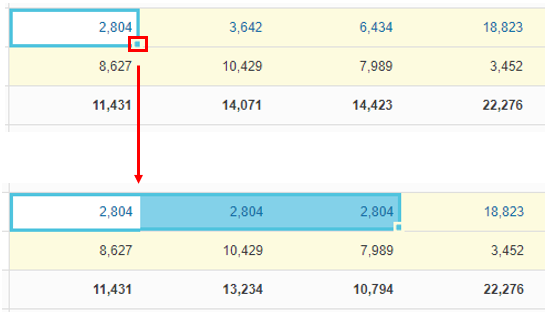
The drag-and-copy method allows you to drag a value from one cell across the row or down the column.
Click the cell, then click and drag the bottom corner of the cell across or down the row.
{% hint style="success" %}
To copy the value in cell all the way across the row or all the way down a column, use the **Copy Forward** or **Copy Down** option, as outlined below.
{% endhint %}
## Copy forward
The **Copy Forward** feature allows you to copy a value in one cell, or the values in multiple cells, all the way forward across their respective rows until the end of the period.
1. Select the cell you want to copy. To select a range of cells, select the first cell and drag your cursor down over the cells in the subsequent rows you want to include in the range.
2. Use one of these methods to copy the selected cell(s):
* Right-click the cell, or any cell in a selected range, to open the context menu and select **Copy Forward**.
* Click the **Cell** menu in the top bar and select **Copy Forward**.
## Copy down
The **Copy Down** feature is a shortcut to the drag-and-copy method above. It allows you to copy down a value in one cell, or the values in multiple cells in a row, in one of four ways: **Rows in Section**, **Expanded Rows**, **All Rows** and **All \[specific] Rows**.
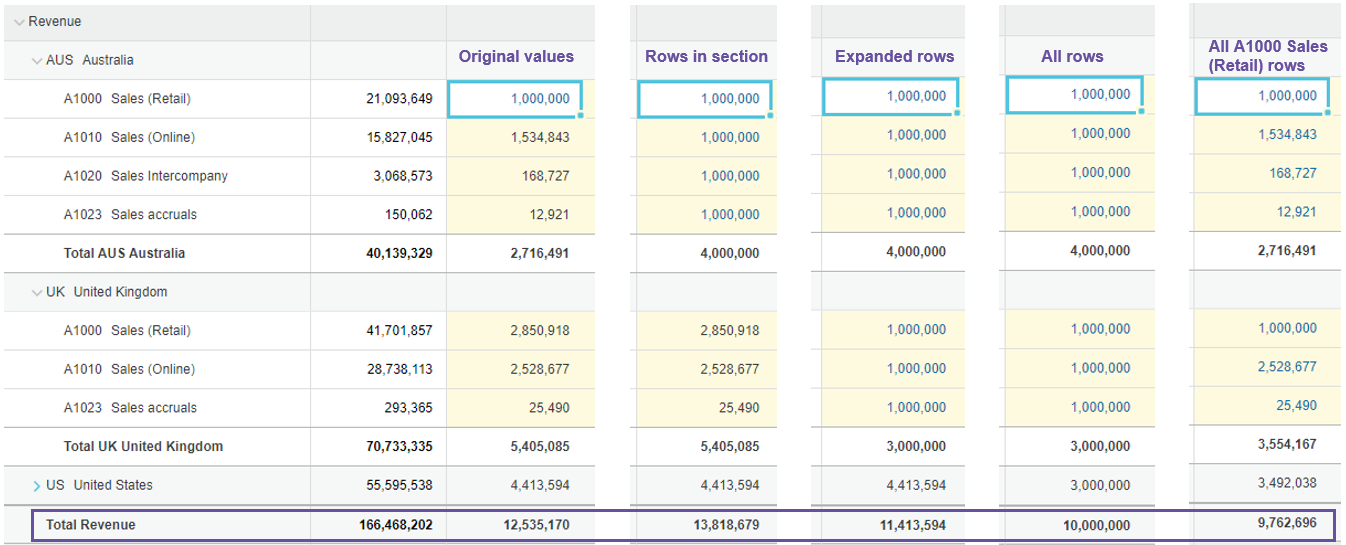
The following image illustrates the outcome of each of the **Copy Down** options. Note how the values in the **Total Revenue** row change with each option.
* **Rows in Section**: The cell value (1,000,000) is copied down into the rows in the AUS section (level), which is four rows.
* **Expanded Rows**: The cell value is copied down into all the expanded (visible) rows, which includes the rows in AUS and UK sections. This option is particularly useful when you use it alongside the [search (filter) functionality](/budgets-and-forecasts/contributor/customize-your-view/filter-a-worksheet.md), as outlined in the example below.
* **All Rows**: The cell value is copied down into all the rows below it, regardless of whether those rows are expanded (AUS and UK) or not (US).
* **All \[specific] Rows**: The cell value is copied down into all the rows of the same account name, regardless of whether those rows are expanded or not. In this case, the value is in the A100 Sales Revenue (Retail) account row in the AUS section, so it is copied down into that same account row in the UK and US sections.
{% hint style="success" %}
* The **Copy down** options are also accessible via the **Cell** menu.
* Using the bulk undo keyboard shortcut of **CTRL**+**Z**, you can easily try out each option, to see the impact of each in your worksheet.
{% endhint %}
Example: Copy down rows in section
Suppose you want to apply a formula (last year’s actual x 10%) to all the rows in the Cost section of the worksheet.
1. Enter the formula in the first cell of the row.
2. Copy that cell forward to the end of the row. All the values in the subsequent cells in the row are overwritten with the formula.
3. Select that row.
4. Right-click the selected row, then click **Copy Down** > **Rows in Section**. All the values in the subsequent rows in that section are overwritten.
Example: Copy down expanded rows
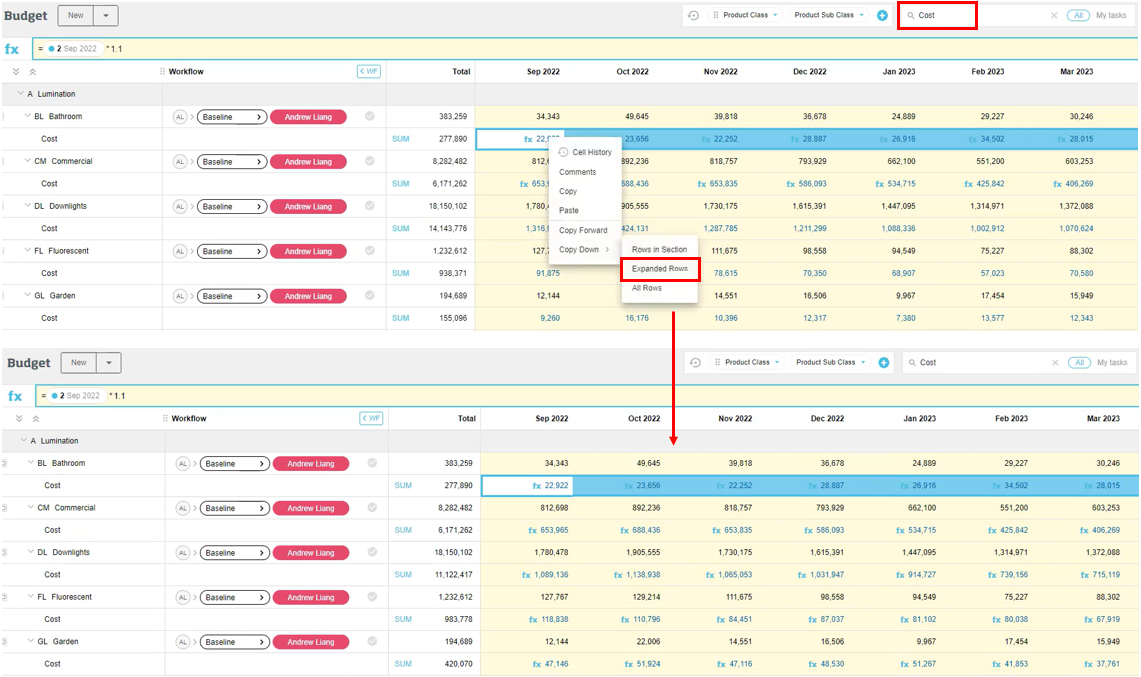
Suppose you have a driver-based budget with Cost and Quantity measures and you want to apply a formula (last year’s actual x 10%) to just the Cost rows.
1. Enter the formula in the first cell of the row.
2. Copy that cell forward to the end of the row. All the values in the subsequent cells in the row are overwritten with the formula.
3. In the **Search** box, enter a search term (Cost in this case) to filter the rows in the worksheet and display only the rows you want to copy the values into.
4. Right-click the selected row, then click **Copy Down** > **Expanded Rows**. All the values in the subsequent filtered (Cost) rows are overwritten\*.
\*Note: This option does not overwrite the values in working or sum rows.
Example: Copy down all rows
Suppose you want to apply a formula (last year’s actual x 10%) to all the rows in the Cost section of the worksheet.
1. Enter the formula in the first cell of the row.
2. Copy that cell forward to the end of the row. All the values in the subsequent cells in the row are overwritten with the formula.
3. Select that row.
4. Right-click the selected row, then click **Copy Down** > **All Rows**. All the editable values in the subsequent rows in the worksheet are overwritten.
## Copy formulas and paste values to lock in the budget
If you are a budget owner and you have completed the budgeting process, you might want to take all the formulas in a budget and change them to the current values to *lock in* the budget. You can do this quickly using the copy and paste feature.
1. Select the entire grid.
2. Right-click any cell and click **Copy**.
3. Select the top-left cell and right-click > **Paste Values**.
---
# Agent Instructions
This documentation is published with GitBook. GitBook is the documentation platform designed so that both humans and AI agents can read, navigate, and reason over technical content effectively. Learn more at gitbook.com.
## Querying This Documentation
If you need additional information that is not directly available in this page, you can query the documentation by asking a question.
Perform an HTTP GET request on the following URL with the `ask` and `goal` query parameters:
```
GET https://docs.phocassoftware.com/budgets-and-forecasts/contributor/edit-values-in-a-worksheet/copy-and-paste-values.md?ask=&goal=
```
`ask` is the immediate question: it should be specific, self-contained, and written in natural language.
`goal` is what the user is ultimately trying to achieve, the reason they need the answer. Sharing it helps GitBook give you a better, more relevant answer. A goal is most helpful when it describes the outcome the user wants rather than restating the question. For example, with `ask=how do I create an API token`, a goal like `automate deployments from our CI pipeline` lets GitBook tailor the answer to that use case.
The response will contain a direct answer to the question and relevant excerpts and sources from the documentation.
Use this mechanism when the answer is not explicitly present in the current page, you need clarification or additional context, or you want to retrieve related documentation sections.
.png?alt=media)
.png?alt=media)
.png?alt=media)
.png?alt=media)