> For the complete documentation index, see [llms.txt](https://docs.phocassoftware.com/llms.txt). Markdown versions of documentation pages are available by appending `.md` to page URLs; this page is available as [Markdown](https://docs.phocassoftware.com/budgets-and-forecasts/contributor/edit-values-in-a-worksheet/view-and-use-headcount-data.md).
# View and use headcount data
View your organization’s full-time equivalent (FTE) and headcount data and use it when entering the budget values.
{% hint style="info" %}
User permission: Budgets & Forecasts
{% endhint %}
If the budget owner or administrator adds a [Headcount driver tab](/budgets-and-forecasts/owner-and-administrator/add-worksheet-tabs/headcount-tab.md), you will see two additional tabs in the budget workbook.
To protect the privacy of your organization’s employee data, what you can see and do with the headcount data depends on your access to the budget workbook and whether you have been added as a headcount user or administrator.
## View and use headcount output
All users who have access to the Budgets & Forecasts module can view the output of the Headcount driver in two places in the budget workbook. However, what you can see specifically depends on your general workbook access.
### Headcount Output tab
On the Headcount Output tab, you can view a breakdown of your organization’s employees by FTE and headcount by month.
* The headcount output information is for reference purposes only; you cannot edit it.
* You can refer to the headcount data in formulas in any of the other worksheet tabs. The formula references are relative, so the system automatically calculates the budget values according to the individual head values.
* The headcount output information can be very useful when budgeting costs that vary depending on the number of FTEs or heads you have. For example, if you are budgeting external course costs, you could have a figure multiplied by the headcount for each region.
### Main tab
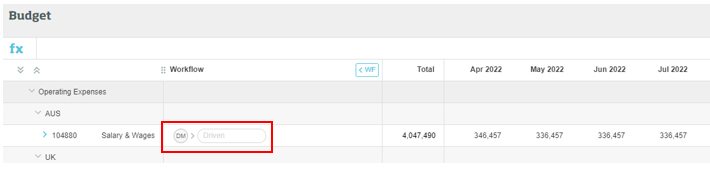
On the Main tab, you can view the automatically-driven budget values for the General Ledger account codes that are mapped to the **Headcount** driver. Either expand the applicable category or search for a specific General Ledger account row to confirm it is being driven - the “Driven” message displays in the **Workflow** column.
## Contribute to headcount input
The **Headcount Input** tab has restricted access, so a yellow lock icon displays next to the tab name. If you are invited to use this tab, you need to create a password before you can access the data. As the headcount password is separate from the Phocas sign-in password, it can be saved in your browser’s password manager.
## Reset your headcount password
If you forget your password:
* If you are a budget contributor, you get the option to reset your password after five failed sign-in attempts. After you reset your password and access the Headcount Input tab, the headcount values do not display, as they become corrupted during the reset process. You need to contact your budget owner or administrator and ask them to refresh the data on your behalf.
* If you are a budget owner or administrator, you CANNOT reset your password yourself, as that action has wider implications. [Contact us](https://portal.usepylon.com/phocas/login) to discuss your options.\
If a budget user has reset their password, you need to refresh the rows in your Headcount Input tab to trigger a refresh of the corrupted data in their Headcount Input tab. Use the refresh button on each row or the **Refresh all** button above the grid.
---
# Agent Instructions
This documentation is published with GitBook. GitBook is the documentation platform designed so that both humans and AI agents can read, navigate, and reason over technical content effectively. Learn more at gitbook.com.
## Querying This Documentation
If you need additional information that is not directly available in this page, you can query the documentation by asking a question.
Perform an HTTP GET request on the following URL with the `ask` and `goal` query parameters:
```
GET https://docs.phocassoftware.com/budgets-and-forecasts/contributor/edit-values-in-a-worksheet/view-and-use-headcount-data.md?ask=&goal=
```
`ask` is the immediate question: it should be specific, self-contained, and written in natural language.
`goal` is what the user is ultimately trying to achieve, the reason they need the answer. Sharing it helps GitBook give you a better, more relevant answer. A goal is most helpful when it describes the outcome the user wants rather than restating the question. For example, with `ask=how do I create an API token`, a goal like `automate deployments from our CI pipeline` lets GitBook tailor the answer to that use case.
The response will contain a direct answer to the question and relevant excerpts and sources from the documentation.
Use this mechanism when the answer is not explicitly present in the current page, you need clarification or additional context, or you want to retrieve related documentation sections.