.png?alt=media)
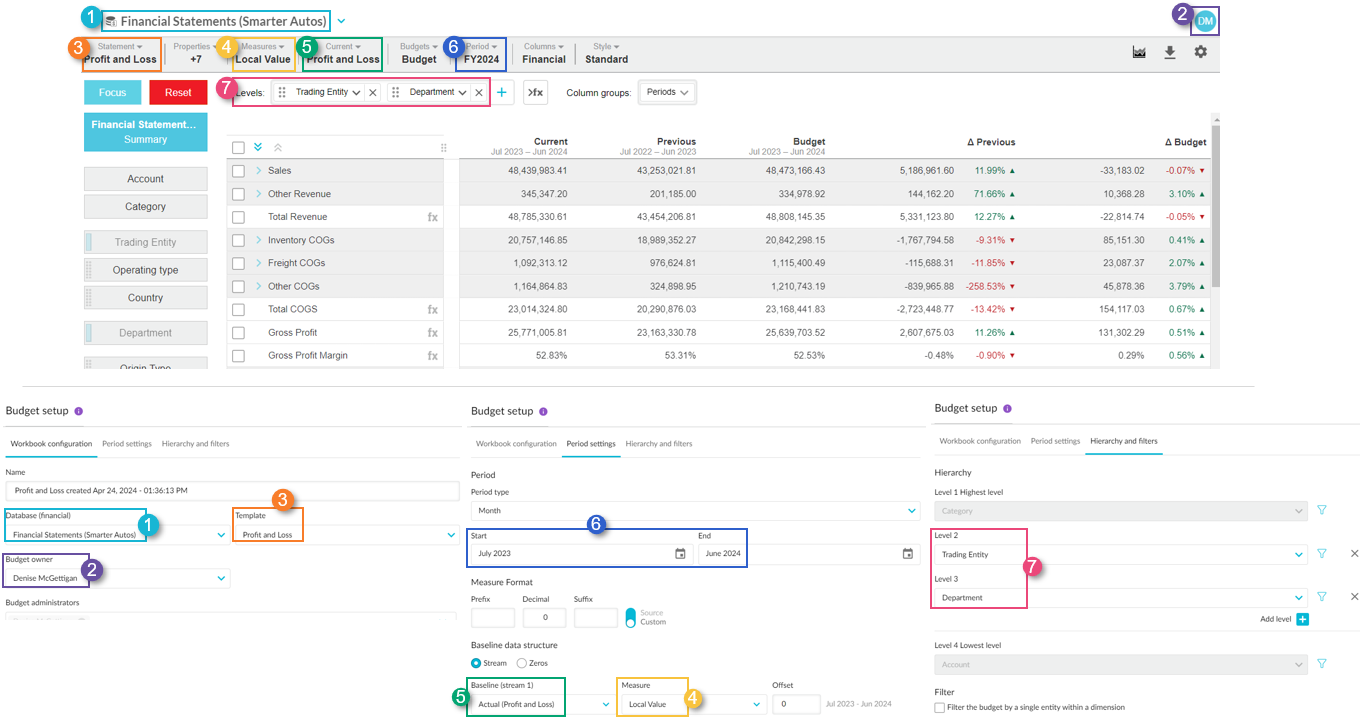
| Profit and Loss (P&L) setup in FS | Budget setup in B&F | |
|---|---|---|
| 1 | Database: The financial database upon which the statement is based. | Database: The financial database upon which the budget is based (the same as the statement). This is where the budget data will ultimately be published. |
| 2 | User: The signed-in user (your initials). | Budget Owner: The user who created the budget workbook and has overall administrative control. If you create a workbook, you’ll see your name here. See Overview of users and data access. |
| 3 | Statement: The type of statement, which is always a P&L statement. There might be several custom P&L statements to choose from. | Statement: The particular P&L statement upon which the budget is based. This setting determines the layout of the budget. |
| 4 | Measure: The type of values that are displayed in the statement grid. If your organization uses multiple currencies, you might have this set to local currency or reporting currency. | Measure: The type of values that are displayed in the budget grid. See Customize the format of measures. |
| 5 | Current (stream): The source of the current data in the database. There might be multiple streams to choose from. | Stream: The source of data used to populate the initial budget values. This will also determine the dimension row combinations that are included in the budget. |
| 6 | Period: The timeframe for the financial period. | Period > Start and End: The start and end dates of the budget period. |
| 7 | Levels: Additional dimensions levels in the statement that you can expand to view the information in more granular detail. This has a big impact on the structure of the budget. | Levels: Additional dimension levels in the budget that you can expand to view and budget the information in more granular detail. See Dimensions and Filter by dimension. |
.png?alt=media) |
| .png?alt=media) |
### Important notes
Nested calculations at each level in the budget hierarchy can sometimes cause issues or inefficiencies:
* **Redundant rows:** Many nested calculations might be unnecessary from a budgeting perspective. This can lead to excess white space and additional rows that contain only zero values.
* **Performance impact:** Budgets with many dimension levels can take longer to load due to the large number of nested calculations. To improve performance, consider hiding these rows (see [Best practices for efficient budgeting](https://docs.phocassoftware.com/budgets-and-forecasts/getting-started/overview-of-key-terms-and-concepts/pages/DzJtZwhIlA8godVUocNp#id-4.-budget-setup-general-tips)).
* **Incorrect totals:** Be careful when referencing totals in a filtered workbook or one with hidden cells due to database restrictions. The totals might not respect the filters, resulting in incorrect or unexpected values when filters or restrictions are changed.
* **Broken references:** Any cell references that point to nested calculations will break if those rows are later hidden. To avoid this, decide whether to keep nested calculations shown (on) or hidden (off) and use that setting consistently throughout the budget.
## Hidden rows
When a budget workbook is created, the B\&F module must know which account and dimension combinations to include in the Main tab. If all possible combinations were included, the Main tab of the workbook would potentially contain many redundant combinations and, therefore, rows. To mitigate this, rows are only created for the combinations present in the baseline stream. All the other combinations are excluded by default. If the budget is missing something you expected it to contain, you can add a [dimension entity](/budgets-and-forecasts/owner-and-administrator/add-more-detail-to-the-budget-or-forecast.md#add-an-entity) or [account](/budgets-and-forecasts/owner-and-administrator/add-more-detail-to-the-budget-or-forecast.md#add-an-account) as applicable.
{% hint style="info" %}
Even though some rows are hidden from a budget, any rows populated with values from the Actuals stream are automatically injected into a forecast. This is to ensure consistency between the FS and B\&F modules.
{% endhint %}
## Custom statements
In FS, you create custom statements to suit your business needs. When you create budgets in B\&F, they are based on those statements. It's important to understand the impact of making changes in FS on the budgets in B\&F.
### Statements specifically for use in B\&F
It's a good idea to create a custom Profit and Loss statement for B\&F purposes. The uses and benefits of such a statement are as follows:
* Remove total and calculation rows to provide a cleaner view of the data entry rows.
* Remove dimensions and, therefore, levels from the hierarchy so it's easier to drill down into the data entry rows.
* Provide the ability to focus on specific accounts and ignore others. For example, you can set up a workbook to specifically budget for overheads.
* Add custom calculations, insights or validations that you want to use in B\&F but are not required in FS.
{% hint style="success" %}
After you create this statement, you can quickly create the corresponding budget using the [one-click budgeting method](/financial-statements/managing-statements/create-a-budget.md).
{% endhint %}
### Impacts of making changes to dimension groups and account groups
When you create a budget in B\&F, the budget values are stored against the dimension entity and account group names in the underlying financial statement.
If you later make changes to these names (in FS), you'll lose the corresponding budget values. However, those budget values aren't lost forever. As the items still exist in Phocas, you can reinstate the budget values by reverting to the original name.
It might take some time to see the impact of your changes, as they are only applied during the next database build.
{% hint style="success" %}
[Publish your budget](/budgets-and-forecasts/owner-and-administrator/publish-a-budget-forecast-or-other-worksheet-tab.md) before you make any changes to the underlying financial statement. This ensures you have a copy of the original budget to fall back on in case of any missing budget values.
{% endhint %}
#### Example 1: Renaming account groups in a statement
Suppose that in a Profit and Loss statement, you have an account group called *Sales*. When you create a budget based on that statement, you’ll see the Sales group in the worksheet. If you later change the name of that group to *Revenue* (see [customize account groups](/financial-statements/managing-statements/customize-a-financial-statement/customize-groups.md) in FS), you’ll lose your budget values against the Sales group. The Sales group is no longer displayed in the budget because you've broken the connection between that dimension entity in FS and B\&F.
|
### Important notes
Nested calculations at each level in the budget hierarchy can sometimes cause issues or inefficiencies:
* **Redundant rows:** Many nested calculations might be unnecessary from a budgeting perspective. This can lead to excess white space and additional rows that contain only zero values.
* **Performance impact:** Budgets with many dimension levels can take longer to load due to the large number of nested calculations. To improve performance, consider hiding these rows (see [Best practices for efficient budgeting](https://docs.phocassoftware.com/budgets-and-forecasts/getting-started/overview-of-key-terms-and-concepts/pages/DzJtZwhIlA8godVUocNp#id-4.-budget-setup-general-tips)).
* **Incorrect totals:** Be careful when referencing totals in a filtered workbook or one with hidden cells due to database restrictions. The totals might not respect the filters, resulting in incorrect or unexpected values when filters or restrictions are changed.
* **Broken references:** Any cell references that point to nested calculations will break if those rows are later hidden. To avoid this, decide whether to keep nested calculations shown (on) or hidden (off) and use that setting consistently throughout the budget.
## Hidden rows
When a budget workbook is created, the B\&F module must know which account and dimension combinations to include in the Main tab. If all possible combinations were included, the Main tab of the workbook would potentially contain many redundant combinations and, therefore, rows. To mitigate this, rows are only created for the combinations present in the baseline stream. All the other combinations are excluded by default. If the budget is missing something you expected it to contain, you can add a [dimension entity](/budgets-and-forecasts/owner-and-administrator/add-more-detail-to-the-budget-or-forecast.md#add-an-entity) or [account](/budgets-and-forecasts/owner-and-administrator/add-more-detail-to-the-budget-or-forecast.md#add-an-account) as applicable.
{% hint style="info" %}
Even though some rows are hidden from a budget, any rows populated with values from the Actuals stream are automatically injected into a forecast. This is to ensure consistency between the FS and B\&F modules.
{% endhint %}
## Custom statements
In FS, you create custom statements to suit your business needs. When you create budgets in B\&F, they are based on those statements. It's important to understand the impact of making changes in FS on the budgets in B\&F.
### Statements specifically for use in B\&F
It's a good idea to create a custom Profit and Loss statement for B\&F purposes. The uses and benefits of such a statement are as follows:
* Remove total and calculation rows to provide a cleaner view of the data entry rows.
* Remove dimensions and, therefore, levels from the hierarchy so it's easier to drill down into the data entry rows.
* Provide the ability to focus on specific accounts and ignore others. For example, you can set up a workbook to specifically budget for overheads.
* Add custom calculations, insights or validations that you want to use in B\&F but are not required in FS.
{% hint style="success" %}
After you create this statement, you can quickly create the corresponding budget using the [one-click budgeting method](/financial-statements/managing-statements/create-a-budget.md).
{% endhint %}
### Impacts of making changes to dimension groups and account groups
When you create a budget in B\&F, the budget values are stored against the dimension entity and account group names in the underlying financial statement.
If you later make changes to these names (in FS), you'll lose the corresponding budget values. However, those budget values aren't lost forever. As the items still exist in Phocas, you can reinstate the budget values by reverting to the original name.
It might take some time to see the impact of your changes, as they are only applied during the next database build.
{% hint style="success" %}
[Publish your budget](/budgets-and-forecasts/owner-and-administrator/publish-a-budget-forecast-or-other-worksheet-tab.md) before you make any changes to the underlying financial statement. This ensures you have a copy of the original budget to fall back on in case of any missing budget values.
{% endhint %}
#### Example 1: Renaming account groups in a statement
Suppose that in a Profit and Loss statement, you have an account group called *Sales*. When you create a budget based on that statement, you’ll see the Sales group in the worksheet. If you later change the name of that group to *Revenue* (see [customize account groups](/financial-statements/managing-statements/customize-a-financial-statement/customize-groups.md) in FS), you’ll lose your budget values against the Sales group. The Sales group is no longer displayed in the budget because you've broken the connection between that dimension entity in FS and B\&F.
.png?alt=media)
.png?alt=media)