> For the complete documentation index, see [llms.txt](https://docs.phocassoftware.com/llms.txt). Markdown versions of documentation pages are available by appending `.md` to page URLs; this page is available as [Markdown](https://docs.phocassoftware.com/budgets-and-forecasts/owner-and-administrator/add-worksheet-tabs.md).
# Add worksheet tabs (drivers)
Add worksheet tabs to a workbook to include extra details and automatically drive budget and forecast values.
{% hint style="info" %}
User permissions: Budgets & Forecasts and Manage Budgets & Forecasts
{% endhint %}
While only the budget owner and administrators can add tabs to a budget workbook, other users (contributors) can enter values in those tabs via the workflow.
When you create a budget workbook, it has one worksheet tab, the Main tab. You can add other tabs to include details in the budget to have this information at hand in one central location or drive budget values. When you save the budget as a forecast, the tabs are copied into the forecast workbook. You can then add other tabs as required.
{% hint style="warning" %}
Check your [workbook setup](/budgets-and-forecasts/owner-and-administrator/edit-a-budget-or-forecast-workbook-setup.md) before adding worksheet tabs. The addition of some tabs locks structural settings, preventing further changes.
{% endhint %}
Either click the **Budget** menu > **Add tab** or click the **Add tab** button (at the bottom of the workbook), then select the required tab type and proceed to set up the tab.
{% hint style="warning" %}
Read the [Best practices for efficient budgeting](/budgets-and-forecasts/owner-and-administrator/create-a-budget/best-practices-for-efficient-budgeting.md) page before you start adding more tabs into a workbook. The addition of more tabs means there's more data in the workbook, which might negatively impact its performance.
{% endhint %}
## Types of tabs
You can add the following types of worksheet tabs to budget and forecast workbooks:
* [**Manual Entry**](/budgets-and-forecasts/owner-and-administrator/add-worksheet-tabs/manual-entry-tab.md): This tab is a blank worksheet in which you can manually enter data. It doesn’t automatically drive budget values, but you can reference its data in formulas in other tabs to drive values.
* [**Lookup**](/budgets-and-forecasts/owner-and-administrator/add-worksheet-tabs/lookup-tab.md): This tab is similar to a Manual Entry tab (in that you can manually enter data) but has a prebuilt dimension structure, entities inherited from another tab, and default data values you can edit. It doesn’t automatically drive budget values, but you can reference its data in formulas in other tabs to drive values.
* [**Reference**](/budgets-and-forecasts/owner-and-administrator/add-worksheet-tabs/reference-tab.md): This tab contains data from another Phocas database. It doesn’t automatically drive budget values, but you can reference its data in formulas in other tabs to drive values.
* [**Scratch Pad**](/budgets-and-forecasts/owner-and-administrator/add-worksheet-tabs/scratch-pad-tab.md): This tab is a blank, unstructured worksheet where you can freely add data, formulas, and calculations without being restricted to set period columns. You can use this tab for KPI analysis, scenario planning, one-off budget scenarios, and saving supporting workings together with the budget.
You can add the following types of tabs to budget workbooks only:
* [**Database**](/budgets-and-forecasts/owner-and-administrator/add-worksheet-tabs/database-tab.md): This tab contains data from another Phocas database. Its structure is based on the Main tab, so it automatically drives items in the Main tab. You can also reference its data in formulas in other tabs to drive values.
* [**Headcount**](/budgets-and-forecasts/owner-and-administrator/add-worksheet-tabs/headcount-tab.md): This tab contains a blank worksheet in which you can import or manually enter employee salary, bonus, and commission data, along with associated benefits, such as pensions and gym memberships. It automatically drives selected items in the Main tab. You can also reference its data in formulas in other tabs to drive values.
* [**Balance Sheet**](/budgets-and-forecasts/owner-and-administrator/add-worksheet-tabs/balance-sheet-cash-flow-tabs.md): Available in financial budgets only, this tab contains your Balance Sheet budget. When adding this tab, you also have the option to include a Cash Flow budget, which is automatically derived and displayed in a separate tab. Including the Profit and Loss, Balance Sheet, and Cash Flow budgets in one budget workbook creates a [3-statement budgeting](/budgets-and-forecasts/getting-started/overview-of-key-terms-and-concepts/overview-of-3-statement-budgeting.md) model.
* [**Allocation**](/budgets-and-forecasts/owner-and-administrator/add-worksheet-tabs/allocations-tab.md): Available in financial budgets only, this tab allows you to split costs, revenue, and other items across different areas of your organization.
## Drivers
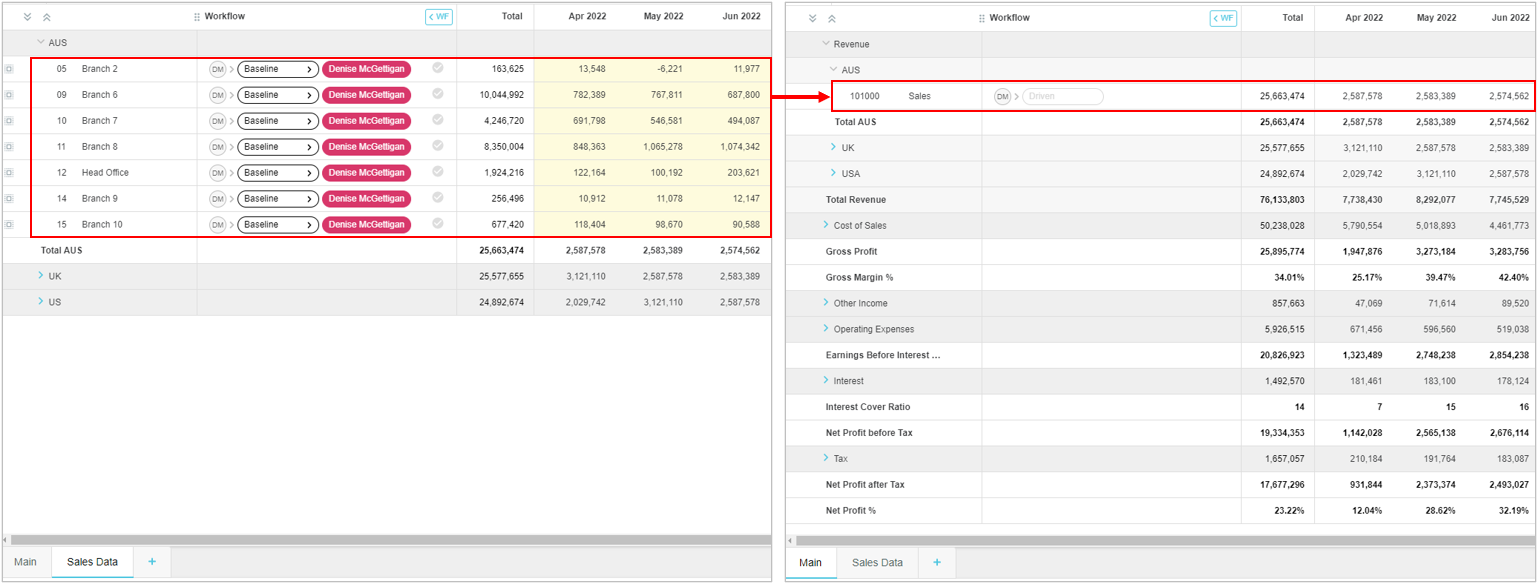
As mentioned above, some tabs *drive* budget values. Drivers, also referred to as assumptions, are used in most budgets. They are key business factors that influence financial performance, such as operational costs. These factors often change during budgeting, so managing them in additional tabs can be useful. Drivers act like powerful [working lines](/budgets-and-forecasts/contributor/edit-values-in-a-worksheet/use-sum-and-working-lines.md). You do all the data entry budgeting in the driver tab, and the data flows into the Main tab, sometimes automatically, as illustrated in the image below. When you change the data in the driver tab, the data in the Main tab updates accordingly. Using driver tabs saves you a lot of time when it comes to updating budget data.
---
# Agent Instructions
This documentation is published with GitBook. GitBook is the documentation platform designed so that both humans and AI agents can read, navigate, and reason over technical content effectively. Learn more at gitbook.com.
## Querying This Documentation
If you need additional information that is not directly available in this page, you can query the documentation by asking a question.
Perform an HTTP GET request on the following URL with the `ask` and `goal` query parameters:
```
GET https://docs.phocassoftware.com/budgets-and-forecasts/owner-and-administrator/add-worksheet-tabs.md?ask=&goal=
```
`ask` is the immediate question: it should be specific, self-contained, and written in natural language.
`goal` is what the user is ultimately trying to achieve, the reason they need the answer. Sharing it helps GitBook give you a better, more relevant answer. A goal is most helpful when it describes the outcome the user wants rather than restating the question. For example, with `ask=how do I create an API token`, a goal like `automate deployments from our CI pipeline` lets GitBook tailor the answer to that use case.
The response will contain a direct answer to the question and relevant excerpts and sources from the documentation.
Use this mechanism when the answer is not explicitly present in the current page, you need clarification or additional context, or you want to retrieve related documentation sections.