> For the complete documentation index, see [llms.txt](https://docs.phocassoftware.com/llms.txt). Markdown versions of documentation pages are available by appending `.md` to page URLs; this page is available as [Markdown](https://docs.phocassoftware.com/budgets-and-forecasts/owner-and-administrator/create-a-forecast.md).
# Create a forecast workbook
Save a budget workbook as a forecast workbook to estimate the performance in future periods and understand your current direction.
{% hint style="info" %}
User permissions: Budgets & Forecasts and Manage Budgets & Forecasts
{% endhint %}
{% hint style="success" %}
Read the [Overview of budgets versus forecasts](/budgets-and-forecasts/getting-started/overview-of-key-terms-and-concepts/overview-of-budgets-versus-forecasts.md) page to learn about each one and the differences between them.
{% endhint %}
A forecast workbook is always based on a budget workbook that has been published to a stream, which could be a budget or a previous forecast stream. You save a budget workbook as a forecast workbook. In other words, you convert a budget workbook into a forecast workbook. If the budget workbook includes a Balance Sheet budget, Cash Flow budget, or any other tabs, they are also included in the forecast workbook.
{% hint style="success" %}
Watch this PUG Training video: [Tracking performance + re-forecasting](https://www.phocassoftware.com/customer/training-series/budgets-forecasts#session5)
{% endhint %}
1. In the budget workbook, ensure the **Main** budget tab and any driver tabs and Balance Sheet tab you want for the forecast are [published to a stream](/budgets-and-forecasts/owner-and-administrator/publish-a-budget-forecast-or-other-worksheet-tab.md).
2. Click **Budget** > **Save as forecast**.
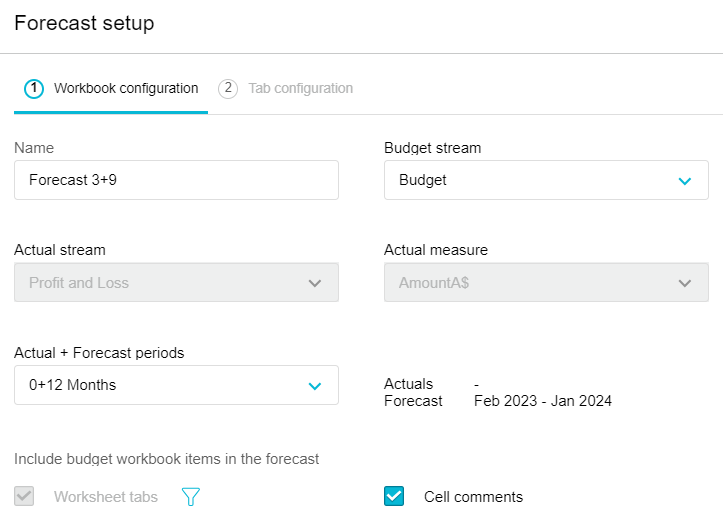
3. In the **Forecast setup**, enter a name for the forecast. For example, Forecast 3+9.
4. (Optional) Select a different **budget stream** on which to base the forecast.
* A default stream, which is your last published stream, is selected for you. If no stream is selected, it means the budget workbook has not been published to a stream.
* You might want to select a different stream from the default stream. For example, if you have another budget with exactly the same structure, such as a stretch or worst-case scenario budget that you've been using recently, you might prefer to base your forecast on that budget.
5. (Optional) Change the default **actual stream** and **actual measure**.
6. (Optional) Change the default **Actual + Forecast periods** you want in your workbook.
* This is the period that you want to forecast. For example, suppose your budget runs from July 2022 through to June 2023 and you have just completed the month of October (the fourth month in the budget). You want to bring in your actual data from July to October (four months) and forecast from November onwards. Therefore, you select the 4+8 option.
* You can amend this period selection later, as time progresses.
7. (Optional) Select the items you want to bring across from the budget workbook into the forecast period.
* If the underlying budget workbook has any other tabs, by default, all those tabs are selected and included in the forecast workbook. If you do not want any of them, click the **Filter Tabs** button and clear the checkboxes of those you do not want.
* By default, all cell comments are included, so if you do not want them, clear the **Cell comments** checkbox.
8. Select the applicable action:
* If the workbook doesn’t have other tabs, click **Save and finish**, and proceed to explore your forecast workbook.
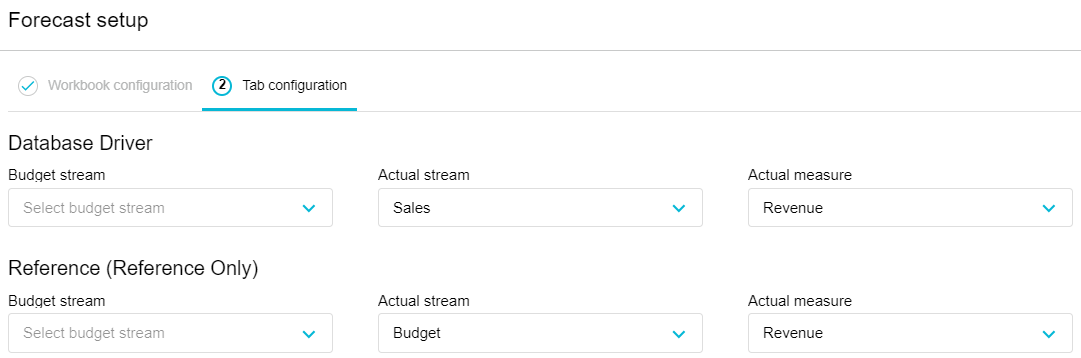
* If the workbook has other tabs, you need to provide additional information to bring in data for the corresponding streams. Click **Next**, select the **Budget stream**, **Actual stream,** and **Actual measure** for each of those tabs, and click **Save and finish**. Then proceed to explore your forecast workbook.
9. Proceed to [explore the forecast workbook](/budgets-and-forecasts/getting-started/take-a-tour-of-budgets-and-forecasts/explore-the-forecast-workbook.md).
---
# Agent Instructions
This documentation is published with GitBook. GitBook is the documentation platform designed so that both humans and AI agents can read, navigate, and reason over technical content effectively. Learn more at gitbook.com.
## Querying This Documentation
If you need additional information that is not directly available in this page, you can query the documentation by asking a question.
Perform an HTTP GET request on the following URL with the `ask` and `goal` query parameters:
```
GET https://docs.phocassoftware.com/budgets-and-forecasts/owner-and-administrator/create-a-forecast.md?ask=&goal=
```
`ask` is the immediate question: it should be specific, self-contained, and written in natural language.
`goal` is what the user is ultimately trying to achieve, the reason they need the answer. Sharing it helps GitBook give you a better, more relevant answer. A goal is most helpful when it describes the outcome the user wants rather than restating the question. For example, with `ask=how do I create an API token`, a goal like `automate deployments from our CI pipeline` lets GitBook tailor the answer to that use case.
The response will contain a direct answer to the question and relevant excerpts and sources from the documentation.
Use this mechanism when the answer is not explicitly present in the current page, you need clarification or additional context, or you want to retrieve related documentation sections.