> For the complete documentation index, see [llms.txt](https://docs.phocassoftware.com/llms.txt). Markdown versions of documentation pages are available by appending `.md` to page URLs; this page is available as [Markdown](https://docs.phocassoftware.com/budgets-and-forecasts/owner-and-administrator/manage-the-workflow.md).
# Manage the workflow
Learn about the steps involved in managing the workflow for a worksheet.
{% hint style="info" %}
User permissions: Budgets & Forecasts and Manage Budgets & Forecasts
{% endhint %}
There's a separate [workflow](/budgets-and-forecasts/contributor/use-workflows.md) for most types of worksheet tabs. If you are the budget owner, your name displays as the baseline in the workflow for all rows in a worksheet, which means that the workflow starts and stops with you. If you are a budget administrator, you can take over the workflow at any time.
As illustrated in the diagram below, you assign tasks (rows) to other users (contributors) and when they complete those tasks, they submit the rows back to you. You can then review those rows and either accept or reject them. When you believe there is no more work to do for the rows, you can mark them as complete.
Preparing the budget or forecast is a collaborative process but you can have peace of mind knowing that while multiple users can work in a worksheet at any time, only the [current workflow owner ](/budgets-and-forecasts/contributor/use-workflows.md#useworkflows-workflowowner)of a row can enter or edit data in that row.
{% embed url="" %}
Manage the workflow
{% endembed %}
{% embed url="" %}
Understanding workflow and task assignment
{% endembed %}
{% embed url="" %}
Delegate a budget line to another user
{% endembed %}
{% hint style="success" %}
* Watch this Phocas demo video for a brief overview: [Workflows and user permissions](https://www.phocassoftware.com/watch-demo/workflows-and-user-permissions?autoplay=true)
* To help you manage the workflow process, add administrators to the workbook. Administrators can also take over the workflow in your absence.
{% endhint %}
## Assign tasks
You can assign tasks individually, one row at a time, or assign multiple tasks simultaneously. Assignees (workflow contributors) will see a pink notification on their Phocas homepage next to the relevant workbook, with a number indicating how many tasks they have. You can also[ enable email workflow notifications](/budgets-and-forecasts/owner-and-administrator/manage-user-access-and-notifications.md), so assignees get an email informing them they have tasks to complete.
### Assign one task to a user
1. In the **Workflow** column of a row (or row within a selection of rows), click the workflow status button (it will display as **Baseline** initially).
2. In the workflow window, enter a comment, if required.
3. Click the **Assign** button and select the required user.
* The workflow window closes instantly and the **Workflow** column updates to reflect your changes - the label on the **Baseline** button changes to **Assigned** and your name is replaced by the user you assigned the task to. Your initials (predecessor identifier) remain, so other users can see who assigned the task.
* If you change your mind, make a mistake or want to edit the values in the row yourself, you can unassign the user from the row. Click the **Assigned** button, then click **Unassign**. The row returns to you and the other user loses the ability to edit the data.
For example, in the image below, you can see that the budget owner Charlie C.Epho assigned some of the Marketing rows to Mark Marketing and Andy Admin, and the Direct Fuel and Telephone rows to Bill Branchmanager. Charlie remains as the baseline for the remaining Marketing rows, as she didn’t assign them to anyone else. She could not assign the Sales row to any user, as it is being driven (by the Database driver tab).
### Assign multiple tasks to a user simultaneously
There are several ways to assign tasks in bulk:
#### Update all rows with a specific workflow status
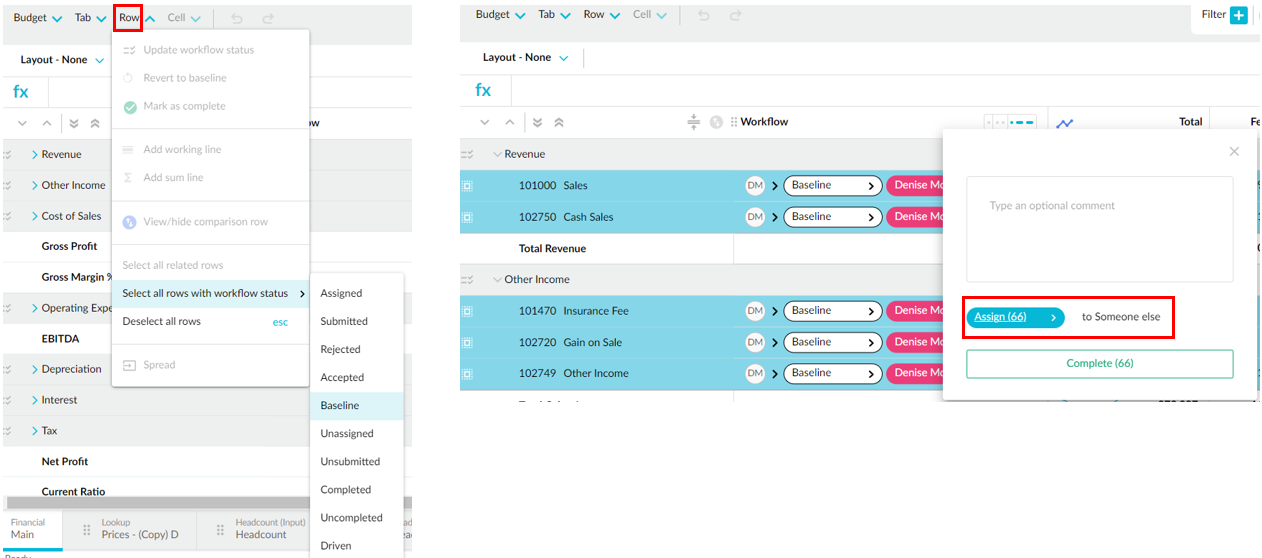
With no rows selected, click the **Row** menu > **Select all rows with workflow status**, then select the applicable status. With those rows now selected, click the **Row** menu again and select **Update workflow status**, then change the status as usual. The workflow status of all the selected rows is automatically updated.
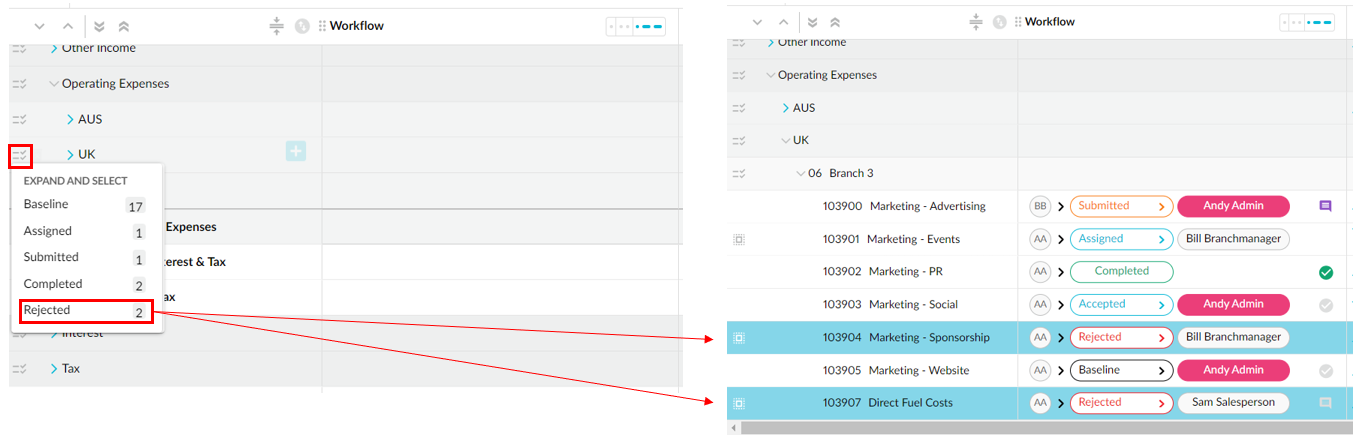
#### Update an entire level (hierarchy) with a specific workflow status
For example, you might want to select all baseline rows to assign them to a particular user or select all rows with Rejected status for closer inspection.
{% embed url="" %}
#### Manually multi-select *like* (similar)rows
Manually select multiple rows when you want to perform the same workflow action on them, for example, assign them all to the same user. The rows can have a mix of predecessors, owners, and actions.
The first row you select determines which other rows can be selected. You can only select rows where the **resulting workflow action will be the same**. For example, if you select an assigned row, you can select other rows that can be unassigned, but you can't also select an unassigned row that would need to be assigned. Checkboxes only display for rows that can have the same action applied.
To select a continuous range of like rows, select the first row, then hold **Shift** and select the last row in the range.
After selecting the rows, you can either:
* Use the **Row** menu to perform an action on the selected rows.
* Click any row in the selection to update the workflow for all selected rows.
## Check assignments
While there's no need for you to check that your assignments were implemented correctly, you might want to check them to understand the process better, and see the workflow from the other users' perspectives. There are three ways to do this:
* **Shadow a user**: Sit beside a user and watch as they sign into Phocas, open the workbook and [view their tasks](/budgets-and-forecasts/contributor/use-workflows/contribute-to-the-workflow.md)
* **Impersonate the user**: If you have permission, you can use the [Impersonate tool](broken://pages/jUwamC0eG6a8H5IH3SEG) to view the workbook as a specified user would.
* **Focus on a region or branch**: Coming soon - Use the View as tabs feature to isolate branch or region data for focused reviews.
## Review completed tasks
When users complete their tasks, they might assign the rows to other users for their input or submit the rows straight back to you. Ultimately, as the budget owner, the rows end up back with you.
When a user submits a task, a notification displays in the **Tasks** button in the top right corner. You can either click a task summary to go straight to the corresponding row in the worksheet, which displays in blue, or click the **My tasks** button in the search box to filter the worksheet and view only the rows that were submitted or assigned to you.
Review the values that were completed by the user and read any [cell comments](/budgets-and-forecasts/contributor/review-the-budget-or-forecast/add-and-view-cell-comments.md).
Review the [workflow comments](/budgets-and-forecasts/contributor/use-workflows/view-workflow-comments.md) and [workflow history](/budgets-and-forecasts/contributor/use-workflows/view-the-workflow-history.md), to see how the row progressed from the baseline to being a fully completed budget or forecast line item.
## Accept or reject rows
If you are satisfied with a row, you can accept it.
If you are not satisfied with the row, you can make your own revisions, then accept the row, or reject the row and send it back to the user for further editing. The workflow continues until you finally accept the row.
You can also accept or reject rows in bulk (read more about this in the **Assigned tasks** section above).
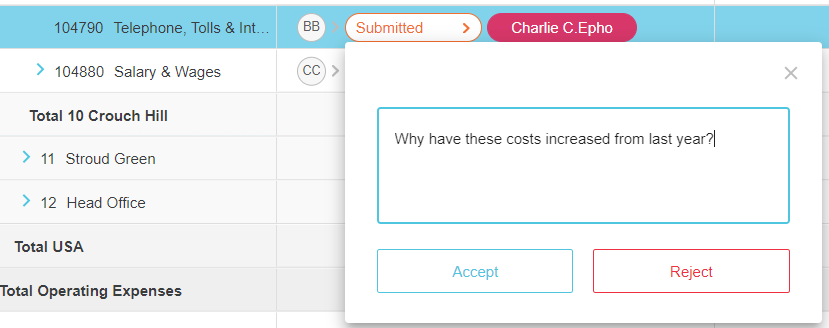
1. In the **Workflow** column of a row (or row within a selection), click the **Submitted** button.
2. In the workflow window, enter a comment, if required.
3. Click **Accept** or **Reject**, as applicable.
{% hint style="success" %}
When you accept a row, you can mark the row as complete, as a personal reminder that you have reviewed and accepted the values.
{% endhint %}
## Mark a row as complete
The **Completed** status in the workflow means the row is unassigned to a user, therefore the values can't be edited. This status is useful:
* For reference purposes; it's a note to the budget owner that the data entry for the row is complete and has been reviewed.
* For [securing a completed budget or forecast](/budgets-and-forecasts/owner-and-administrator/create-a-budget/secure-and-distribute-a-completed-budget-or-forecast.md) prior to distribution.
You don't need to mark every row as complete before you can publish or use the budget or forecast.
When the workflow is back with you, you can mark the row(s) as complete in two ways:
* Individual row: Click the **Mark as Complete** button .png?alt=media) or click the **Accepted** button, enter a comment if required, and click **Complete**.
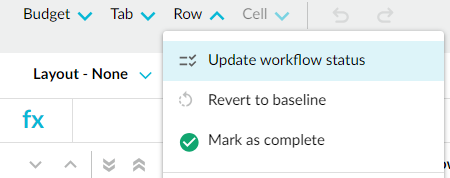
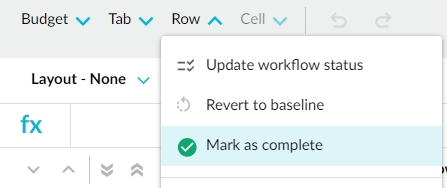
* Multiple rows in bulk: Select the applicable rows, then click the **Row** menu > **Mark as complete**.
Either way, the **Workflow** column updates to reflect your changes - the green **Completed** button .png?alt=media) displays and your name no longer displays, indicating that the workflow has stopped.
{% hint style="success" %}
To save time, you can select multiple rows and mark one of them as complete - all of the selected rows will display as completed.
{% endhint %}
If you need to undo this action and reopen the row in the workflow, click the **Completed** button. You can also use the **Row** menu to select all rows with the workflow status of Completed, then update the status as required.
## Take over the workflow
If you are a budget administrator, you can take over the ownership of the workflow from the budget owner by assigning yourself a row. This action is recorded in the workflow history. You can then assign the row to someone else or submit it back to the budget owner. This option is useful when the budget owner is unavailable, and the workflow is at a standstill.
In the **Workflow** column of a row (or row within a selection of rows), click the workflow status button and click **Self Assign**.
## Revert to baseline
You can undo all of the changes that were made in the workflow for a row, so you can start the process again. See [Revert to the baseline values](/budgets-and-forecasts/contributor/edit-values-in-a-worksheet/revert-to-the-baseline-values.md).
---
# Agent Instructions
This documentation is published with GitBook. GitBook is the documentation platform designed so that both humans and AI agents can read, navigate, and reason over technical content effectively. Learn more at gitbook.com.
## Querying This Documentation
If you need additional information that is not directly available in this page, you can query the documentation by asking a question.
Perform an HTTP GET request on the following URL with the `ask` and `goal` query parameters:
```
GET https://docs.phocassoftware.com/budgets-and-forecasts/owner-and-administrator/manage-the-workflow.md?ask=&goal=
```
`ask` is the immediate question: it should be specific, self-contained, and written in natural language.
`goal` is what the user is ultimately trying to achieve, the reason they need the answer. Sharing it helps GitBook give you a better, more relevant answer. A goal is most helpful when it describes the outcome the user wants rather than restating the question. For example, with `ask=how do I create an API token`, a goal like `automate deployments from our CI pipeline` lets GitBook tailor the answer to that use case.
The response will contain a direct answer to the question and relevant excerpts and sources from the documentation.
Use this mechanism when the answer is not explicitly present in the current page, you need clarification or additional context, or you want to retrieve related documentation sections.

.png?alt=media)