> For the complete documentation index, see [llms.txt](https://docs.phocassoftware.com/llms.txt). Markdown versions of documentation pages are available by appending `.md` to page URLs; this page is available as [Markdown](https://docs.phocassoftware.com/financial-statements/adding-data/use-statistical-streams.md).
# Statistical streams
Add statistical data for use in your financial statements.
{% hint style="info" %}
User permission: Financial Statements > Manage Custom Statements and Administration > Databases and Sync
{% endhint %}
You can add statistical streams (actuals and budget) to your financial statements to bring in data that doesn't come through with your General Ledger data, such as bonuses, rent, and quantity of units sold.
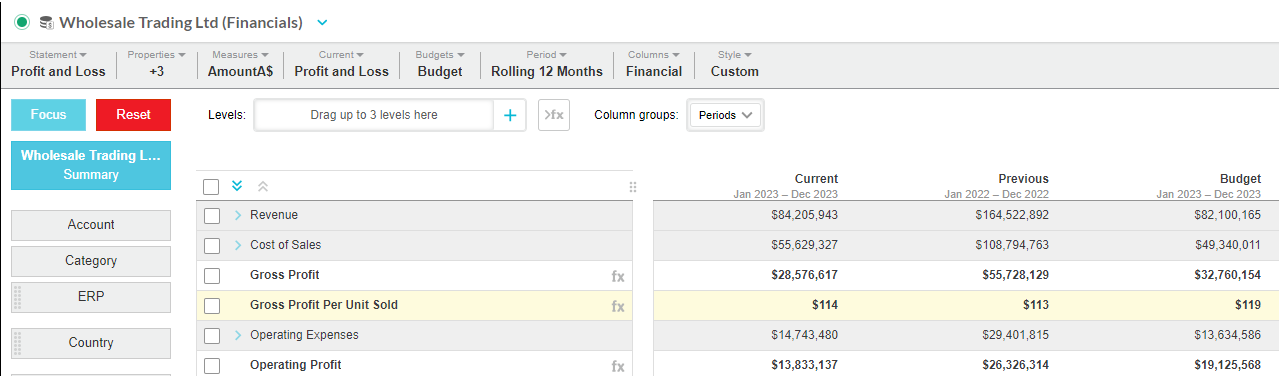
Statistical streams behave just like any other stream you add to a database, however, the calculations you can create from statistical streams significantly enhance the analysis capabilities in your financial statements. For example, you can add a statistical stream for units sold, then add calculations to the statement that allow you to analyze the Gross and Net Profit per unit sold.
Watch the videos below for demonstrations.
## Add the statistical stream to the database
If you have the required permissions, you complete this step in [Designer](/administration/designer.md). If not, use the [Upgrades and services form](/other-information/more-help-and-support.md#upgrades-and-services) to request this to be done for you.
{% hint style="success" %}
You add a *budget* statistical stream in the same way, but there are a few extra steps, as stated below. See the [Add a budget file to a financial database](/administration/designer/add-a-budget-file-to-a-financial-database.md) for related information.
{% endhint %}
1. Prepare the statistical data items and add them as a sync source in Phocas (if it is not already there). A statistical stream typically contains a date, measure(s) and sub dimensions, which ideally correspond with the existing dimensions in the financial database.
2. Open the financial database design and ensure the statistical data item is available in the data sources panel.
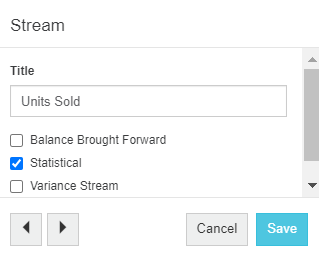
3. Add a new stream > open the **Stream** window > give the stream a meaningful name, and select the **Statistical** checkbox. If it's a budget statistical stream, select the **Variance Stream** checkbox also. Click **Save**.
4. Drag in the data item(s) that contain the statistical data.
5. Map the statistical data to the database. If it's a budget statistical stream, map to the same dimensions and measures as the actual statistical stream.
6. Save your design changes and build the database to apply those changes.
7. In the case of a budget statistical stream, proceed to map the budget statistical stream to the budget data set in Financial Statements. See [Manage streams and scenarios](/financial-statements/managing-statements/manage-streams-and-scenarios.md).
## View the statistical data in the financial statement
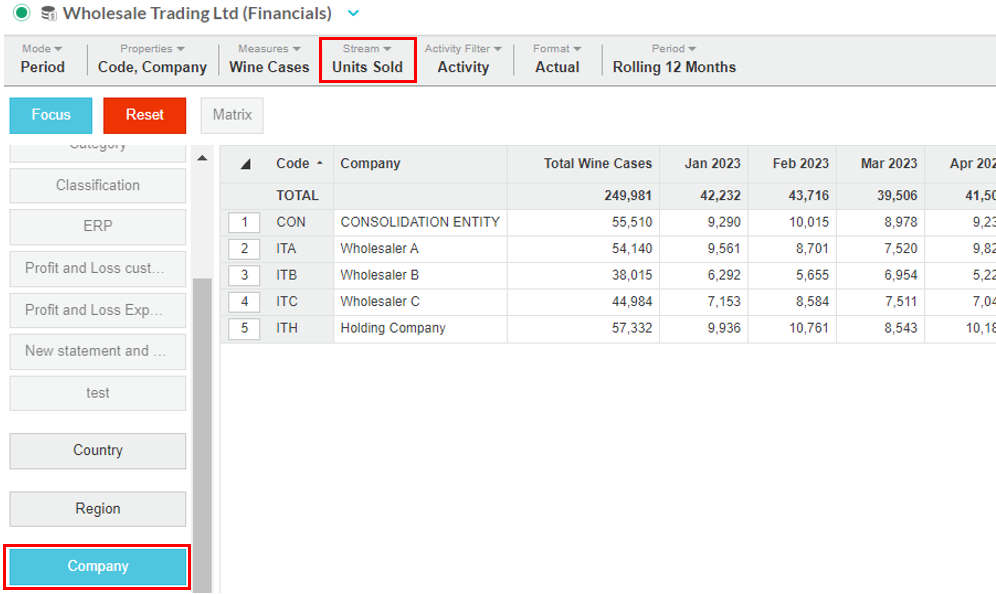
After you add the statistical stream and build the database, open the financial database, [click a stream dimension ](/financial-statements/using-statements/filter-the-financial-information.md), then select the stream.
Use the **Streams** menu to add the budget stream or scenario to the grid. See [Change the streams and scenarios](/financial-statements/using-statements/customize-your-view-financial-statements/change-the-current-data.md).
## Add a calculation based on a statistical stream
In Financial Statements, click **Statement** > **Manage statements** to open the **Manage statements** screen, then select the statement to open its setup. [Add a calculation](/financial-statements/managing-statements/customize-a-financial-statement/customize-calculations.md) using the [STAT function](/financial-statements/managing-statements/customize-a-financial-statement/customize-calculations/functions-for-profit-and-loss-calculations.md#functionsforprofitandlosscalculations-stat) to refer to the statistical stream. Save your changes.
The statement automatically updates to display the new calculation row.
{% hint style="success" %}
You can create charts based on your statistical stream calculations, then [add them to your dashboard](broken://pages/BSXfxRHjspqwaxfAYZuG).
{% endhint %}
***
## Videos
{% hint style="success" %}
Watch this PUG Training video: [Ratios and statistical streams](https://www.phocassoftware.com/customer/training-series/financial-statements#session3) (jump to 9.45)
{% endhint %}
{% embed url="" %}
Bring statistical streams into a Financial Statements
{% endembed %}
{% embed url="" %}
Combine statistical and financial data for better business
{% endembed %}
---
# Agent Instructions
This documentation is published with GitBook. GitBook is the documentation platform designed so that both humans and AI agents can read, navigate, and reason over technical content effectively. Learn more at gitbook.com.
## Querying This Documentation
If you need additional information that is not directly available in this page, you can query the documentation by asking a question.
Perform an HTTP GET request on the following URL with the `ask` and `goal` query parameters:
```
GET https://docs.phocassoftware.com/financial-statements/adding-data/use-statistical-streams.md?ask=&goal=
```
`ask` is the immediate question: it should be specific, self-contained, and written in natural language.
`goal` is what the user is ultimately trying to achieve, the reason they need the answer. Sharing it helps GitBook give you a better, more relevant answer. A goal is most helpful when it describes the outcome the user wants rather than restating the question. For example, with `ask=how do I create an API token`, a goal like `automate deployments from our CI pipeline` lets GitBook tailor the answer to that use case.
The response will contain a direct answer to the question and relevant excerpts and sources from the documentation.
Use this mechanism when the answer is not explicitly present in the current page, you need clarification or additional context, or you want to retrieve related documentation sections.