> For the complete documentation index, see [llms.txt](https://docs.phocassoftware.com/llms.txt). Markdown versions of documentation pages are available by appending `.md` to page URLs; this page is available as [Markdown](https://docs.phocassoftware.com/financial-statements/getting-started/overview-of-access-to-financial-statements.md).
# Overview of access to financial statements
Learn how database access, user permissions, and account restrictions determine what you can see and do in Financial Statements.
As your organization's financial information is sensitive, your Phocas site administrator controls who can access the Financial Statements module and what they can see and do there. This security gives your organization the freedom to share financial dashboards, charts, analysis results and so on, without having to worry about who can see what.
For example, in your organization’s financial statements:
* If you are a Regional Manager of Australia, you might only see data for Australia (not UK and USA).
* If you are a Warehouse Manager, you might only see the operating costs for your branch.
* If you are a member of the Sales team, you might only see the Gross Margin and higher-level information.
In accordance with the examples above, the following factors impact your access to your organization’s financial information:
## Database access
Your administrator manages who can access a database and what information they can see within that database. If your organization’s financial data comes from more than one database, they can set restrictions for multiple databases, for individual users or groups. For example, your administrator can set a default restriction on a database, so users can see ‘budget’ but not ‘profit’ information.
Advanced administrators can also restrict access to sync source data to ensure that no one, even other administrators, can query the financial data.
## User restrictions
If, for example, your organization only wants your local branch managers to see the data relating to their branch’s budgets, your administrator can restrict access, so that each manager only sees the information relevant to them. These restrictions can be customized at a very fine level and can be applied to one database at a time, for individual users or groups. For example, a user can have access to the Cost of Sales data in one database but not in another.
## Financial Statements permissions
There are two categories of users in Financial Statements:
* Users who can view and analyze the Financial Statements, and ultimately use the information to make business decisions. This user is sometimes referred to as a *consumer*.
* Users who have permission to manage the financial statements in your organization, which includes customizing existing statements, adding new statements and restricting access to certain accounts within statements. This user is sometimes referred to as a *producer*. Your administrator can give you this permission via the **Manage Custom Statements** setting.
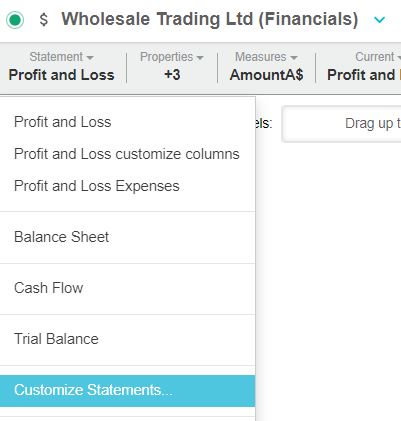
If you have permission to manage and customize the financial statements, you will see the **Customize Statements** option in the **Statements** menu.
## Financial Statements account restrictions
As mentioned above, users with the **Manage Custom Statements** user permission can [restrict access to specific accounts](/financial-statements/managing-statements/restrict-access-to-accounts.md). This means that within the Financial Statements module, users might be able to view high-level total values of certain accounts, such as salaries or commissions but not the low-level transactional details. This restriction protects sensitive information.
---
# Agent Instructions
This documentation is published with GitBook. GitBook is the documentation platform designed so that both humans and AI agents can read, navigate, and reason over technical content effectively. Learn more at gitbook.com.
## Querying This Documentation
If you need additional information that is not directly available in this page, you can query the documentation by asking a question.
Perform an HTTP GET request on the following URL with the `ask` and `goal` query parameters:
```
GET https://docs.phocassoftware.com/financial-statements/getting-started/overview-of-access-to-financial-statements.md?ask=&goal=
```
`ask` is the immediate question: it should be specific, self-contained, and written in natural language.
`goal` is what the user is ultimately trying to achieve, the reason they need the answer. Sharing it helps GitBook give you a better, more relevant answer. A goal is most helpful when it describes the outcome the user wants rather than restating the question. For example, with `ask=how do I create an API token`, a goal like `automate deployments from our CI pipeline` lets GitBook tailor the answer to that use case.
The response will contain a direct answer to the question and relevant excerpts and sources from the documentation.
Use this mechanism when the answer is not explicitly present in the current page, you need clarification or additional context, or you want to retrieve related documentation sections.