# Overview of dimensions

Before you start using Financial Statements, it helps to understand how dimensions work.

Dimensions in the underlying financial database control how accounts are grouped, mapped, and displayed in your statements.

Read the [Dimensions](/basics/getting-started/dimensions.md) page for general information about dimensions, a core concept in Phocas. The following information builds on that foundation, applying it to the Financial Statements module.

{% hint style="success" %}
**Quick definitions**

* **Dimension**: A field you can use to group and filter financial data (for example, Account, Branch, Category).
* **Dimension entity**: An item within a dimension (for example, an account code or a category name).
* **Dimension group**: A set of related dimensions. Each group contains a primary dimension and one or more sub-dimensions.
* **Account mapping dimension**: The dimension under Account that defines the statement structure. This is also referred to as the *statement dimension*.
* **Custom dimension**: A new account mapping dimension created by Financial Statements for a specific statement.
  {% endhint %}

### Dimensions

In Financial Statements, dimensions still act as categories you use to group and analyze data. Here, they also link directly to how accounts are grouped in the statement.

The dimensions panel on the left of the statement grid shows the dimensions available in the underlying financial database. Some statements have additional dimensions that are not directly relevant to the current view. These are hidden by default to reduce clutter but remain available for analysis.

Click **Show more** to see all dimensions, and click **Show less** to hide them again. You can also click **Hide dimensions** at the bottom of the panel to see more of the statement grid.

<div align="left"><figure><img src="/files/xvFzssI4kzWlcxczlhKQ" alt=""><figcaption><p>The dimension panel in Financial Statements</p></figcaption></figure></div>

{% hint style="success" %}
See the Take a tour of Financial Statements > [Financial Statements module](/financial-statements/getting-started/take-a-tour-of-financial-statements.md#financial-statements-module) page for an overview of the actions you can take with dimensions.
{% endhint %}

### Dimension groups

In Financial Statements:

* You always have an account dimension group, in which Account is the primary dimension. This is the dimension to which the transactions are mapped.
* The first sub-dimension in the account dimension group is the [account mapping dimension](#top-level-statement-dimension) that defines the structure of the statement. This is usually Category or Classification, or it can be a custom dimension, depending on the statement setup.
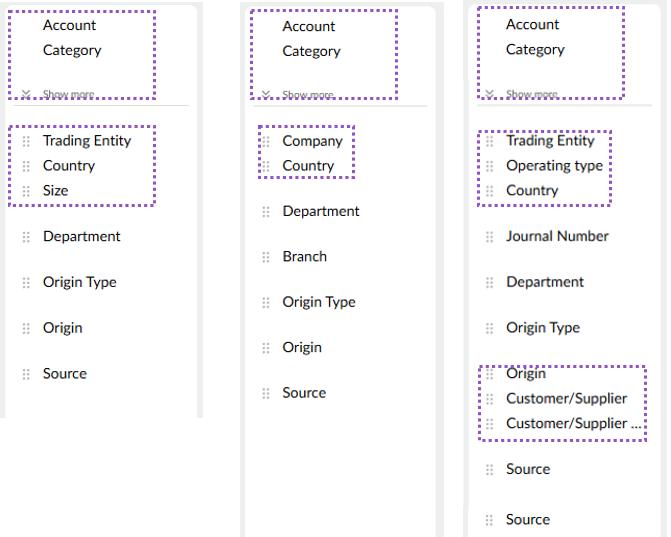
* Depending on your database setup, you might have other dimension groups. For example, if Branch is a primary dimension, its sub-dimensions might include Region, Country, Company, and Branch Manager. These are usually managed by your Phocas administrator in the underlying database in [Designer](/administration/designer/modify-a-database.md#group-dimensions).
* If you have permission to manage custom statements, you can also [manage the groups (sub-dimensions)](/financial-statements/managing-statements/manage-dimension-groups.md) for use in Financial Statements. This includes adding new ways of grouping the entities in a dimension. Each group is a sub-dimension in the main dimension group, giving you more ways to analyze your financial data.

<div align="left"><figure><img src="/files/mCBs5rvVKaD30iuaHt8z" alt="" width="503"><figcaption><p>Examples of dimension groups in the dimension panel</p></figcaption></figure></div>

### Account mapping dimension

The account mapping dimension is unique to Financial Statements. Also called the statement dimension, it is the dimension to which the statement accounts are mapped. It tells you how the accounts in the statement are grouped and defines the structure of the statement. In other words, this mapping determines where each account appears in the statement.

<figure><img src="/files/UjByAgHpV3jl8dkQ2kal" alt=""><figcaption><p>Map accounts tab on the Manage statements screen. The account mapping dimension is stated at the top.</p></figcaption></figure>

This is the first sub-dimension under the Account dimension group in the dimension panel. It displays as the the top-level dimension in the statement.

<div align="left"><figure><img src="/files/jCED38Z48Yi7sc9asD6R" alt="" width="326"><figcaption><p>Account mapping dimension</p></figcaption></figure></div>

This dimension is set when you [add the financial statement](/financial-statements/managing-statements/create-a-financial-statement.md). You can use an **existing mapping** (recommended), such as the Category or Classification dimension, or a **create a new mapping**.

The default account mapping dimensions are:

* Category for Profit and Loss and Balance Sheet statements.
* Classification for Cash Flow statements.
* None for Trial Balance statements.

<div align="left"><figure><img src="/files/5FCdbdcjEvrDBNCVSAlA" alt="" width="259"><figcaption><p>Account mapping options when adding a new statement</p></figcaption></figure></div>

If you choose to **create a new mapping**, Phocas creates a new custom dimension in the database and you can then map the accounts to this dimension as required.

* The dimension automatically takes the same name as the statement.
* You can't rename the dimension because this would break references in Phocas, such as budget workbook.
* The dimension is hidden in Designer (where the database design is managed), even though it exists in the database.

<figure><img src="/files/kPNsWP2vohhqw112Rz4A" alt=""><figcaption><p>Creating a new account mapping (dimension)</p></figcaption></figure>

### Dimension entities

In Financial Statements, the dimension entities include accounts in the Account dimension and categories or classifications in the account mapping dimension.

When you click a dimension, you move into the Analytics module to view its entities in the grid. From here, you can analyze the data.

{% hint style="success" %}
Clicking a dimension switches you from the statement to an Analytics grid view.

To return to the statement, click the **Financial Statements Summary** button above the dimension list.
{% endhint %}

<figure><img src="/files/3lwBTxMOvQas7REtebey" alt=""><figcaption><p>Viewing dimension entities in the Analytics module</p></figcaption></figure>


---

# Agent Instructions: Querying This Documentation

If you need additional information that is not directly available in this page, you can query the documentation dynamically by asking a question.

Perform an HTTP GET request on the current page URL with the `ask` query parameter:

```
GET https://docs.phocassoftware.com/financial-statements/getting-started/overview-of-the-link-between-financial-statements-and-dimensions.md?ask=<question>
```

The question should be specific, self-contained, and written in natural language.
The response will contain a direct answer to the question and relevant excerpts and sources from the documentation.

Use this mechanism when the answer is not explicitly present in the current page, you need clarification or additional context, or you want to retrieve related documentation sections.