# Rebuild the database
{% hint style="info" %}
This page describes the current experience. A new version of this feature is being rolled out and might already be available to you. See [Overview of Manage financial statements (Beta)](https://docs.phocassoftware.com/financial-statements/managing-statements/overview-of-manage-financial-statements-beta) for details.
{% endhint %}
{% hint style="info" %}
User permission: Manage Custom Statements
{% endhint %}
After you customize the financial statements, you need to initiate a database build for your changes to take effect.
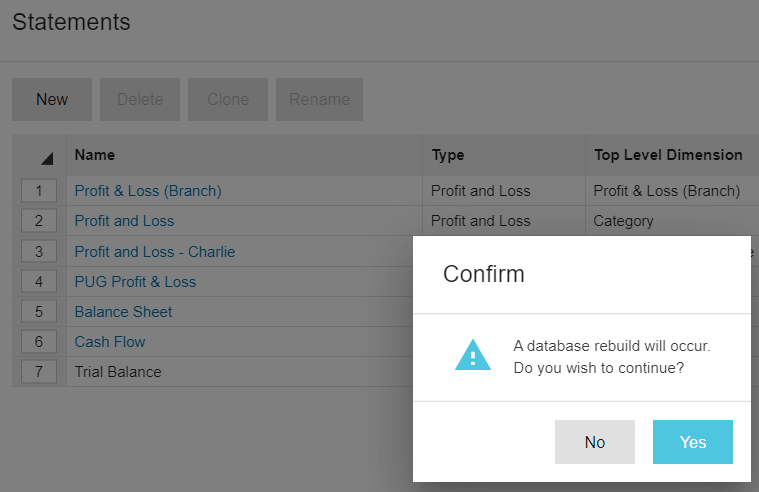
When you are finished customizing a financial statement and click **Close** in the **Statements** window, click **Yes** to initiate the rebuild, as illustrated in the image below.
The database rebuild might take some time, depending on the size of your database. Keep an eye on the [database status](https://app.gitbook.com/s/7pj8v25BOyqZTdG5mdD1/getting-started/databases#databases-databasestatus) - when the dot is blue, the database is being rebuilt and when it is green, the rebuild is complete.
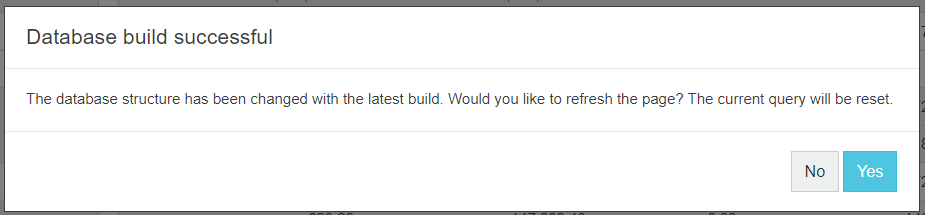
When the rebuild is complete, a success message displays. Click **Yes** to refresh the page and see the changes you made. Other users will see the changes too.