> For the complete documentation index, see [llms.txt](https://docs.phocassoftware.com/llms.txt). Markdown versions of documentation pages are available by appending `.md` to page URLs; this page is available as [Markdown](https://docs.phocassoftware.com/financial-statements/using-statements/add-and-view-comments-financial-statements.md).
# Add and view comments
{% hint style="info" %}
This feature is limited to the Profit and Loss statements.
{% endhint %}
To help your team collaborate on financial statements, explain something to another user or ask another user a question, you can add comments against a wide range of values in the statement. In addition to the text comment, you can add links to websites and documents in a cloud storage folder. For example, you might want to add documentary evidence to certain values.
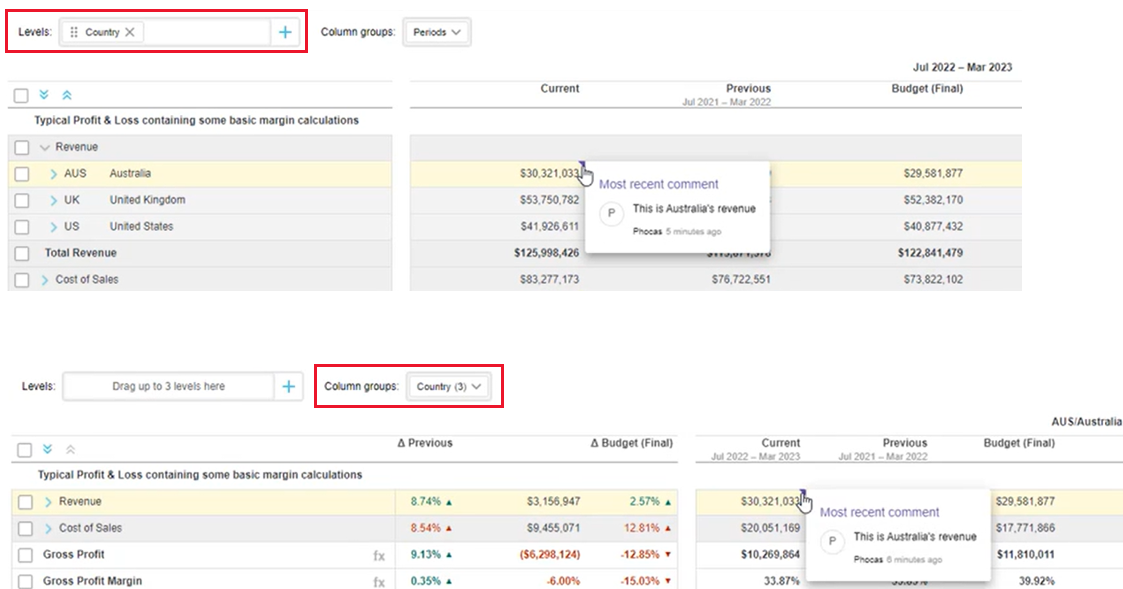
When you add a comment and/or a link, a purple triangle displays in the top-right corner of the value cell, indicating to other users that there is a comment to view. In most cases, the comment moves with the value as you change your view of the statement, such as add levels or switch to matrix format, as illustrated in the images below.
The comments and links are included when you export the statement.
## Add a comment or link against a value
1. Right-click the value and click **Comments**.
2. Type your comment into the text box and/or use the keyboard shortcut of **CTRL**+**V** to paste in a link you copied from elsewhere.
3. Click **Submit**.
You can edit and delete any comments or links that you add.
## View a comment or link
Either hover over the purple triangle on the value to view an excerpt of the comment/link or click the triangle to view the full comment. Click the comment link to open it in a new browser tab.
To reply to a comment, click the purple triangle, then type your comment and click **Submit**.
## Use the Cell Comments panel
The **Cell Comments** panel gives you a consolidated list of all comments on the current view of the statement, making it easy to find and navigate comments at a glance.
Click the **Cell comments** button in the toolbar at the top right of the statement. The panel opens and lists every comment in the current view, showing the row and column identifier, the author, the date, and the comment text.
From there, you can:
* **Go to a comment**: Click any comment in the list to highlight the corresponding cell in the statement.
* **Copy a comment**: Click the comment's menu button and select **Copy** to copy it to your clipboard.
* **Copy all comments**: Click **Copy all comments** at the top of the panel to copy every comment in the current view, including the cell identifier, author, date, and comment text.
* **Delete a comment**: Click the comment's menu button and select **Delete**.
You can resize the panel by dragging its edge. To close it, click the **X** button at the top right corner or click the **Comments** button in the toolbar.
---
# Agent Instructions
This documentation is published with GitBook. GitBook is the documentation platform designed so that both humans and AI agents can read, navigate, and reason over technical content effectively. Learn more at gitbook.com.
## Querying This Documentation
If you need additional information that is not directly available in this page, you can query the documentation by asking a question.
Perform an HTTP GET request on the following URL with the `ask` and `goal` query parameters:
```
GET https://docs.phocassoftware.com/financial-statements/using-statements/add-and-view-comments-financial-statements.md?ask=&goal=
```
`ask` is the immediate question: it should be specific, self-contained, and written in natural language.
`goal` is what the user is ultimately trying to achieve, the reason they need the answer. Sharing it helps GitBook give you a better, more relevant answer. A goal is most helpful when it describes the outcome the user wants rather than restating the question. For example, with `ask=how do I create an API token`, a goal like `automate deployments from our CI pipeline` lets GitBook tailor the answer to that use case.
The response will contain a direct answer to the question and relevant excerpts and sources from the documentation.
Use this mechanism when the answer is not explicitly present in the current page, you need clarification or additional context, or you want to retrieve related documentation sections.