> For the complete documentation index, see [llms.txt](https://docs.phocassoftware.com/llms.txt). Markdown versions of documentation pages are available by appending `.md` to page URLs; this page is available as [Markdown](https://docs.phocassoftware.com/financial-statements/using-statements/customize-your-view-financial-statements/change-the-columns.md).
# Change the columns
{% hint style="info" %}
The information on this page relates to using the **Columns** menu to specify which columns display in a financial statement. However, other actions you take will also result in a change to the columns in the grid:
* [Properties](/financial-statements/using-statements/customize-your-view-financial-statements/change-the-properties.md): If you select more properties from the **Properties** menu, they’ll display as additional columns.
* [Periods](/financial-statements/using-statements/customize-your-view-financial-statements/change-the-period.md): If you select a different period option from the **Periods** menu, the columns will change accordingly.
* [Custom columns](/financial-statements/managing-statements/customize-columns.md): If you have permission to customize statements, you can customize the columns that are available and save column layouts for other users to apply.
{% endhint %}
Columns are a great tool to help you build your view of a financial statement. You can use the **Columns** menu to specify which columns display in a financial statement grid. For example, in a Profit and Loss statement, you might want to view the current financial performance only, then add columns to view more information and make comparisons.
The **Columns** menu is available in all financial statements except for the Trial Balance.
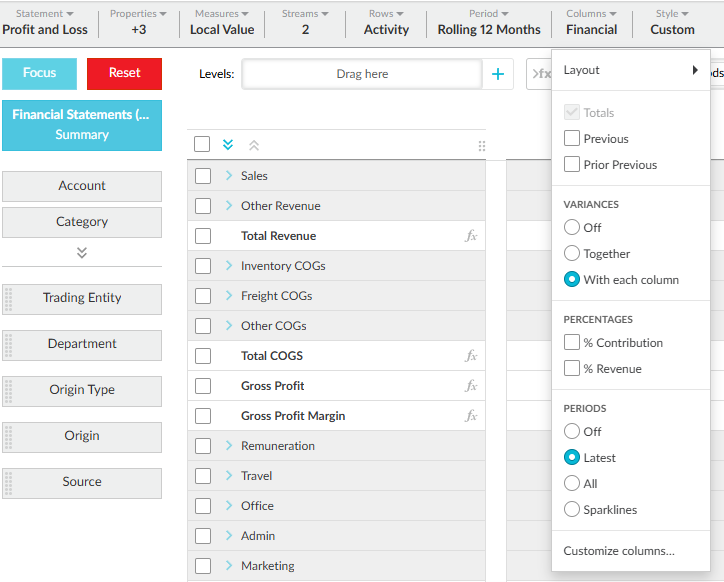
The defined column options are as follows:
{% tabs %}
{% tab title="Financial" %}
**Total**: Displays the **Total** columns when you select the **Periods** > **All** option and/or Matrix mode. To free up space in the statement and reduce the need to scroll across to view information, remove this column (clear the checkbox). For example, if you are comparing financial information for your regions and do not need to view the overall results, remove the **Total** columns from view.
**Previous**: Displays the results from the previous period. The date range that is applied to the **Previous** column is determined by the option selected in the **Period** menu.
**Prior previous**: Displays the results from two periods ago.
{% hint style="info" %}
The date range that is applied to the **Previous** column is determined by the option selected in the **Period** menu.
{% endhint %}
{% endtab %}
{% tab title="Variances" %}
**Off**: Removes any variance columns.
**Together**: Displays the variance columns together, to the right side of the grid.
**With each column**: Displays each variance column adjacent to the comparative column.
{% endtab %}
{% tab title="Percentages" %}
**% Contribution**: Available in Profit and Loss statements only - Displays the percentage contribution for each item relative to the category to which it belongs. For example, Wages 65% indicates that the wages value represents 65% of the Expenses.
**% Revenue**: Available in Profit and Loss statements only - Displays each item as a percentage of revenue. For example, Wages 35% indicates that the wages expense is 35% of Revenue. This option is particularly useful when looking at items such as operating expenses, to understand what percentage of revenue they represent.
{% hint style="info" %}
The % Revenue calculation excludes the 'Other revenue' category. If you have permission to manage financial statements, you can [set the revenue row](/financial-statements/managing-statements/customize-a-financial-statement.md#set-the-revenue-row) that is used to drive this calculation.
{% endhint %}
{% endtab %}
{% tab title="Periods" %}
**Off**: Displays only the date range specified.
**Latest**: Displays the latest (most recent) period and the full date range specified.
**All**: Displays all periods within the date range.
**Sparklines**: Adds [sparklines](#changethecolumns-viewsparklines) to the statement.
{% hint style="info" %}
The **Latest**, **All** and **Sparklines** options are unavailable when using [column groups](/financial-statements/using-statements/view-financial-information-in-a-matrix-column-groups.md).
{% endhint %}
{% endtab %}
{% endtabs %}
{% embed url="" %}
Change your view with the columns menu
{% endembed %}
{% hint style="success" %}
Watch this PUG Training video: [Financial Statements – Advanced](https://www.phocassoftware.com/customer/training-series/financial-statements#session2) (jump to 12:13)
{% endhint %}
## Add or remove a column from the grid
1. Click the **Columns** menu.
2. Select the defined columns you require (see the table above).
3. Click anywhere outside the **Columns** menu to update the grid and view your changes.
Example 1: Compare the current and budgeted performance
Suppose you are viewing a standard Profit and Loss statement and you want to compare the current performance with the budgeted performance for the most recent month and year to date.
[Add the budget stream](/financial-statements/using-statements/customize-your-view-financial-statements/change-the-current-data.md) to the grid.
Click the **Columns** menu, then:
* Clear the **Previous** checkbox.
* Select the **(Variances) With each column** option.
* Select the **(Periods) Latest** option.
Click anywhere outside the **Columns** menu to update the grid and view your changes. The **Previous** columns are gone, so you can clearly compare the **Current** and **Budget** values.
Example 2: View your monthly performance
Suppose you are viewing a standard Profit and Loss statement but rather than annual totals, you want to view the current values on a month-by-month basis.
Click the **Columns** menu, then:
* Clear the **Previous** checkbox.
* Select the **(Variances) Off** option.
* Select the **(Periods) All** option.
Click anywhere outside the **Columns** menu to update the grid and view your changes. The **Previous** and **Budget** columns are gone, so you can clearly focus on the **Current** value, for which you have a total column and a column for every month from the beginning of the financial year through to your current financial period.
## Apply a custom column layout
{% hint style="info" %}
Currently, the Charts feature is unavailable with custom column layouts.
{% endhint %}
Layouts are preset column arrangements. They are [set up](/financial-statements/managing-statements/customize-columns.md#manage-layouts) by the person in your organization who has permission to manage financial statements. You can switch between different layouts and the statement grid automatically updates. When you select a layout and switch to a different version of that financial statement, the layout also applies to that statement. You can make changes to a layout by adding or removing columns but you can't save those changes.
Click **Columns** > **Layouts** to view the list of available options, then select the layout you want to apply.
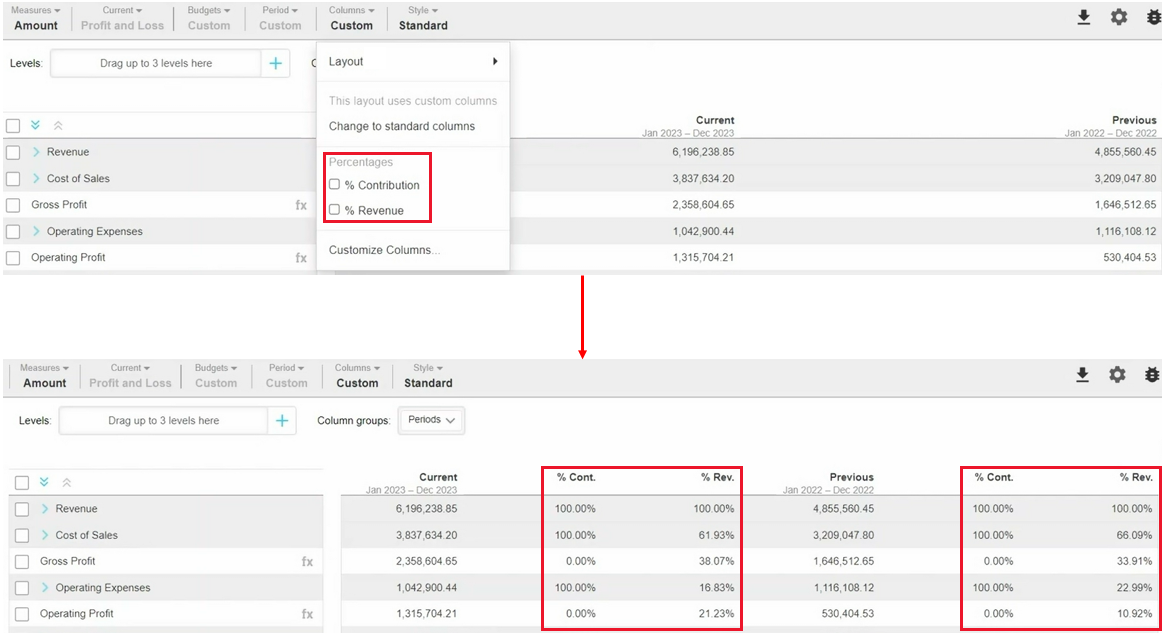
After you apply a layout, you can add the **% Revenue** and **% Contribution** analysis columns. Click **Columns** > **Layouts** and select the required **Percentages** checkboxes.
## View sparklines
{% hint style="success" %}
Watch this Phocas Demo video: [Visual storytelling](https://www.phocassoftware.com/watch-demo/visual-storytelling?autoplay=true)
{% endhint %}
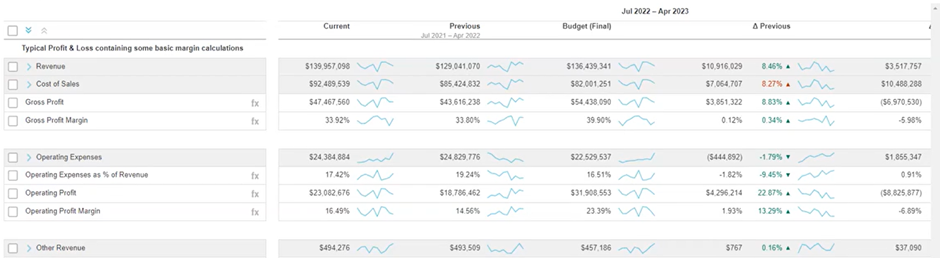
Sparklines are little charts that display next to each of the values in the total columns, in the Profit and Loss statements grid. They are not available for Balance Sheet and Cash Flow statements.
The addition of sparklines to the grid gives you a visual representation of your financial information, so you can quickly see trends and spot anomalies. You can hover over the data points in the sparklines to see the corresponding value and date. If you hover over a sparkline in a variance column, you will see both the variance and variance percentage.
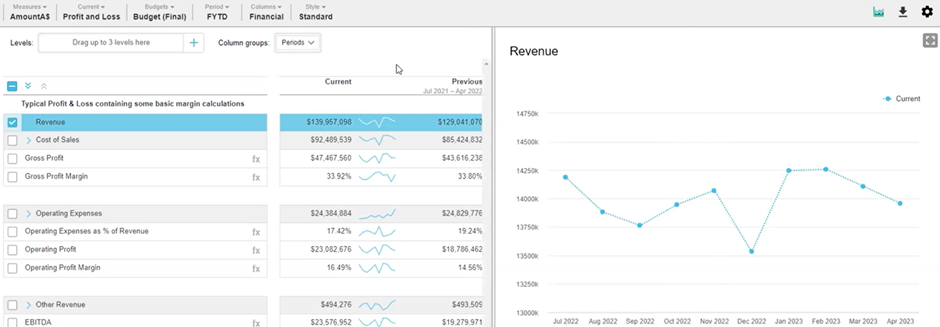
The sparkline is a simple version of the line chart, so in effect, you can view the same data in two different formats in the grid.
Click **Columns** > **Periods** > **As Sparklines** to add sparklines to the grid.
If there are any NaN (not a number) values, the sparkline displays a dotted line. If all the values are NaN, no sparkline displays. These values are common on calculated rows where division is used. You can still hover over these points in the sparkline; the NaN message displays.
## Continue with your analysis
After you set up the columns the way you want them, you can:
* [Change the period](/financial-statements/using-statements/customize-your-view-financial-statements/change-the-period.md) to view the information against a different timeframe, for example, Financial Quarters.
* [Save your new view as a favorite](/financial-statements/using-statements/save-and-share-favorites.md).
* Click the **Reset** button to revert to the default view.
---
# Agent Instructions
This documentation is published with GitBook. GitBook is the documentation platform designed so that both humans and AI agents can read, navigate, and reason over technical content effectively. Learn more at gitbook.com.
## Querying This Documentation
If you need additional information that is not directly available in this page, you can query the documentation by asking a question.
Perform an HTTP GET request on the following URL with the `ask` and `goal` query parameters:
```
GET https://docs.phocassoftware.com/financial-statements/using-statements/customize-your-view-financial-statements/change-the-columns.md?ask=&goal=
```
`ask` is the immediate question: it should be specific, self-contained, and written in natural language.
`goal` is what the user is ultimately trying to achieve, the reason they need the answer. Sharing it helps GitBook give you a better, more relevant answer. A goal is most helpful when it describes the outcome the user wants rather than restating the question. For example, with `ask=how do I create an API token`, a goal like `automate deployments from our CI pipeline` lets GitBook tailor the answer to that use case.
The response will contain a direct answer to the question and relevant excerpts and sources from the documentation.
Use this mechanism when the answer is not explicitly present in the current page, you need clarification or additional context, or you want to retrieve related documentation sections.