> For the complete documentation index, see [llms.txt](https://docs.phocassoftware.com/llms.txt). Markdown versions of documentation pages are available by appending `.md` to page URLs; this page is available as [Markdown](https://docs.phocassoftware.com/financial-statements/using-statements/customize-your-view-financial-statements/change-the-measures.md).
# Change the measures
Measures are different types of numerical data values that are displayed in the grid, such as Revenue or Quantity. You might also have the same measure in multiple currencies, such as Revenue in the Local Value, Reporting Value, USD, and so on. The **Measures** menu identifies the selected measure. When you first open a database or reset the data during your analysis, the default measure is selected.
To meet your reporting needs, you can change the measure and its format to determine what numbers are displayed in the grid and how they look. For example, you might want to see a dollar symbol before the values or remove decimal points.
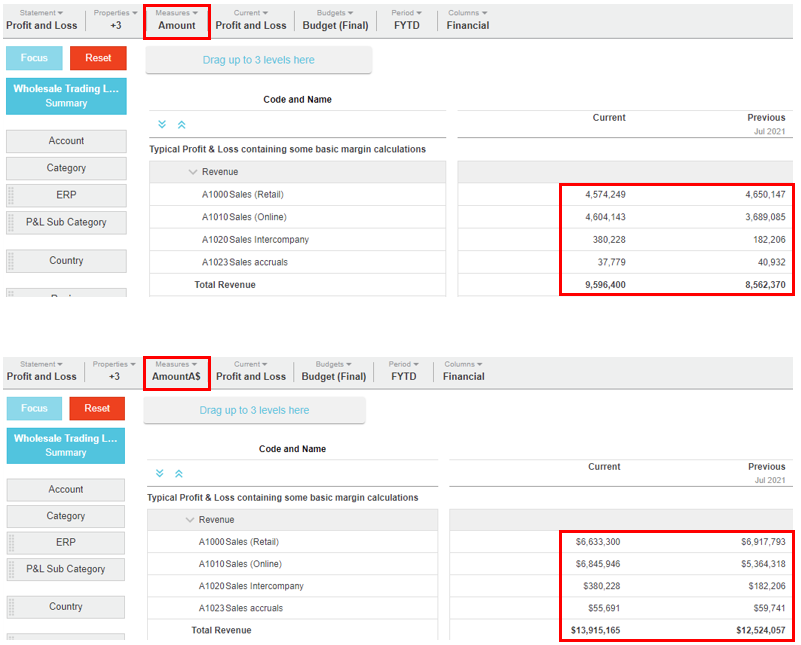
Click the **Measures** menu and select the measure you want to apply. The statement grid updates automatically. Compare the two images below, they have different measures applied.
## Format a measure
By default, the measures display in the format your administrator set in the [Designer module](/administration/designer.md). You can override this format and customize the appearance of the measures to meet your personal needs. You can select from a list of predefined format options, which include the use of decimal places, thousand separators, and percentage symbols. If none of those options meet your needs exactly, you can create a custom format that can contain a prefix and/or suffix, such as a currency symbol. For example, you might want to remove the thousands to save space in the grid, so 4,000 becomes 4, 57,300 becomes 57.3, and so on.
Click the **Measures** menu, then click the **Formatting** option at the bottom of the measures list. In the **Measures Formatting** window, edit the default format of each measure, as required. You can use a predefined or custom format, as described below. Then click **Apply**.
{% hint style="info" %}
The measure formatting is stored in the site database and works across all your devices. The formatting will remain until you change it, even if you log out.
{% endhint %}
### Use a predefined format
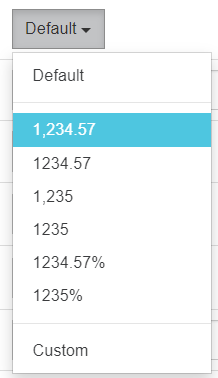
Click the **Formatting** button (it might say **Default** or something like **1,234.57**) to view your options and select the required format.
### Apply a custom format
Click the **Formatting** button and select the **Custom** option, then select one of these methods:
* Manually enter the required format into the box. For example:
* To remove thousands, enter: #,##0,.00
* To remove thousands and use K as a descriptor, enter: 0,0,.00,"K"
* To remove millions, enter: #,##0,,.00
* To display negative figures in parentheses, enter: #,0.00;(#,0.00);0.00
* Click the **More options** button and specify a prefix, suffix and/or number decimal places, and select the separate thousands checkbox, if required, then click **Apply**.
## Hide a measure
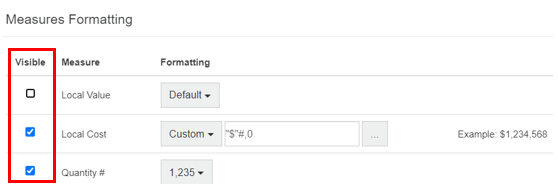
By default, all measures are set to **Visible**, so they display in the list in the **Measures** menu. You have the option to set a measure as NOT visible, in other words, hide the measure from the list. This option is useful when the database has a lot of measures and therefore, the list of measures is very long but you are only ever interested in some of those measures. You can remove the redundant measures from the list, so you can find the ones you want more easily.
Click the **Measures** > **Formatting** and clear (deselect) the **Visible** checkbox for the measure.
***
## Troubleshooting: Missing measures
If you are unable to view specific measures in the grid, it might be due to one of these reasons:
* **You hid the measure**: Check to see if you hid the measure (and have since forgotten you did so). Alternatively, you might have accidentally hidden it when you were formatting it. See the **Hide a measure** section above.
* **Your user restrictions are preventing you from seeing the measure**: Ask your administrator to check your user maintenance settings to ensure that the measure is visible to you. User restrictions override the database default restrictions. Administrators, see [Manage a user's database access and restrictions](/administration/users/manage-a-users-database-access-and-restrictions.md).
* **The default database restrictions are preventing you from seeing the measure**. Ask your administrator to check the database’s default restrictions to ensure that the measure is visible. These restrictions apply to all users unless overridden by the user’s individual restrictions. Administrators, see [Manage default database restrictions](/administration/databases-administration.md#manage-default-database-restrictions).
---
# Agent Instructions
This documentation is published with GitBook. GitBook is the documentation platform designed so that both humans and AI agents can read, navigate, and reason over technical content effectively. Learn more at gitbook.com.
## Querying This Documentation
If you need additional information that is not directly available in this page, you can query the documentation by asking a question.
Perform an HTTP GET request on the following URL with the `ask` and `goal` query parameters:
```
GET https://docs.phocassoftware.com/financial-statements/using-statements/customize-your-view-financial-statements/change-the-measures.md?ask=&goal=
```
`ask` is the immediate question: it should be specific, self-contained, and written in natural language.
`goal` is what the user is ultimately trying to achieve, the reason they need the answer. Sharing it helps GitBook give you a better, more relevant answer. A goal is most helpful when it describes the outcome the user wants rather than restating the question. For example, with `ask=how do I create an API token`, a goal like `automate deployments from our CI pipeline` lets GitBook tailor the answer to that use case.
The response will contain a direct answer to the question and relevant excerpts and sources from the documentation.
Use this mechanism when the answer is not explicitly present in the current page, you need clarification or additional context, or you want to retrieve related documentation sections.