> For the complete documentation index, see [llms.txt](https://docs.phocassoftware.com/llms.txt). Markdown versions of documentation pages are available by appending `.md` to page URLs; this page is available as [Markdown](https://docs.phocassoftware.com/financial-statements/using-statements/customize-your-view-financial-statements/change-the-period.md).
# Change the period
Periods are a core concept in Phocas. Read the [Periods](/basics/getting-started/periods.md) page to learn more about the **Period** menu and the different types of periods.
You use the **Period** menu to change the timeframe that applies to the data in the grid.
If you save your view as a favorite, your defined or custom period will be included.\
You can set a default period, so that a certain date range is applied each time you view a statement.
## Apply a defined period
Click the **Period** menu to view the list of defined periods, then select the one you want to apply. The statement grid updates automatically.
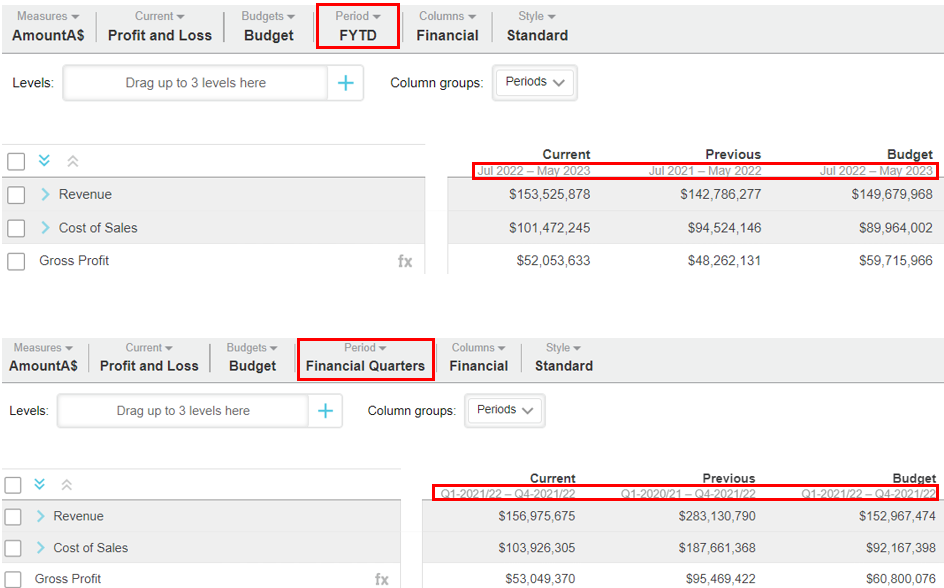
Compare the examples in the images below; in the first example, the *Financial Year To Date (FYTD)* period is applied and in the second, the *Financial Quarter* period is applied.
{% embed url="" %}
Change period (date range)
{% endembed %}
## Check what dates are used in a defined period
During your analysis, you might wonder why you do not see certain data in the grid. A common reason for missing data is that the data is not represented in the period that is currently applied to the grid. You should check the dates in the period to ensure the data you are looking for is within that range. If it is not, you can change the period to view the required data.
There are two ways you can find out the date range for a particular defined period:
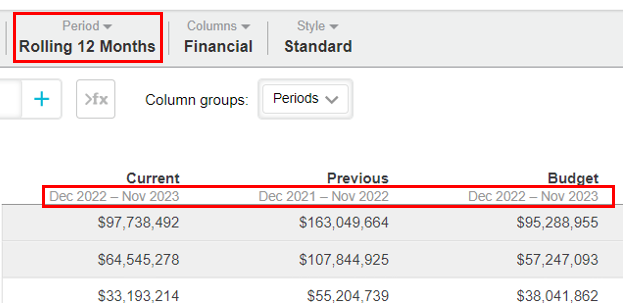
* The date range always displays under the **Current**, **Previous** and **Budget** column headers. If you have applied a custom period, the date range also displays in the status bar above the grid.
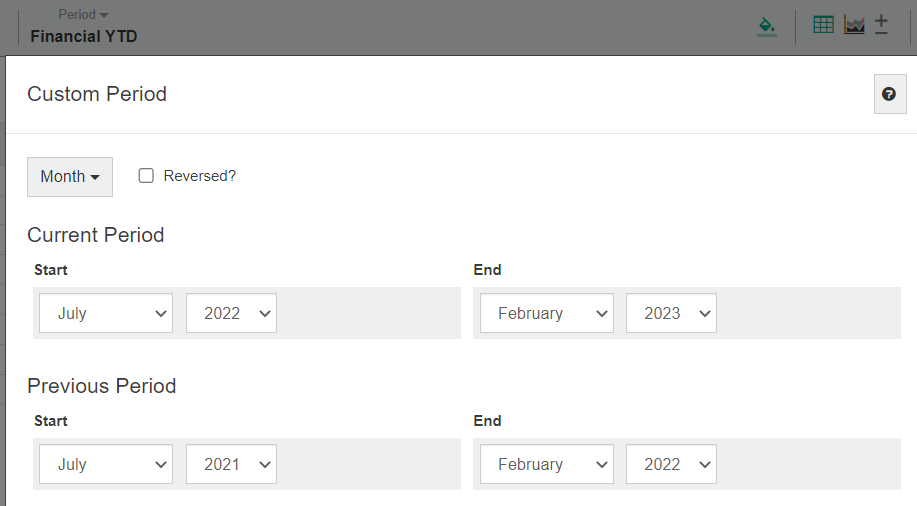
* Apply the period, then when the grid updates, click the **Period** menu and select **Custom**. The **Custom Period** window displays the dates for that period. Click **Close** to return to your analysis.
## Change the columns to complement the period
When you change the period, it's likely you will also want to add or remove columns, to enhance your view of the financial statement.
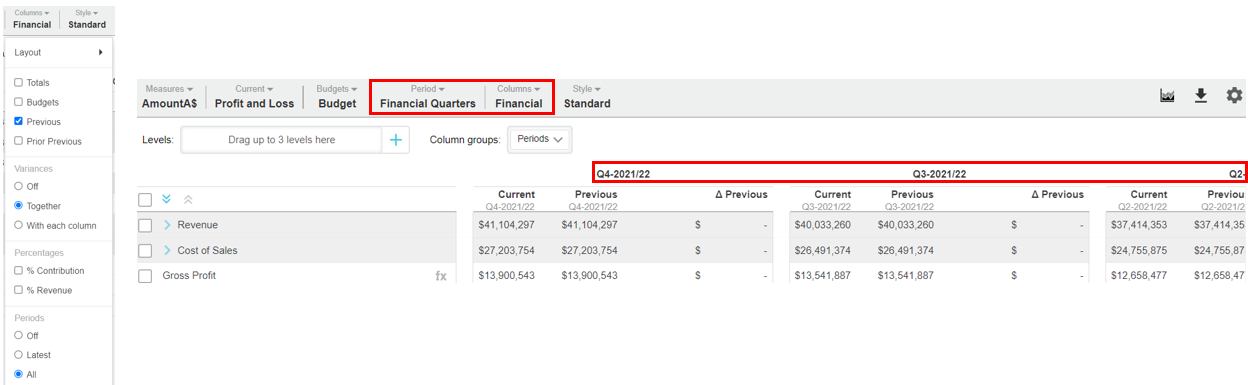
Continuing with the example in the second image above, click the **Columns** menu, then clear the **Totals** and **Budgets** checkbox and select the **All** checkbox in the **Periods** section. The statement grid updates to give you a quarter-on-quarter view of performance.
## Apply a custom period
1. Click the **Period** menu and select **Custom**.
2. In the **Custom Period** window, select the period type, such as year, month or day. The period types that are available depend on what was set up by your administrator when the database was created.
3. Clear or select the **Reversed** checkbox, as required. Time units (months, days, weeks, years) display in the grid in chronological order from left to right. To avoid having to scroll across to the most recent time unit, you can reverse the display order.
4. Select a start and end date for your current period. The previous and budget periods automatically update to these dates but you can change those dates too, if required.
5. Click **Apply**. The **Custom** option displays in the **Period** menu and the grid updates to display the data for that period. The period range you set displays in the status bar above the grid.
Example 1: Conduct a calendar year Profit and Loss analysis for the last 12 months
In the **Custom Period** window, set the **Current Period** to start at Jan \[this year] and end at Dec \[this year]. The previous will automatically set to Jan and Dec \[previous year].
Example 2: Compare financial statements for multiple calendar years
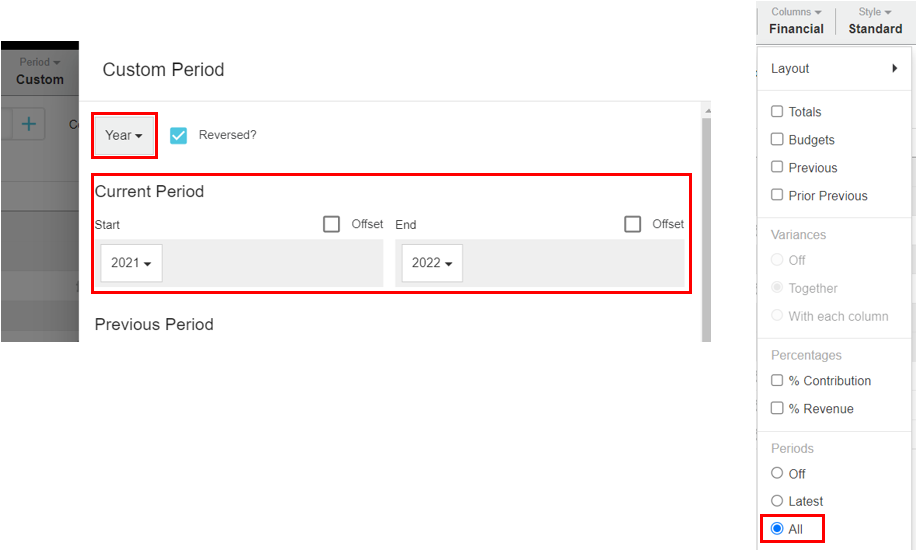
In the **Custom Period** window, select **Year** from the top menu (rather than months or any other pre-set period length) and select the total current period range. Then click **Columns** and select the **Periods** > **All** checkbox to display all years in the grid. If you want comparatives, select the **Budgets** and **Prior Period** checkboxes.
See the [Change the streams and scenarios](/financial-statements/using-statements/customize-your-view-financial-statements/change-the-current-data.md) page for more examples of when you might want to apply a custom period.
{% embed url="" %}
Set a custom period in Financial Statements
{% endembed %}
After you apply a custom period, you can quickly adjust it, for example, if you selected the wrong month. Click the period range chip in the status bar to quickly reopen the custom period setup and update the period as required.
## Add a user-defined period
If you think your defined period would be useful to other users, ask your administrator to set a new period type in the database, so all users (provided they have permission) can see it in the **Period** list.
1. Click the **Period** menu and select **Add** at the bottom of the list.
2. In the **User Defined Period** window, enter a name for the period.
3. Set up the period as required (see **Apply a custom period** above for details, as the settings are similar).
4. Select the [**Offset**](/basics/getting-started/periods/offset-dates.md) checkbox(es) if you want to define a date range based on today's date, so that the data continues to update dynamically.
5. Click **Save & Apply**.
You can change the setup of a defined period you add or delete it, if you no longer need it. Click the **Period** menu and locate the period in the list, then either:
* Click the **Edit** button next to the period name, make your changes and click **Save & Apply**.
* Click the **Delete** button next to the period name and click **Yes** to confirm.
## **Set your default period**
Your [default view of a financial statement](/financial-statements/using-statements/customize-your-view-financial-statements.md#set-your-default-view) is based on the default period applied to the underlying financial database. You can change this default period so that a particular date range applies to the financial statements each time you open them.
1. On your Phocas homepage, locate the financial database.
2. Click the menu button for that database (on the far right side), then click **Set Default Period**.
3. Select the required period and click **Save**.
See [Periods](/basics/getting-started/periods.md) and [Default period for a database](/basics/getting-started/periods/default-period-for-a-database.md) for more information.
---
# Agent Instructions
This documentation is published with GitBook. GitBook is the documentation platform designed so that both humans and AI agents can read, navigate, and reason over technical content effectively. Learn more at gitbook.com.
## Querying This Documentation
If you need additional information that is not directly available in this page, you can query the documentation by asking a question.
Perform an HTTP GET request on the following URL with the `ask` and `goal` query parameters:
```
GET https://docs.phocassoftware.com/financial-statements/using-statements/customize-your-view-financial-statements/change-the-period.md?ask=&goal=
```
`ask` is the immediate question: it should be specific, self-contained, and written in natural language.
`goal` is what the user is ultimately trying to achieve, the reason they need the answer. Sharing it helps GitBook give you a better, more relevant answer. A goal is most helpful when it describes the outcome the user wants rather than restating the question. For example, with `ask=how do I create an API token`, a goal like `automate deployments from our CI pipeline` lets GitBook tailor the answer to that use case.
The response will contain a direct answer to the question and relevant excerpts and sources from the documentation.
Use this mechanism when the answer is not explicitly present in the current page, you need clarification or additional context, or you want to retrieve related documentation sections.
 See the [Change the streams and scenarios](/financial-statements/using-statements/customize-your-view-financial-statements/change-the-current-data.md) page for more examples of when you might want to apply a custom period.
