> For the complete documentation index, see [llms.txt](https://docs.phocassoftware.com/llms.txt). Markdown versions of documentation pages are available by appending `.md` to page URLs; this page is available as [Markdown](https://docs.phocassoftware.com/financial-statements/using-statements/customize-your-view-financial-statements/change-the-rows-activity-filter.md).
# Change the rows (activity filter)
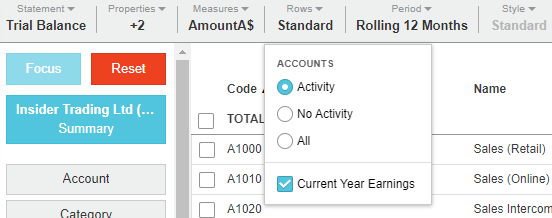
The **Rows** menu allows you to show or hide the items with activity, determining which rows are displayed in the financial statement and giving you a simple way to identify active or inactive items. In a Trial Balance statement, you can also show or hide the Current Year Earnings row.
The behavior of the **Rows** menu is consistent with the Analytics nested grid, as it shows the result for the first dimension, which in Financial Statements is the Statement Group category.
The options in the **Rows** menu might be different depending on the database you are analyzing. Your administrator can customize the option labels in Designer to meet your business requirements. The labels are usually in the context of *Activity*, *No Activity,* or *All*.
## Use the activity filter
Use the **Rows** menu as an activity filter to switch between viewing rows with Activity, No Activity, and All (items with both activity and no activity)\*.
* **Activity**: Only the items for which there have been transactions in the selected period and where the result is not zero. Typically, this is the default view.
* **No Activity**: Only the items with *no* transactions in the selected period. The results depend on how up-to-date your source data is. For example, you might see items that have been discontinued or those that had no activity within the period.
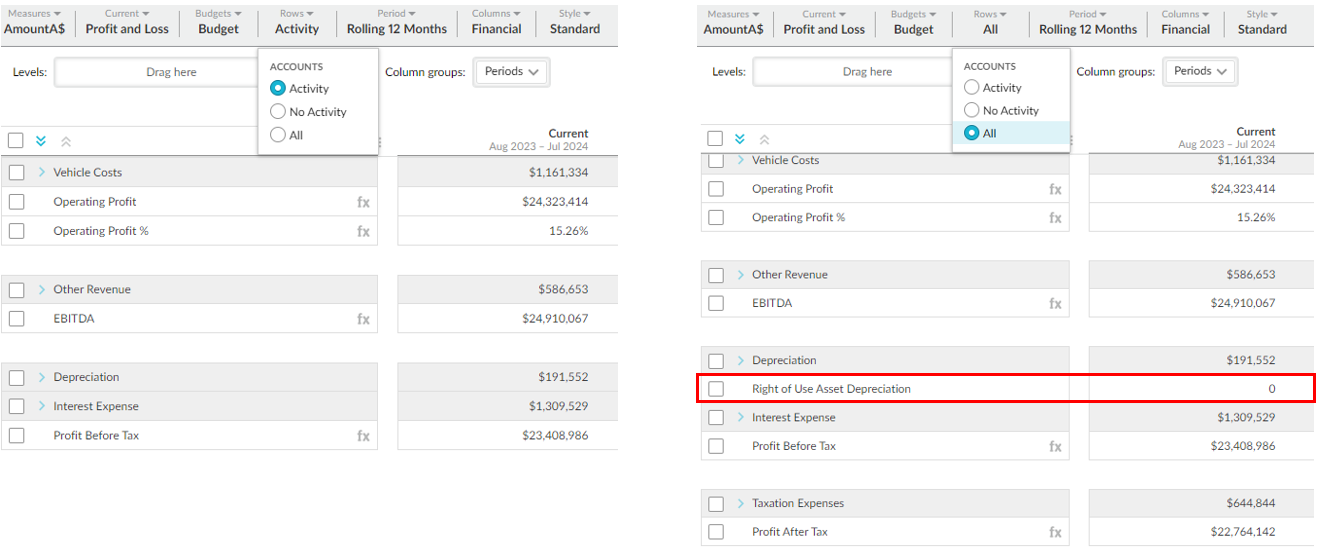
* **All**: Combines the other two options to show all accounts, regardless of whether a transaction has occurred. For example, in the second image below, there’s a statement group called Right of Use Asset Depreciation, which would previously not have shown in the selected period, as the transaction values are nil.
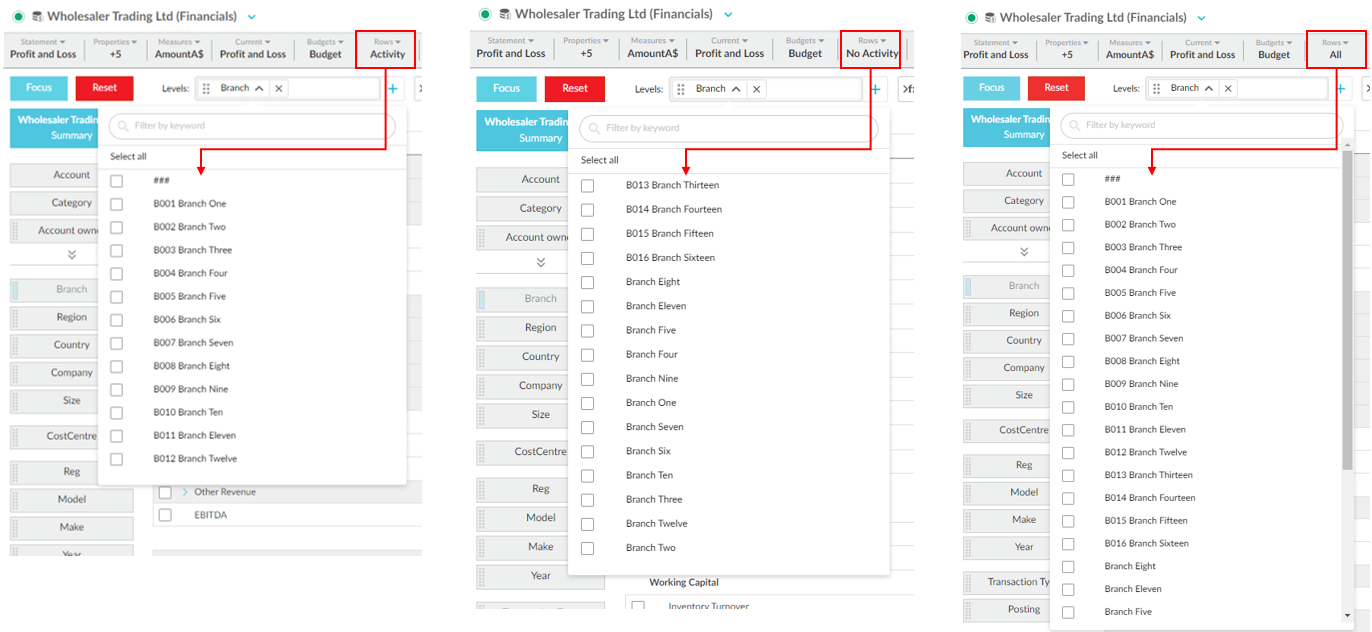
When adding levels to the statement, the **Levels** drop zone references the activity filter and updates as follows:
* When **Rows** > **Activity** is selected, the list contains items with activity.
* When **Rows** > **No Activity** is selected, the list contains items with no activity.
* When **Rows** > **All** is selected, the list contains all items with and without activity.
All of the items in the list are selectable.
## Hide the current year earnings in a Balance Sheet
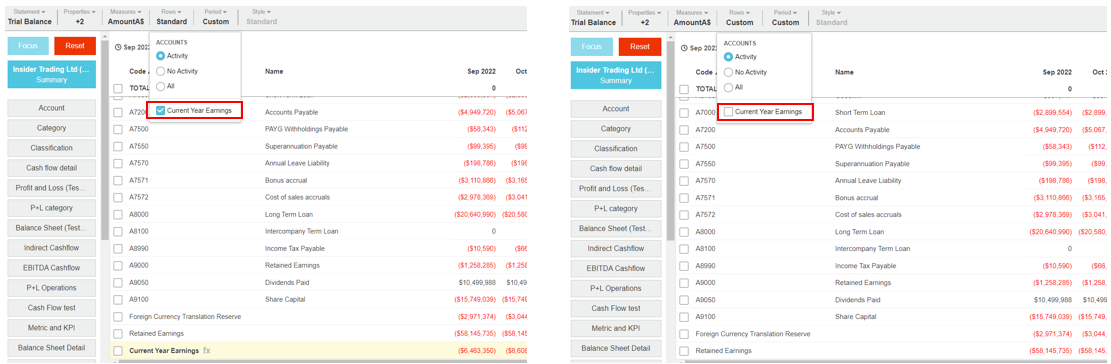
By default, the current year earnings row displays on the Trial Balance statement, but you can hide it from view.
Click the **Rows** menu and clear the **Current Year Earnings** checkbox. Your selection persists in favorites and dashboards.
---
# Agent Instructions
This documentation is published with GitBook. GitBook is the documentation platform designed so that both humans and AI agents can read, navigate, and reason over technical content effectively. Learn more at gitbook.com.
## Querying This Documentation
If you need additional information that is not directly available in this page, you can query the documentation by asking a question.
Perform an HTTP GET request on the following URL with the `ask` and `goal` query parameters:
```
GET https://docs.phocassoftware.com/financial-statements/using-statements/customize-your-view-financial-statements/change-the-rows-activity-filter.md?ask=&goal=
```
`ask` is the immediate question: it should be specific, self-contained, and written in natural language.
`goal` is what the user is ultimately trying to achieve, the reason they need the answer. Sharing it helps GitBook give you a better, more relevant answer. A goal is most helpful when it describes the outcome the user wants rather than restating the question. For example, with `ask=how do I create an API token`, a goal like `automate deployments from our CI pipeline` lets GitBook tailor the answer to that use case.
The response will contain a direct answer to the question and relevant excerpts and sources from the documentation.
Use this mechanism when the answer is not explicitly present in the current page, you need clarification or additional context, or you want to retrieve related documentation sections.