> For the complete documentation index, see [llms.txt](https://docs.phocassoftware.com/llms.txt). Markdown versions of documentation pages are available by appending `.md` to page URLs; this page is available as [Markdown](https://docs.phocassoftware.com/financial-statements/using-statements/select-and-focus-on-data-financial-statements.md).
# Select and focus on data
Select and focus on items in a financial statement to view information at a lower level of detail and deepen your analysis.
In a financial statement, you can select:
* Rows, such as a range of accounts and/or groups.
* Snippets of data, such as a list of account names and their values.
You can then quickly view the average, count and sum (where applicable) of the selected data or copy the selected data for use elsewhere, such as a Microsoft Excel worksheet. In the case of selected rows, you can proceed to focus on the data to filter the statement to just those rows.
By default, row selection is cumulative. You will be familiar with this behavior if you use the Analytics grid. To override this behavior (select only one row at a time), press and hold down the **Ctrl** key while you make your selection.
## Select rows
To display the **Select** (checkbox) button, hover over the left side of a row.
* To select one or more rows: Click the **Select** button.
* To select multiple consecutive rows quickly, either:
* Click the first **Select** button, hold and drag your mouse up or down the other rows, then release your mouse.
* Select the first row, hold down the **Shift** key, select the last row, then release the **Shift** key.
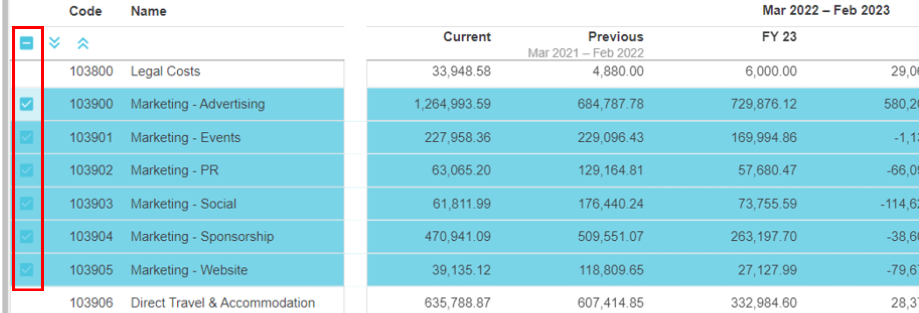
* To select all rows: Click the **Select all** button in the top left corner of the grid.
When you select one or more rows, those rows turn blue and the blue **Selection** button displays in top left corner of the grid.
### Deselect rows
When you deselect a row it returns to white. To deselect one or more selected rows, or all rows, use one of the above selection methods, as applicable.
You can click the **Reset** button to deselect all rows but that action will also reset any other settings you have applied to the grid.
### Identify selected rows
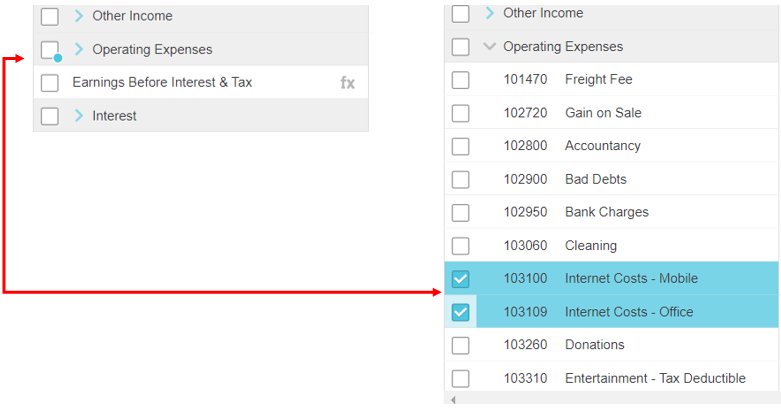
When you select one or more rows in a group, then collapse that group so the selected rows are no longer visible, the breadcrumb icon displays on the checkbox of that group row to indicate that it has some selected rows. This indicator is particularly useful if you are editing a dashboard widget in which multiple rows are selected.
## Select snippets of data
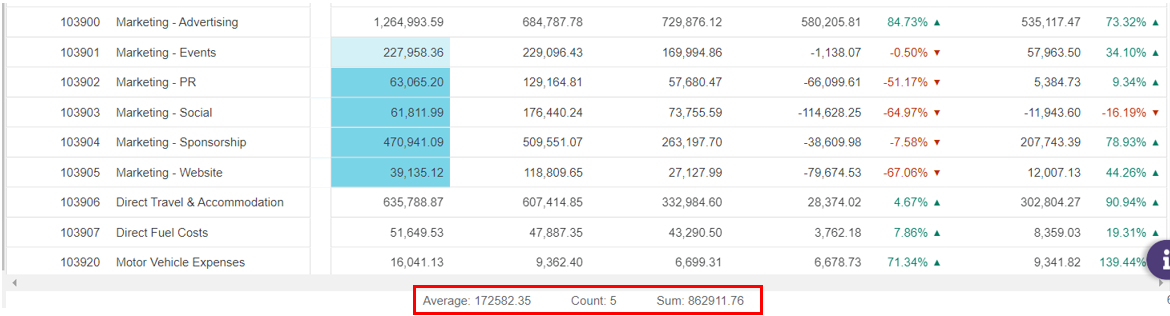
You can select one or more cells in the grid. Your selection can include a mix of cell contents, such as a code, name or value. When you select a cell it turns blue and information displays at the bottom of the grid (see next section).
* To select one cell: Click the cell.
* To select multiple, consecutive cells, either:
* Click and drag your mouse over the cells.
* Click the first cell, press and hold the **Shift** key, click the last cell, then release the **Shift** key.
* To select multiple, non-consecutive rows: Select the first cell, hold down the **Ctrl** key, select the other cell(s), then release the **Ctrl** key.
### View average, count and sum of selected data
Your administrator may turn off permission to view count, sum and average via your profile setting.
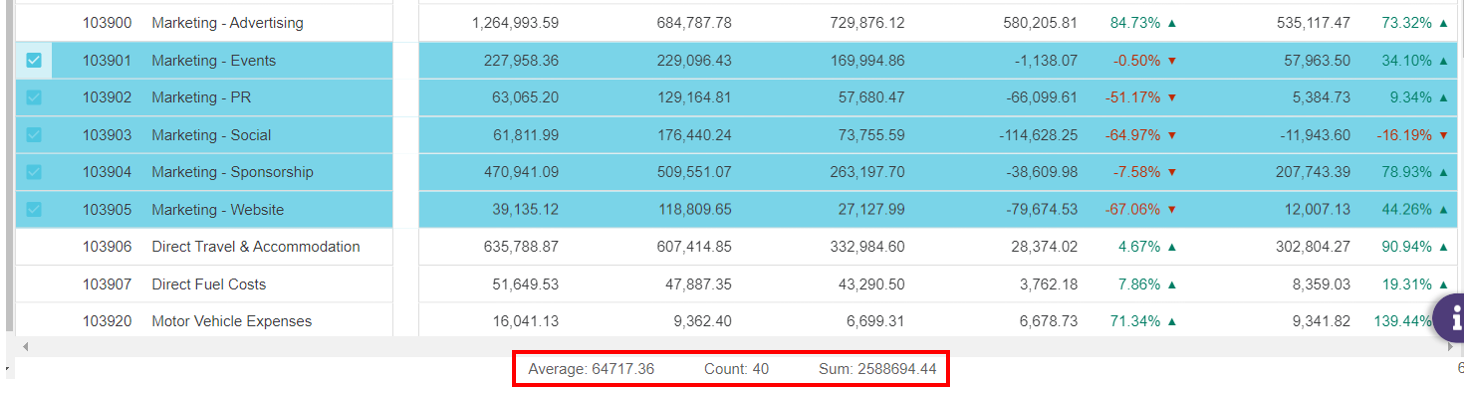
When you select one or more rows or cells in the grid, the following information displays in a status bar at the bottom of the grid:
* **Average** of the numerical values in the selection (if applicable).
* **Count** of cells in the selection.
* **Sum** of the numerical values in the selection (if applicable).
## Focus on data
To analyze specific accounts and/or groups (categories) in a financial statement more easily, you can focus on rows in a Financial Statement.
Select the required rows, then click the **Focus** button. The grid filters to show just your selected rows, and the filter displays above the grid.
{% hint style="success" %}
**Focus** gives you a quick, flat view of the selected rows. If you want to see how those rows contribute to the full statement (categories, calculations, and so on), use the [**Filters**](/financial-statements/using-statements/filter-the-financial-information.md#filter-using-the-filters-area) area instead.
{% endhint %}
### Adjust mappings for selected rows
{% hint style="info" %}
User permission: Manage custom statements
{% endhint %}
If you identify one or more accounts sitting under the wrong group while reviewing a statement, you can jump straight into remapping them without leaving the statement.
1. Select the account rows you want to remap (see [Select rows](#selectandfocusondatainafinancialstatement-selectrows) above).
2. Click Adjust mappings in the selection bar that appears.
You will be taken to the Map accounts view, with the selected accounts already filtered and pre-selected, ready for you to select the correct group in the Mapping column. This saves you the manual trip through **Manage Statements** > **Edit statement** > **Map accounts** tab.
---
# Agent Instructions
This documentation is published with GitBook. GitBook is the documentation platform designed so that both humans and AI agents can read, navigate, and reason over technical content effectively. Learn more at gitbook.com.
## Querying This Documentation
If you need additional information that is not directly available in this page, you can query the documentation by asking a question.
Perform an HTTP GET request on the following URL with the `ask` and `goal` query parameters:
```
GET https://docs.phocassoftware.com/financial-statements/using-statements/select-and-focus-on-data-financial-statements.md?ask=&goal=
```
`ask` is the immediate question: it should be specific, self-contained, and written in natural language.
`goal` is what the user is ultimately trying to achieve, the reason they need the answer. Sharing it helps GitBook give you a better, more relevant answer. A goal is most helpful when it describes the outcome the user wants rather than restating the question. For example, with `ask=how do I create an API token`, a goal like `automate deployments from our CI pipeline` lets GitBook tailor the answer to that use case.
The response will contain a direct answer to the question and relevant excerpts and sources from the documentation.
Use this mechanism when the answer is not explicitly present in the current page, you need clarification or additional context, or you want to retrieve related documentation sections.