> For the complete documentation index, see [llms.txt](https://docs.phocassoftware.com/llms.txt). Markdown versions of documentation pages are available by appending `.md` to page URLs; this page is available as [Markdown](https://docs.phocassoftware.com/flex-modes/explore-your-data/filter-data/focus-or-exclude-data.md).
# Focus or exclude data
Use Focus and Exclude to quickly control which items remain in your analysis.
{% hint style="info" %}
User permission: **Query**
{% endhint %}
Use **Focus** to keep selected items and filter out everything else. Use **Exclude** to remove selected items and keep the remaining data.
For example, you might focus on several customers to compare their performance, or exclude a small number of unusually high-performing customers to analyze the remaining group.
Focus and Exclude create filter rules automatically. You can view or edit these rules in the Advanced filter panel.
### Focus on data
Focus on selected data when you want to analyze a specific set of items.
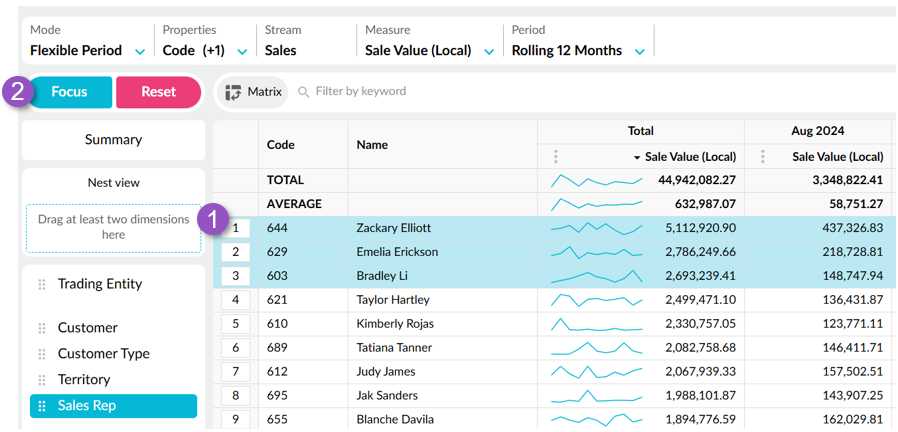
1. Select one or more rows.
2. Select **Focus** in the toolbar or press **F**.
The grid updates to show only the focused items.
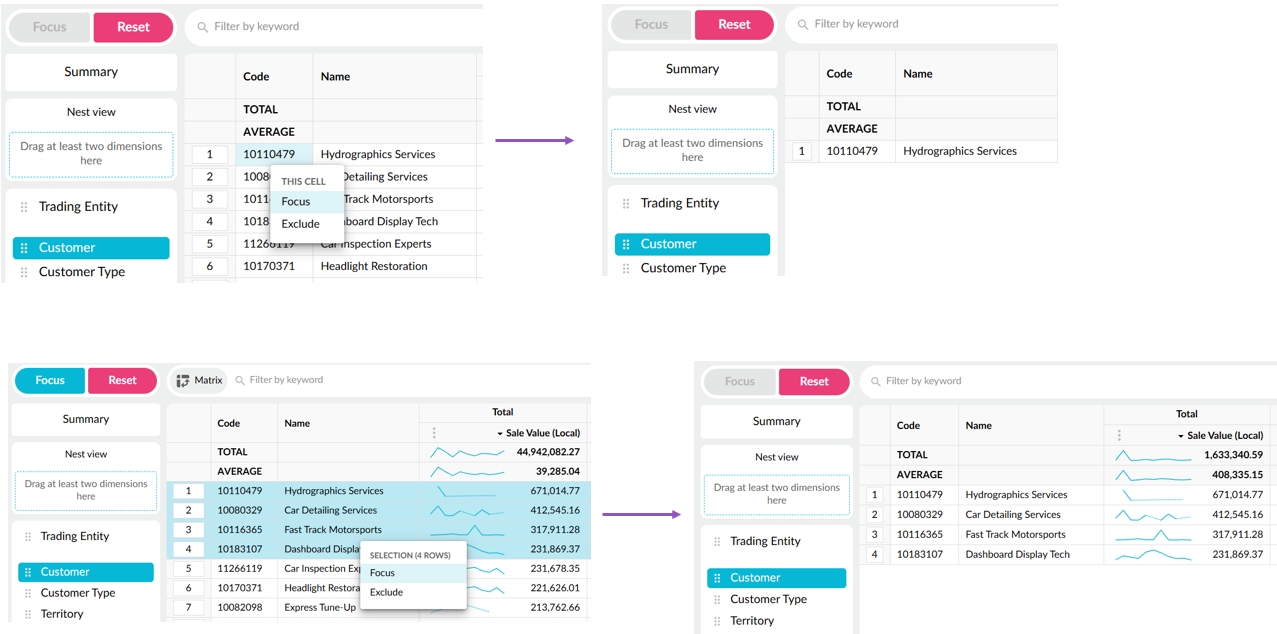
For a quicker method, right-click a cell, selected cells, or selected rows and select **Focus**.
Using the right-click menu to quickly focus on a cell or selection of rows
### Focus on selected properties
Focus on property values when you want to filter by specific attributes rather than complete rows.
1. Select one or more property cells.
2. Right-click the selection.
3. Select **Focus**.
{% embed url="" %}
Use right-click focus to filter on properties
{% endembed %}
When you select multiple property cells in the same row, the criteria are based on that combination of values.
For example, if you select a **State** value and **Customer Type** value in the same row, you can focus on items that match that combination of properties.
If you select property cells across multiple rows, each row creates a separate group of filter conditions. The resulting filter rule displays in the Advanced filter panel.
### Exclude data
Exclude selected data when you want to remove a small number of items from the analysis while keeping everything else.
Exclude applies a not-equal condition to the selected data.
For example, suppose you're analyzing customer sales and only four customers are above your target. You can exclude those four customers to continue analyzing the remaining customers.
1. Select one or more rows or cells.
2. Right-click the selection.
3. Select **Exclude**.
The selected data is removed from the grid and an exclude filter is applied.
Use Exclude when it's quicker to identify the items you don't want than to select everything you want to keep.
### Remove filters
To remove an applied Focus or Exclude filter, see [Remove filters](/flex-modes/explore-your-data/filter-data.md#remove-filters).
---
# Agent Instructions
This documentation is published with GitBook. GitBook is the documentation platform designed so that both humans and AI agents can read, navigate, and reason over technical content effectively. Learn more at gitbook.com.
## Querying This Documentation
If you need additional information that is not directly available in this page, you can query the documentation by asking a question.
Perform an HTTP GET request on the following URL with the `ask` and `goal` query parameters:
```
GET https://docs.phocassoftware.com/flex-modes/explore-your-data/filter-data/focus-or-exclude-data.md?ask=&goal=
```
`ask` is the immediate question: it should be specific, self-contained, and written in natural language.
`goal` is what the user is ultimately trying to achieve, the reason they need the answer. Sharing it helps GitBook give you a better, more relevant answer. A goal is most helpful when it describes the outcome the user wants rather than restating the question. For example, with `ask=how do I create an API token`, a goal like `automate deployments from our CI pipeline` lets GitBook tailor the answer to that use case.
The response will contain a direct answer to the question and relevant excerpts and sources from the documentation.
Use this mechanism when the answer is not explicitly present in the current page, you need clarification or additional context, or you want to retrieve related documentation sections.