> For the complete documentation index, see [llms.txt](https://docs.phocassoftware.com/llms.txt). Markdown versions of documentation pages are available by appending `.md` to page URLs; this page is available as [Markdown](https://docs.phocassoftware.com/sales-insights/manage-customer-segmentation/edit-customer-segmentation.md).
# Edit customer segmentation
After you complete the Customer segmentation setup for a database, you can edit or delete its configuration at any time. You can also edit how the segmentation works.
## Edit or delete configuration
With the Sales Insights database open, click the kebab menu at the end of the configuration bar and choose the applicable option:
* **Edit configuration**: Open the configuration to make changes.
* **Delete configuration**: Remove the current setup and unconfigure the database for Sales Insights. You can then start a new configuration.
## Edit customer segmentation
You can further tailor how the segmentation works for your business. This gives you greater control and flexibility over which customers are included in calculations and how they are segmented, ensuring the results accurately reflect how you evaluate your customers.
### Remove customers
The **Remove customers** feature allows administrators to exclude specific customers from Sales Insights calculations. When customers are removed, they are excluded before any metrics are calculated. This means they do not contribute to customer counts, revenue totals, segmentation, or any other Sales Insights results.
You may want to use this feature to exclude customers who are closed, inactive, known anomalies or outliers, or otherwise not relevant to your analysis. Removing these customers ensures your customer segmentation reflects only the customers that are meaningful to your business decisions.
{% embed url="" %}
Remove customers from Sales Insights calculations
{% endembed %}
1. Click the kebab menu at the end of the configuration bar, and Select **Remove customers**.
2. Choose the dimension you want to use (for example, Customer Type or Region), or select individual customers.
3. Select the values to exclude.
4. Save your changes.
Selected exclusions appear as labelled tags, making it clear which customers are currently removed.
### Edit thresholds sets
Threshold sets allows administrators to define alternative segmentation thresholds for specific customer groups. By default, Customer Segmentation uses a single set of thresholds to determine value bands, such as monetary spend levels. Threshold sets enable different groups, such as customer types, sales reps, or other dimensions, to use customized thresholds that better reflect their typical performance or spend.
{% embed url="" %}
Edit threshold sets for specific customer groups
{% endembed %}
This is useful when customer groups have significantly different characteristics. For example, retail customers may require lower spend thresholds than wholesale customers, or new sales reps may manage smaller accounts than experienced reps. Tailored thresholds help ensure segmentation remains meaningful and aligned with your business structure.
To create a threshold set:
1. Click the kebab menu at the end of the configuration bar and select **Edit threshold sets**.
2. Select **Create** and enter a name for the threshold set.
3. Choose the filter criteria that will trigger the threshold set, for example Product Type = Specialty.
4. Define the threshold values to apply when those filters are selected.
5. Save your changes.
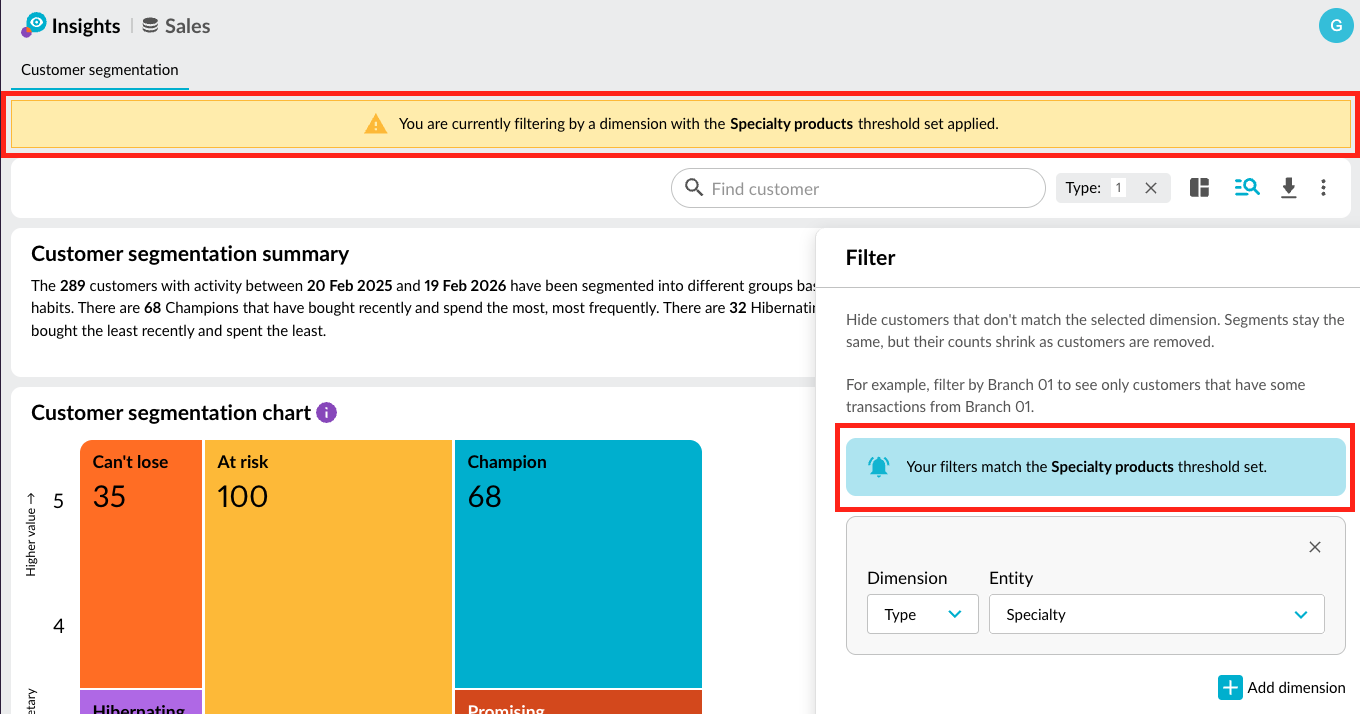
Threshold sets are applied only when a user selects filters that match the defined criteria. When matched, a notification will appear showing your filters match a threshold set.
The segmentation grid automatically updates to reflect the customized thresholds. If no matching filters are selected, the default thresholds remain in place.
---
# Agent Instructions
This documentation is published with GitBook. GitBook is the documentation platform designed so that both humans and AI agents can read, navigate, and reason over technical content effectively. Learn more at gitbook.com.
## Querying This Documentation
If you need additional information that is not directly available in this page, you can query the documentation by asking a question.
Perform an HTTP GET request on the following URL with the `ask` and `goal` query parameters:
```
GET https://docs.phocassoftware.com/sales-insights/manage-customer-segmentation/edit-customer-segmentation.md?ask=&goal=
```
`ask` is the immediate question: it should be specific, self-contained, and written in natural language.
`goal` is what the user is ultimately trying to achieve, the reason they need the answer. Sharing it helps GitBook give you a better, more relevant answer. A goal is most helpful when it describes the outcome the user wants rather than restating the question. For example, with `ask=how do I create an API token`, a goal like `automate deployments from our CI pipeline` lets GitBook tailor the answer to that use case.
The response will contain a direct answer to the question and relevant excerpts and sources from the documentation.
Use this mechanism when the answer is not explicitly present in the current page, you need clarification or additional context, or you want to retrieve related documentation sections.