
Edit customer segmentation
As an administrator, you can edit or delete a database's configuration and tailor its customer segmentation.
Edit or delete the configuration
Update the setup when you need to change how customer segmentation or customer profiles are configured. You can also delete the configuration and set up the database again.
From the Customer segmentation page, click the three-dot menu and choose an option:
Edit configuration: Opens the Insights setup page at step 1, Data, where you can update the setup.
Delete configuration: Removes the current setup and unconfigures the database for Sales Insights. In the confirmation window, click Delete to confirm, or Cancel to keep the setup.

You can also edit the customer profile settings from the Customer profile page. Click the three-dot menu, then click Edit configuration. The Insights setup page opens directly at step 6, Customer profile. Update the customer profile mappings, then click Done. Changing these mappings generates opportunities again in the background.
Edit customer segmentation
Remove customers or define threshold sets to tailor segmentation to your business.
Remove customers
The Remove customers feature allows administrators to exclude specific customers from Sales Insights calculations. When customers are removed, they are excluded before any metrics are calculated. This means they do not contribute to customer counts, revenue totals, segmentation, or any other Sales Insights results.
You may want to use this feature to exclude customers who are closed, inactive, known anomalies or outliers, or otherwise not relevant to your analysis. Removing these customers ensures your customer segmentation reflects only the customers that are meaningful to your business decisions.
Click the kebab menu at the end of the configuration bar and click Remove customers.
Choose the dimension you want to use (for example, Customer Type or Region), or click individual customers.
Click the values to exclude.
Save your changes.
Selected exclusions appear as labeled tags, making it clear which customers are currently removed.
Edit threshold sets
Threshold sets allow administrators to define alternative segmentation thresholds for specific customer groups. By default, Customer Segmentation uses a single set of thresholds to determine value bands, such as monetary spend levels. Threshold sets enable different groups, such as customer types, sales reps, or other dimensions, to use customized thresholds that better reflect their typical performance or spend.
This is useful when customer groups have significantly different characteristics. For example, retail customers may require lower spend thresholds than wholesale customers, or new sales reps may manage smaller accounts than experienced reps. Tailored thresholds help ensure segmentation remains meaningful and aligned with your business structure.
To create a threshold set:
Click the kebab menu at the end of the configuration bar and click Edit threshold sets.
Click Create and enter a name for the threshold set.
Choose the filter criteria that will trigger the threshold set, for example Product Type = Specialty.
Define the threshold values to apply when those filters are selected.
Save your changes.
Threshold sets are applied only when a user clicks filters that match the defined criteria. When matched, a notification will appear showing your filters match a threshold set.
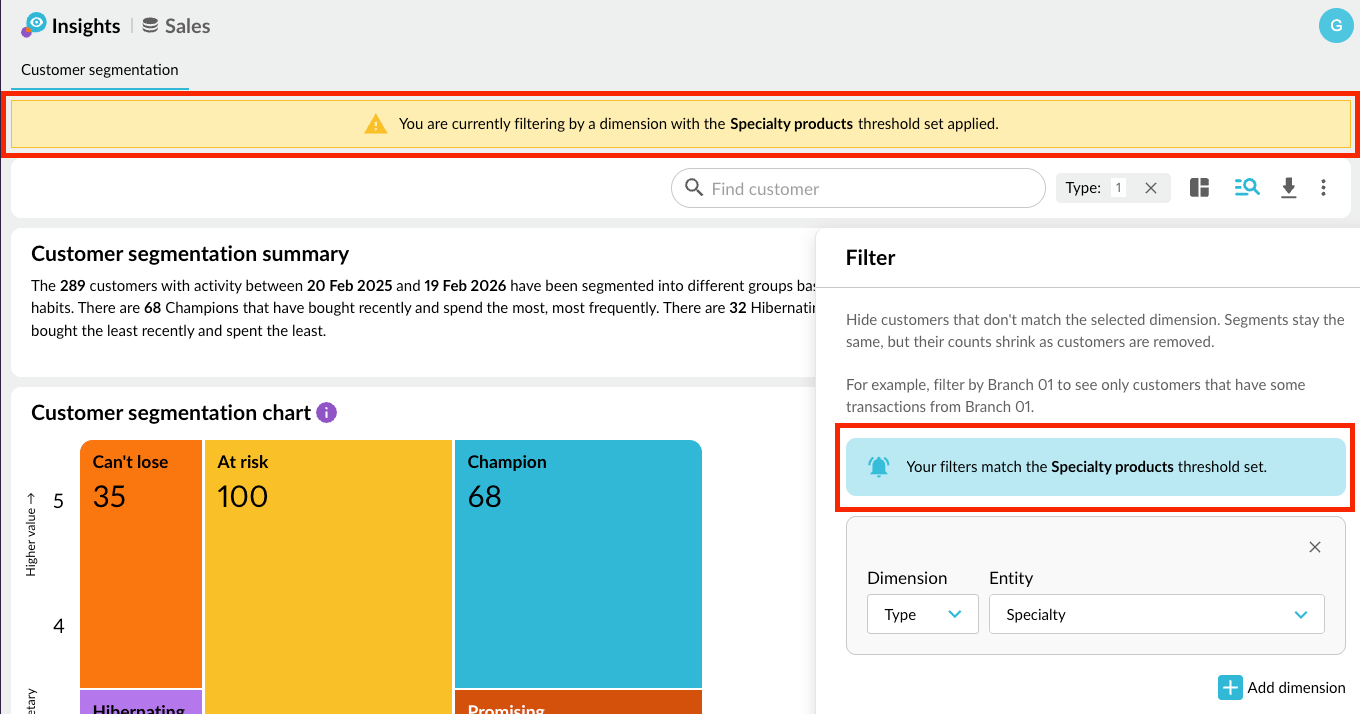
The segmentation grid automatically updates to reflect the customized thresholds. If no matching filters are selected, the default thresholds remain in place.
Last updated