> For the complete documentation index, see [llms.txt](https://docs.phocassoftware.com/llms.txt). Markdown versions of documentation pages are available by appending `.md` to page URLs; this page is available as [Markdown](https://docs.phocassoftware.com/sales-insights/explore-customer-insights/use-customer-segmentation.md).
# Use customer segmentation
Explore the Customer segmentation page and learn how the segmentation works.
{% hint style="info" %}
Your [data access](/basics/getting-started/data-access.md) might impact the segmentation results you see. For example, if you're restricted from accessing some customers, they won't be included in the segmentation.
{% endhint %}
Customer segmentation, a core feature in Sales Insights, automatically analyzes purchasing behavior to group your customers into meaningful segments and uncover key insights. The insights update as your data changes, so there's no need for manual recalculations.
Whereas you might already have a clear picture of your top customers and have a strong relationship with them, it’s likely you don’t know much about those customers that don’t buy often or much from you. You might not be aware of potential risks of losing customers.
These insights give you a better understanding of all your customers, helping you to quickly answer key business questions and take informed, targeted actions to drive retention, loyalty, and growth.
## Take a tour of Customer segmentation
The Customer segmentation page is organized into several sections, as identified by the numbers in the image and explained below.
1. **Configuration bar**: Search for a customer, resegment or filter customers, or download the data. If you're the Administration user, you can also edit or delete the configuration settings from here.
2. **Customer segmentation summary**: This is a quick overview of your most up-to-date customer data. It shows the total number of customers who were active within the current period (by default, the last 12 months). The summary cards on the right highlight the total sales value and the total number of active customers, so you can quickly understand the overall scale of your customer base and sales without digging into detailed data.
3. **Customer segmentation chart**: This is a visualization of how your customers are grouped based on their buying behavior, with supporting details.
* The chart visually groups your customers into segments (*Champion*, *Loyalist*, *At risk*, and so on) based on how recently and frequently they buy, and how much they spend.
* Each block in the chart contains the segment name and number of customers in that segment. The size and position of each block correspond to how that segment is structured (thresholds). It bears no relation to how many customers are in the segment. For example, segments higher on the chart show higher sales value; segments further right are more recent buyers.
* For more information, see [View segment details](#view-segment-details) and [Understand the segmentation](#understand-the-segmentation) below.
4. **Customer segmentation summary table**: This is a table that gives you a high-level view of all the segments and what they mean, and how the distribution of customers and revenue is split across them. It’s a quick way to compare the following metrics across all segments: Number of customers, average sales value, and total sales value.
{% embed url="" %}
An overview of the Customer segmentation page
{% endembed %}
## View segment details
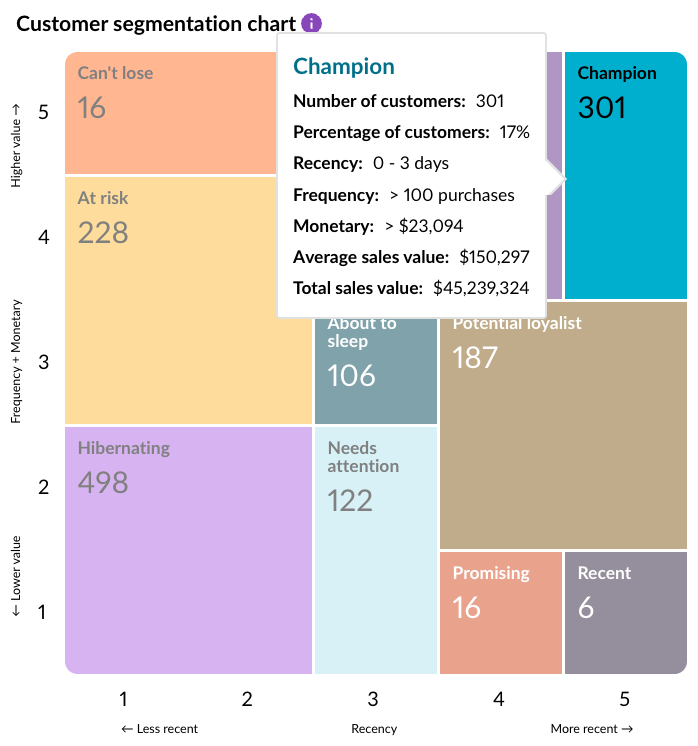
Hover over a segment in the chart to view a summary of its details, including how much revenue it represents.
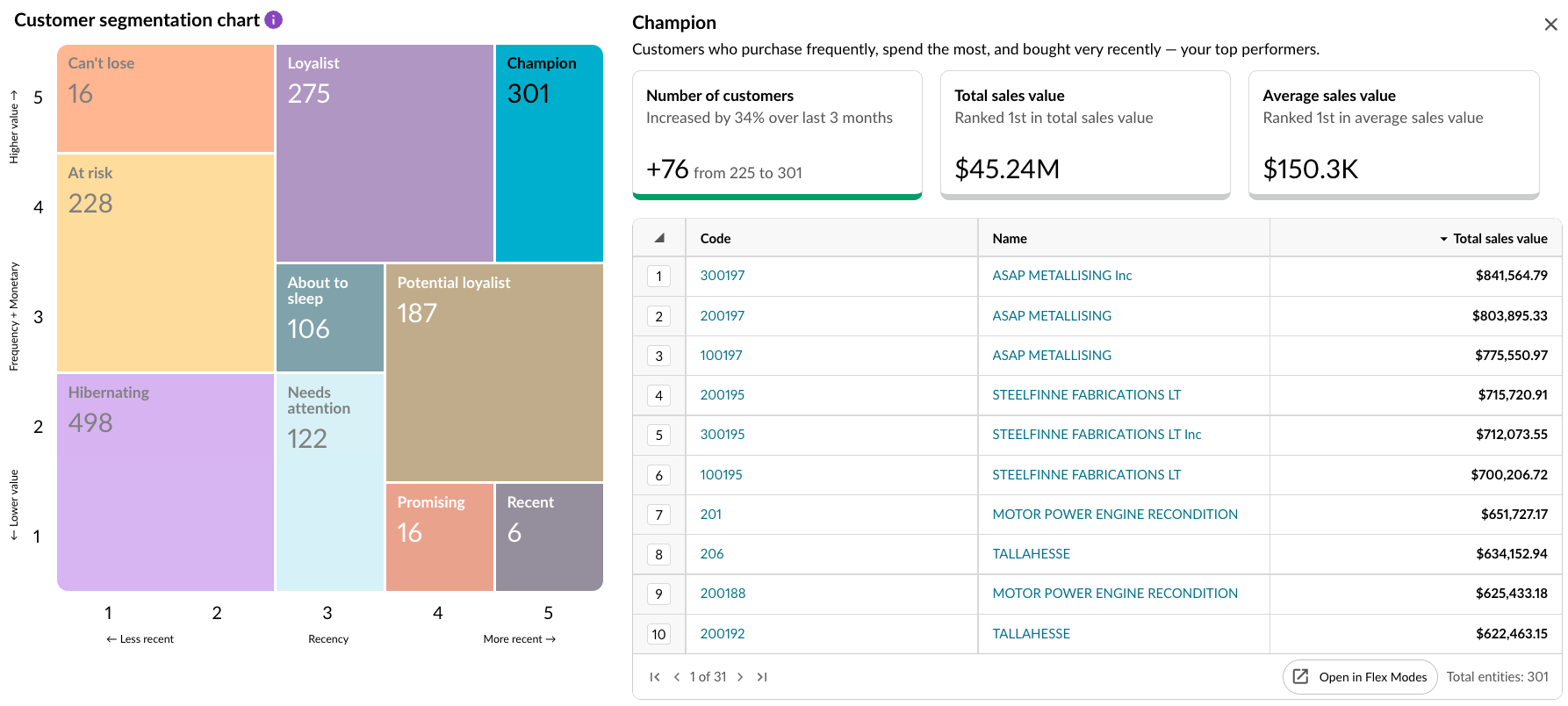
Click a segment in the chart to view its details on the right side of the chart, in summary cards and a table.
## Understand the segmentation
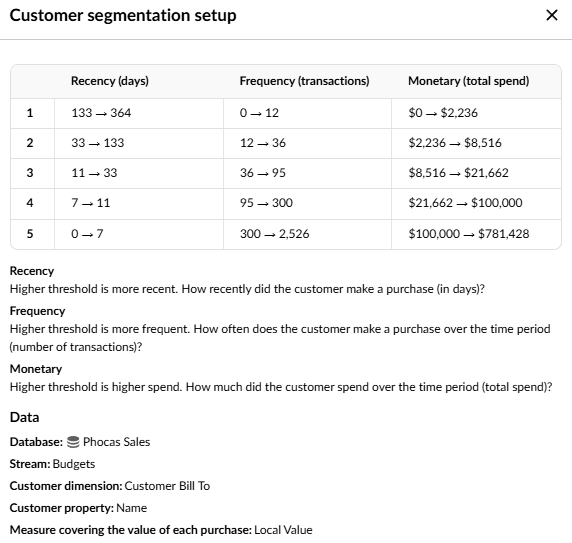
To understand how your customers were segmented, and how the chart was created, click the purple **Information** button next to the chart section header. This opens the **Segmentation setup** where you can see:
* A table of the Recency, Frequency, and Monetary (RFM) thresholds configured for the underlying database. They're grouped into five buckets (range 1 to 5) that determine the size and position of the segments in the chart.
* Brief description of the terms Recency, Frequency, and Monetary.
* Information about where the data comes from, including the dimension that was used in the segmentation calculation.
If you're the Administration user, this information will be familiar. For all other users, this is a handy snapshot of what's going on behind the scenes.
See [Understand RFM calculations](/sales-insights/understand-calculations/understand-rfm-calculations.md).
## Apply customer segmentation insights
Use customer segments to guide your sales and marketing activities. For example, you might:
* Focus on high-value customers and prioritize opportunities with the greatest return.
* Track purchase behavior, such as how often customers buy and when they last purchased.
* Adjust your outreach based on customer activity. For example, re-engage at-risk customers, tailor marketing campaigns, and focus your resources on the most valuable segments.
See Take action on customer segments to use your segmentation data in other Phocas modules.
***
## FAQs
Here are answers to some frequently asked questions about the Sales Insights: Customer segmentation feature.
1. **Is the segmentation always done on a 12-month basis? Can I update it for seasonal customer behavior?**\
Currently, the segmentation is calculated across a 12-month period. In the future, we'll be introducing for flexibility in the segmentation setup, allowing you to choose a specific time period.
2. **Can I add additional measures to the segmentation summary, such as margin percent?**\
Not right now, but we're working on it!
---
# Agent Instructions
This documentation is published with GitBook. GitBook is the documentation platform designed so that both humans and AI agents can read, navigate, and reason over technical content effectively. Learn more at gitbook.com.
## Querying This Documentation
If you need additional information that is not directly available in this page, you can query the documentation by asking a question.
Perform an HTTP GET request on the following URL with the `ask` and `goal` query parameters:
```
GET https://docs.phocassoftware.com/sales-insights/explore-customer-insights/use-customer-segmentation.md?ask=&goal=
```
`ask` is the immediate question: it should be specific, self-contained, and written in natural language.
`goal` is what the user is ultimately trying to achieve, the reason they need the answer. Sharing it helps GitBook give you a better, more relevant answer. A goal is most helpful when it describes the outcome the user wants rather than restating the question. For example, with `ask=how do I create an API token`, a goal like `automate deployments from our CI pipeline` lets GitBook tailor the answer to that use case.
The response will contain a direct answer to the question and relevant excerpts and sources from the documentation.
Use this mechanism when the answer is not explicitly present in the current page, you need clarification or additional context, or you want to retrieve related documentation sections.

 next to the chart section header. This opens the **Segmentation setup** where you can see:
* A table of the Recency, Frequency, and Monetary (RFM) thresholds configured for the underlying database. They're grouped into five buckets (range 1 to 5) that determine the size and position of the segments in the chart.
* Brief description of the terms Recency, Frequency, and Monetary.
* Information about where the data comes from, including the dimension that was used in the segmentation calculation.
If you're the Administration user, this information will be familiar. For all other users, this is a handy snapshot of what's going on behind the scenes.
next to the chart section header. This opens the **Segmentation setup** where you can see:
* A table of the Recency, Frequency, and Monetary (RFM) thresholds configured for the underlying database. They're grouped into five buckets (range 1 to 5) that determine the size and position of the segments in the chart.
* Brief description of the terms Recency, Frequency, and Monetary.
* Information about where the data comes from, including the dimension that was used in the segmentation calculation.
If you're the Administration user, this information will be familiar. For all other users, this is a handy snapshot of what's going on behind the scenes.