> For the complete documentation index, see [llms.txt](https://docs.phocassoftware.com/llms.txt). Markdown versions of documentation pages are available by appending `.md` to page URLs; this page is available as [Markdown](https://docs.phocassoftware.com/budgets-and-forecasts/owner-and-administrator/edit-a-budget-or-forecast-workbook-setup.md).
# Edit the workbook setup
Changes the way you set up a budget or forecast workbook.
{% hint style="info" %}
User permissions: Budgets & Forecasts and Manage Budgets & Forecasts
{% endhint %}
{% hint style="warning" %}
Read the [Best practices for efficient budgeting](/budgets-and-forecasts/owner-and-administrator/create-a-budget/best-practices-for-efficient-budgeting.md), as some practices relate to the workbook setup.
{% endhint %}
Suppose you've just created a new Sales budget workbook and are now exploring its layout and contents. You discover that it doesn't look as expected and you need to make some changes. For example, it has two levels: Country and Branch, but you want to add a third level for the Product Class.
You can edit the setup of a workbook at any time, but it's better to do it immediately after you create the workbook:
* Before you start the workflow and data entry process. When such changes are made later in the budgeting process, they are likely to be destructive.
* Before you add other worksheet tabs to the workbook. The addition of some tabs results in the structural settings in the setup becoming locked for editing. Only the budget owner can unlock these settings.
## Locked settings
The structural settings in the workbook setup are automatically locked if one of the following worksheet tabs are added to the workbook:
* Database
* Lookup
* Headcount
* Reference
* Balance Sheet
* Allocations
The locked structural settings are:
* Database and Statement (financial)
* Period type (you can still change the period)
* Baseline stream
* Dimension levels and filters
This editing restriction reduces the risk of losing data or breaking links, which could require a workbook restore. The budget owner can unlock these settings, as explained below.
## Destructive changes
Changes to the following settings are destructive:
* Database: You can only switch to another database of the same type; you can't switch from a financial budget to an operational budget and vice versa
* Template (for financial budgets only)
* Period type, including custom periods
* Start and end dates
* Stream
* Measure
* Offset
* Hierarchy: The hierarchy determines the level of detail in your budget or forecast, such as budgeting by department, region, or another dimension. Because the hierarchy defines the workbook structure, changing it effectively creates a new workbook.
When you change the hierarchy, anything that depends on the existing workbook structure is lost, including:
* Budget values you entered
* Formulas you created
* References between tabs
* Linked tabs
* Workflow settings
* Comments
* History
For example, if you create a budget without the **Department** level and later decide you need to budget by department, you can't simply add that level. The system can't determine how to distribute the existing values, formulas, or references across the new departments. In this case, you need to create a new budget with the correct hierarchy.
* Budget-wide filter
If your change is destructive, you will get a message informing you that it might change the budget structure, but you can still proceed with that change.
## Editing the setup
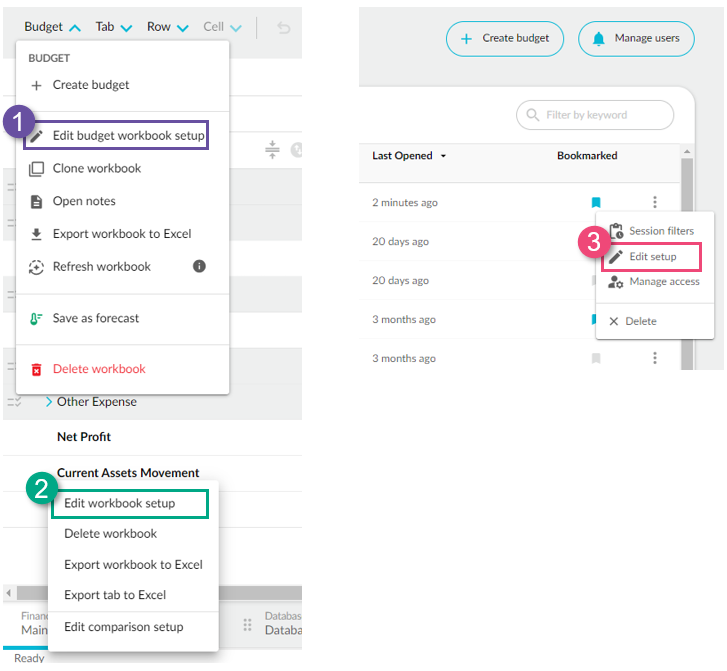
Use any of these methods to access the workbook setup:
* In the workbook, either:
* Click the **Budget** (or **Forecast**) menu and click **Edit workbook setup**.
* Right-click the **Main** tab at the bottom and click **Edit workbook setup**.
* On your Budgets & Forecasts homepage, locate the workbook, click its **Menu** button, and click **Edit setup**.
If the structural settings are locked, you will get a message informing you about it. Only the budget owner can unlock those settings for editing. If you're the budget administrator, you can edit the nonstructural settings.
{% hint style="warning" %}
**Note for budget owners**
Consider the impacts carefully before unlocking and editing the structural settings. It's a good idea to [clone](/budgets-and-forecasts/owner-and-administrator/clone-a-workbook.md) the workbook first, so you have a copy to fall back on.
To change locked settings, you can:
* **Remove the linked tabs**: If you're restructuring the workbook, delete all linked worksheet tabs first. The structural settings will be unlocked, available for editing.
* **Unlock the settings**: If you need to make a quick change, switch the **Structural settings** button to **Editable**, then make your changes. The setup automatically locks again after saving.
{% endhint %}
Make your changes, then click **Save and finish**.
---
# Agent Instructions
This documentation is published with GitBook. GitBook is the documentation platform designed so that both humans and AI agents can read, navigate, and reason over technical content effectively. Learn more at gitbook.com.
## Querying This Documentation
If you need additional information that is not directly available in this page, you can query the documentation by asking a question.
Perform an HTTP GET request on the following URL with the `ask` and `goal` query parameters:
```
GET https://docs.phocassoftware.com/budgets-and-forecasts/owner-and-administrator/edit-a-budget-or-forecast-workbook-setup.md?ask=&goal=
```
`ask` is the immediate question: it should be specific, self-contained, and written in natural language.
`goal` is what the user is ultimately trying to achieve, the reason they need the answer. Sharing it helps GitBook give you a better, more relevant answer. A goal is most helpful when it describes the outcome the user wants rather than restating the question. For example, with `ask=how do I create an API token`, a goal like `automate deployments from our CI pipeline` lets GitBook tailor the answer to that use case.
The response will contain a direct answer to the question and relevant excerpts and sources from the documentation.
Use this mechanism when the answer is not explicitly present in the current page, you need clarification or additional context, or you want to retrieve related documentation sections.
.png?alt=media)
.png?alt=media)