> For the complete documentation index, see [llms.txt](https://docs.phocassoftware.com/llms.txt). Markdown versions of documentation pages are available by appending `.md` to page URLs; this page is available as [Markdown](https://docs.phocassoftware.com/analytics/visualize-your-data-in-a-chart/pareto-chart.md).
# Pareto chart
{% hint style="info" %}
Available in a focused view (when you select and focus on items in a dimension), in Total mode only.
{% endhint %}
A Pareto chart shows the relative importance of differences between large sets of values. It shows cumulative totals of contributing factors to assess the success or failure metrics. It is often used for root cause analysis, in other words, to highlight the most significant cause of a certain outcome. It contains both columns and a line, with the columns representing individual values (in descending order) and the line representing the cumulative total.
Example 1: Use a Pareto chart to analyze sales revenue
In a Sales database, create a Pareto chart to see at a glance where the bulk of your revenue comes from.
1. Prepare the data in the grid: Select the **Customer** dimension, select **Mode** > **Total**, and select **Period** > **Financial YTD**.
2. Click the **Chart** button in the top right toolbar above the grid. The Bar chart type displays by default.
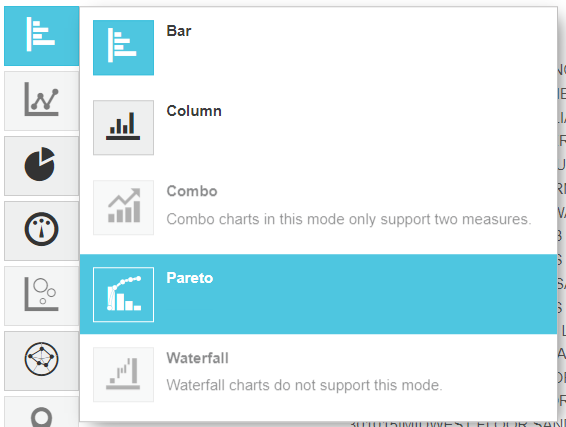
3. Click the **Bar** chart category button on the left of the chart and select the **Pareto** option.
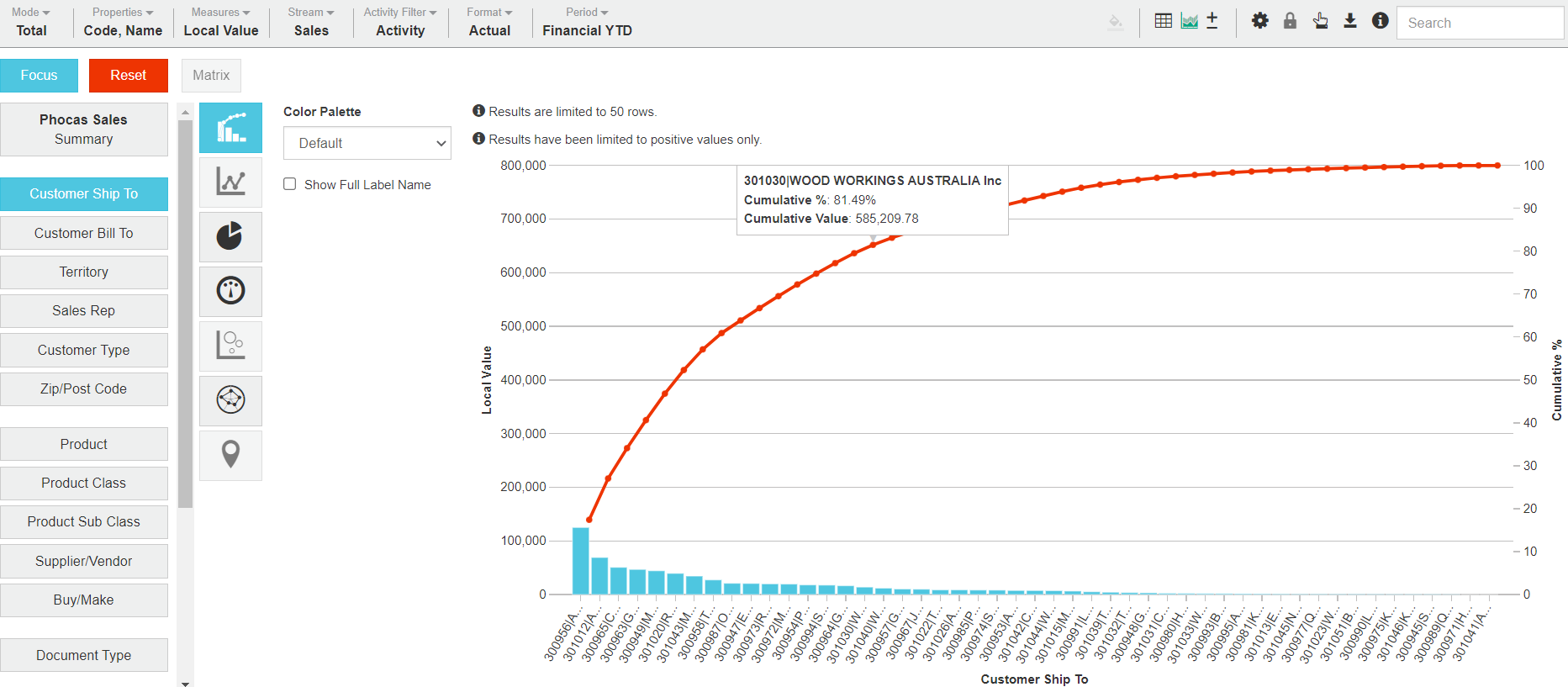
The columns display revenue for individual customers, while the pareto line charts the cumulative total. You can hover over a data point on the pareto line to view the entity name, cumulative value and cumulative percent of overall revenue.
Example 2: Use a Pareto chart to identify the cause of a decline in sales
As a Sales Executive, you have been alerted to a decline in sales over a three-month period. You want to find the major contributors to the decline, initially at a customer level and then drilling further into region or product information.
1. Prepare the data in the grid: Select the **Customer** dimension, then select and focus on the customers with sales of less than 200,000. Select **Mode** > **Total**, then select **Period** > **Financial YTD**.
2. Click the **Chart** button in the top right toolbar above the grid. The Bar chart type displays by default.
3. Click the **Bar** chart category button on the left of the chart and select the **Pareto** option. The columns display revenue for individual customers, while the pareto line charts the cumulative total. You can hover over a data point on the pareto line to view the entity name, cumulative value and cumulative percent of overall revenue. Now you have the customer overview, you can further slice and dice the data for a particular region, customer, product group or even product.
.png?alt=media)
***
{% hint style="success" %}
**Related pages**
You can take the following actions with your chart:
[Configure the chart options](/analytics/visualize-your-data-in-a-chart/configure-the-chart-options.md) | [Select and focus on a chart segment](/analytics/visualize-your-data-in-a-chart/select-and-focus-on-a-chart-segment.md) | [Use the chart legend](/analytics/visualize-your-data-in-a-chart/use-the-chart-legend.md) | Save the chart as a favorite | Add the chart to a dashboard | [Export a chart as an image](/analytics/visualize-your-data-in-a-chart/export-a-chart-as-an-image.md)
See also the main page: [Visualize your data in a chart](/analytics/visualize-your-data-in-a-chart.md)
{% endhint %}
---
# Agent Instructions
This documentation is published with GitBook. GitBook is the documentation platform designed so that both humans and AI agents can read, navigate, and reason over technical content effectively. Learn more at gitbook.com.
## Querying This Documentation
If you need additional information that is not directly available in this page, you can query the documentation by asking a question.
Perform an HTTP GET request on the following URL with the `ask` and `goal` query parameters:
```
GET https://docs.phocassoftware.com/analytics/visualize-your-data-in-a-chart/pareto-chart.md?ask=&goal=
```
`ask` is the immediate question: it should be specific, self-contained, and written in natural language.
`goal` is what the user is ultimately trying to achieve, the reason they need the answer. Sharing it helps GitBook give you a better, more relevant answer. A goal is most helpful when it describes the outcome the user wants rather than restating the question. For example, with `ask=how do I create an API token`, a goal like `automate deployments from our CI pipeline` lets GitBook tailor the answer to that use case.
The response will contain a direct answer to the question and relevant excerpts and sources from the documentation.
Use this mechanism when the answer is not explicitly present in the current page, you need clarification or additional context, or you want to retrieve related documentation sections.